
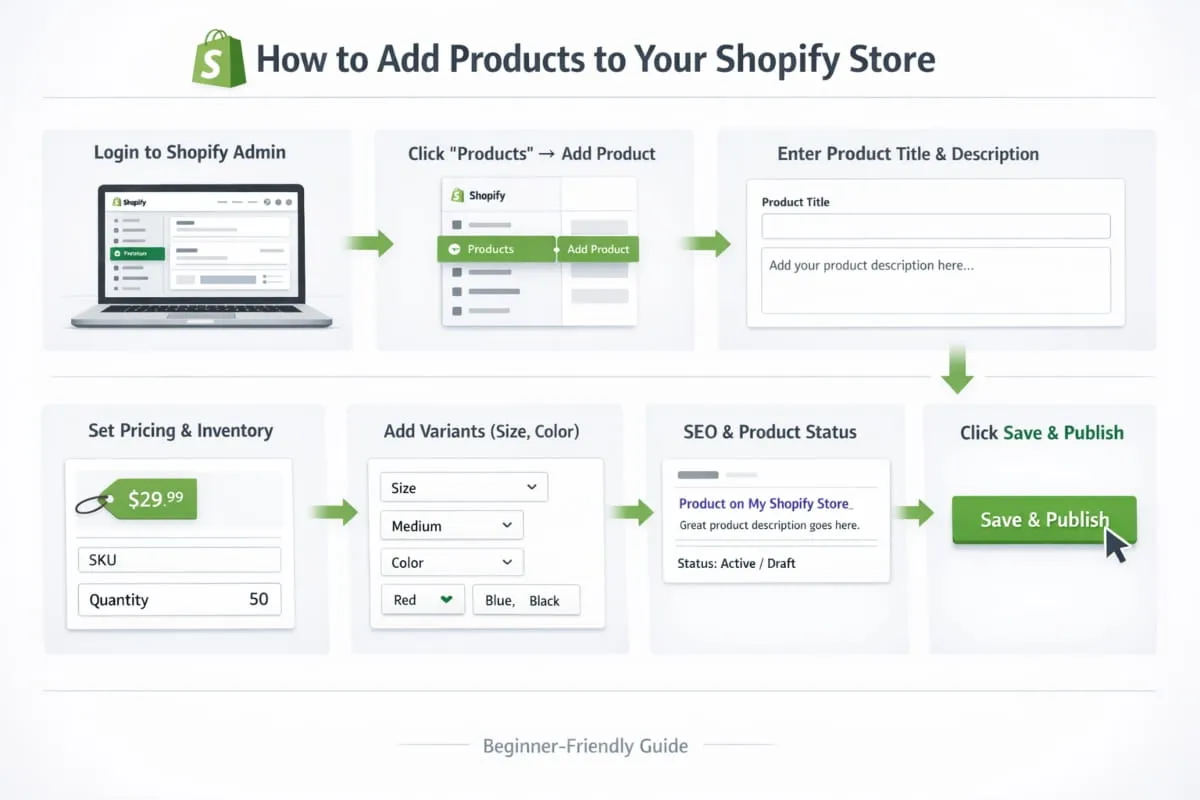
If you’re setting up your online business, one of the first big questions you’ll face is how to add products to your Shopify store the right way. It sounds simple: upload a photo, add a price, and click publish. But in reality, product setup inside Shopify determines how your Store looks, how it ranks, how it converts, and whether customers can actually find what you’re selling.
Many store owners rush this step and later struggle with issues like products not appearing in the storefront, incorrect pricing displays, missing variants, or inventory errors. The truth is, adding a product in Shopify isn’t just about listing an item; it’s about structuring it correctly from the beginning.
In this step-by-step guide for 2026, you’ll learn exactly how to add products to your Shopify store properly. We’ll walk through everything: creating a product in the Shopify admin, filling out required fields, setting up pricing and inventory, managing visibility and publishing settings, and fixing common product not showing problems.
Whether you’re launching your first product or scaling an existing store, this guide provides a complete, clear, and beginner-friendly process, all in one place.
Let’s start by understanding what adding a product in Shopify really means and how it impacts your entire store structure.
What Adding a Product in Shopify Actually Means
When people ask how to add products to my Shopify store, they’re usually thinking about one simple action: creating a product listing that customers can view and purchase. But inside Shopify, adding a product is more than uploading an item; it’s building a product record that controls how your item is displayed, organized, and made available across your store and sales channels.
A product in Shopify is essentially the core unit of your Store. It includes your title, description, images, price, inventory, variants (like size or color), shipping details, and visibility settings. Once that product is created properly, Shopify can place it in the right locations, whether that’s your storefront, a collection page, search results, or other channels like social selling.
To avoid confusion and setup mistakes, it helps to understand how Shopify separates products, collections, and pages, as each serves a different purpose.
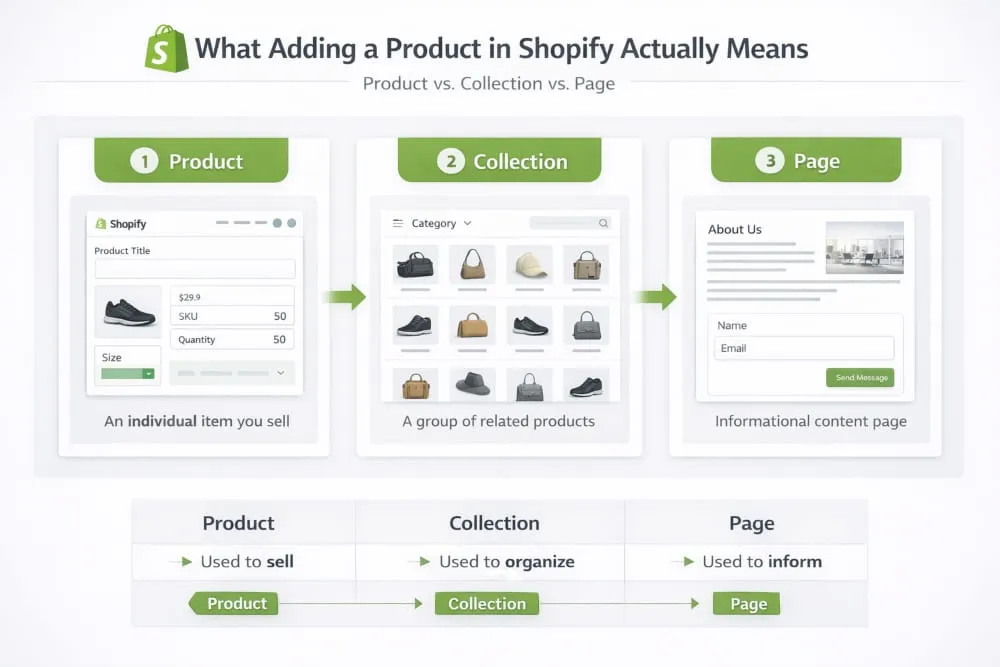
Product vs. Collection vs. Page (So You Don’t Mix Them Up)
A product is the actual item you sell. This is what customers purchase, add to cart, and check out with. Every Time you add a product to Shopify, you’re creating a dedicated product listing that can be displayed in your Store.
A collection is a group of products. Think of collections as categories like New Arrivals, Best Sellers, Hoodies, or Digital Downloads. Collections don’t replace products; they simply organize them. If you create products but don’t place them into collections, your Store can still function, but customers may struggle to browse effectively, especially if you have more than a few items.
A page is different from both. Pages are used for content that isn’t meant to be purchased, like your About Us, Contact, Shipping Policy, or Refund Policy. Pages can support trust and conversions, but they don’t contain products unless your theme or custom layout embeds them.
So when you’re learning how to add a product to my Shopify store, your focus should be on creating the product first, then organizing it into the right collections, and finally making sure it’s visible on your storefront through navigation and search.
Where Products Appear (Online Store, Sales Channels, and Search)
Once you add products to your Shopify store, they don’t automatically show everywhere unless your settings allow it. Shopify can display your products in multiple places, but visibility depends on two things: product status and sales channel availability.
Your product can appear in:
- Online Store (your storefront): This is where most customers browse. If your product isn’t available to the Online Store channel or it’s set to draft, it won’t appear, even if it exists in your admin.
- Collections and category sections: Products show here when you assign them to collections or set up automated collection rules.
- Store search results: Shopify search can surface products, but only if they’re published and available where the customer is searching (usually your Online Store).
- Other sales channels: Depending on how your Store is set up, your products may also appear on social platforms, marketplaces, or in-person POS. The key point is: you’re not creating a different product for each channel, you’re controlling where the same product is available.
This is why many beginners think they added a product successfully, only for it to disappear from the storefront. In most cases, the product is created, but it’s just not published correctly, not assigned to the right sales channel, or not organized into collections that customers can actually access.
Next, we’ll go through a quick checklist you should prepare before adding products, so you can set them up cleanly the first Time and avoid the most common mistakes.
Before You Add Products (Quick Checklist)
Before you jump into the Shopify dashboard and start clicking Add product, take a moment to prepare. If you truly want to understand how to add products to my Shopify store the right way, preparation is what separates a clean, professional setup from a messy one that needs constant fixing later.
Adding products in Shopify is simple. Adding them correctly is strategic.
A few minutes of planning will save you hours of editing, troubleshooting, and re-optimizing down the line.
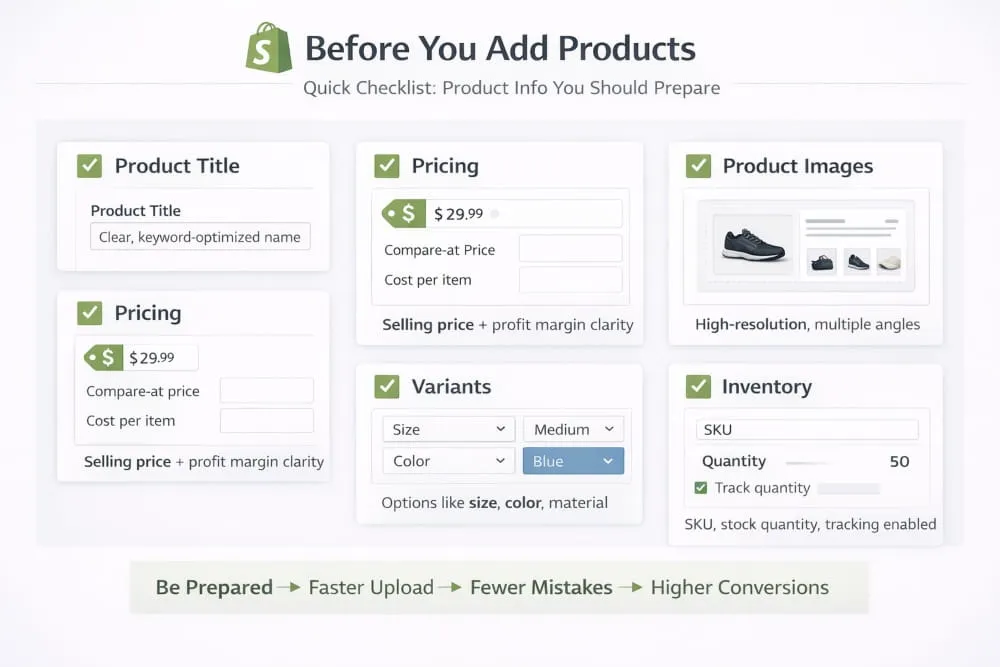
Product Info You Should Prepare (Title, Pricing, Images, Variants, Inventory)
When you add a product to Shopify, you’re filling in structured fields that power your storefront. If you don’t prepare this information in advance, you’ll either rush the process or leave important sections incomplete.
Start with your product title. This isn’t just a name, it’s how customers and search engines understand what you’re selling. Keep it clear, descriptive, and aligned with what buyers would actually search for.
Next is your pricing structure. Decide:
- Your selling price
- Compare-at price (if you plan to show discounts)
- Cost per item (for internal profit tracking)
Your images should be high quality, consistent, and professionally presented. Blurry or mismatched images immediately erode trust. Shopify supports multiple images, so consider angles, close-ups, and lifestyle shots if relevant.
If your product comes in different sizes, colors, materials, or formats, prepare your variants in advance. This prevents confusion when setting up options like Small / Medium / Large or Red / Blue / Black.
Finally, clarify your inventory details. Know your SKU (if you use one), stock quantity, and whether you’re tracking inventory inside Shopify. Many product not available issues happen simply because inventory wasn’t configured properly.
When you prepare these elements beforehand, adding products to your Shopify store becomes smooth, organized, and scalable.
Choose Product Type: Physical vs. Digital
One of the most important decisions before you add products to Shopify is identifying whether you’re selling a physical item or a digital product.
A physical product requires shipping settings. You’ll need to configure weight, shipping charges, and, if applicable, fulfillment details. These products move through packaging and delivery workflows.
A digital product, on the other hand, does not require shipping. This includes ebooks, templates, courses, music files, or downloadable content. When adding digital products to your Shopify store, you’ll typically turn off shipping and ensure the delivery method is properly configured.
Choosing the correct type at the beginning prevents checkout errors and unnecessary shipping calculations later.
Decide If It Should Be Published Now or hidden.
Not every product needs to go live immediately.
Before adding products to your Shopify store, decide whether the product should be:
- Active and visible immediately
- Saved as a draft
- Scheduled or hidden from the Online Store channel
If you’re still refining descriptions, testing pricing, or preparing marketing materials, it’s smarter to keep the product in draft mode. Shopify allows you to create products without publishing them to customers.
Many store owners panic because their product isn’t showing, when in reality it was never set to Active or made available to the Online Store sales channel.
Being intentional about publishing ensures your storefront stays clean, professional, and ready for customers at the right Time.
Preparing these basics before you add a product to your Shopify store makes the entire process faster, cleaner, and mistake-free. Now that you’re ready, the next step is to walk through the exact process of adding a product in Shopify, step by step.
How to Add a Product to Shopify (Manual Add in Admin)
If you’re trying to figure out how to add products to my Shopify store, the manual method inside the Shopify admin is the cleanest place to start. It gives you full control over how your product looks, how it’s organized, and whether it appears in your Online Store right away. Once you learn this process, you’ll be able to add products to your Shopify store confidently, without missing settings that later cause visibility or checkout issues.
To manually add a product, go to your Shopify Admin and follow this path: Products → Add product. From there, Shopify will ask you to complete a series of fields. Each one plays a role in rankings, conversions, and storefront display.
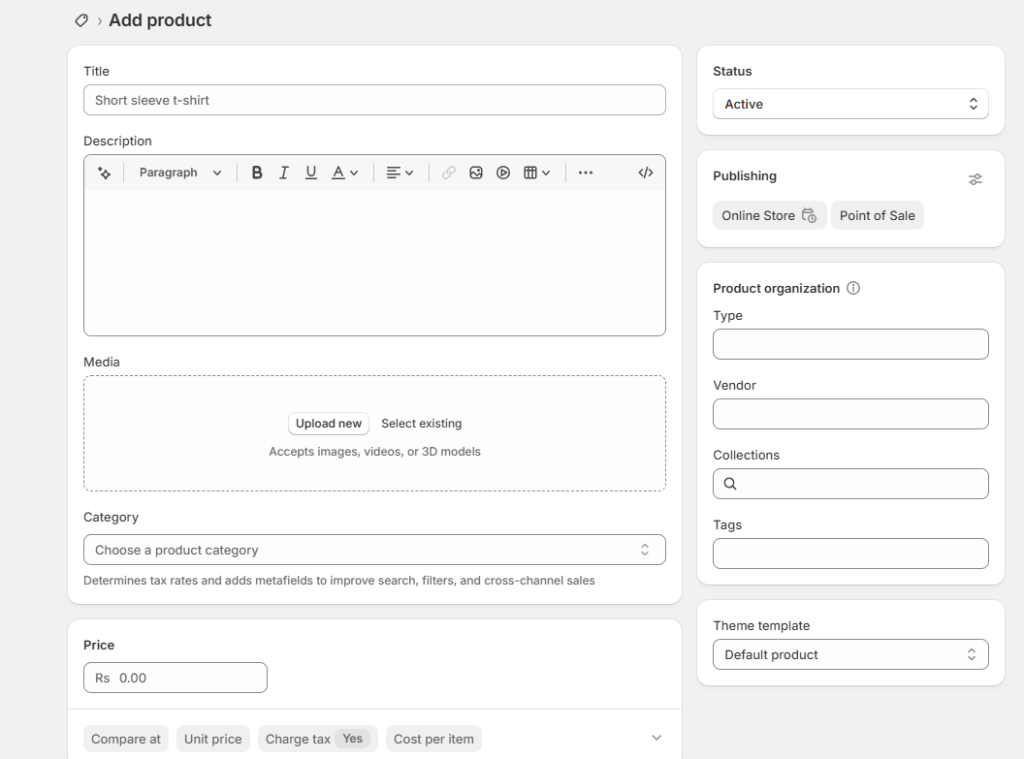
Create a Product Title + Description That Sells (and Ranks)
Your title and description are not just text boxes; they’re the foundation of your product page. A strong title makes it immediately clear what the product is, while a strong description explains why it’s worth buying.
When you add a product to Shopify, aim for a title that is:
- clear, specific, and buyer-friendly
- naturally aligned with how customers search
- free of unnecessary fluff or keyword repetition
Your description should do two jobs at once: sell to humans and help Shopify understand the product. That means writing clean, scannable paragraphs that highlight what the product is, who it’s for, what problem it solves, and what’s included. Instead of stuffing keywords, use natural language that matches buyer intent. If you do this well, you’ll rank more easily and convert better.
Add Media (Images) the Right Way
Images are often the deciding factor in whether someone trusts your product. When you add products to your Shopify store, your media should make the product feel real, premium, and easy to understand at a glance.
Use high-resolution images with consistent lighting and framing. Include multiple angles, close-ups, and any important details customers commonly ask about (texture, size reference, packaging, or included parts). If your product has variants, such as different colors, make sure your images clearly reflect those differences; otherwise, customers get confused and abandon the page.
Pricing Fields Explained (Price, Compare-at, Cost)
Shopify gives you multiple pricing fields because pricing isn’t just one number.
- Price is what the customer pays.
- The compare-at price shows a discount (Shopify displays the higher price crossed out).
- The cost per item is for your internal profit-tracking and reporting; it’s not shown to customers.
When you create a product and add it to Shopify, ensure your pricing aligns with your branding. A sloppy compare-at setup can make your product look like it’s constantly on sale, which can erode trust if it’s unintentional.
Inventory + SKU + Barcode Basics
Inventory settings control whether Shopify allows purchases, shows out of stock, and tracks what you have available. This is one of the most common areas where new store owners go wrong when they add a product to their Shopify Store.
If you track inventory, Shopify will reduce stock automatically after each sale. If you don’t track inventory, you can sell without limits, but that’s risky unless you’re selling digital items or made-to-order products.
SKU and barcode fields are optional for many beginners, but they become important once you scale:
- SKU helps you organize products internally (especially if you have many items).
- Barcode is usually used for retail scanning and certain fulfillment workflows.
Even if you don’t use barcodes now, using clean SKU naming from day one helps you stay organized later.
Shipping Settings (Weight, Origin)
If you’re selling physical products, shipping fields matter. Shopify needs weight and shipping details to calculate shipping rates and avoid checkout errors properly.
Set the product’s weight accurately and confirm your shipping origin (the location you ship from). Incorrect weight results in incorrect shipping charges, which can hurt conversions or cost you money on shipping.
For digital products, shipping usually doesn’t apply, so you’ll handle that differently (and we cover digital product setup separately in this guide).
Variants (Size/Color) Without Messy Duplication
Variants are how Shopify handles options such as size, color, pack quantity, and material. The key is to build variants cleanly so your Store doesn’t become cluttered with duplicate listings.
Instead of creating separate products for every color or size, use variants within a single product. This keeps reviews, SEO value, and conversion signals consolidated on a single product page. It also creates a better shopping experience because customers can choose their option without bouncing between multiple pages.
The cleaner your variants are, the easier it becomes to manage pricing, inventory, and images without confusion.
Product Status: Draft vs. Active (When to Use Each)
This is the final step that determines whether your product is visible.
When you add products to a Shopify store, you can save them as:
- Draft: The product exists in your admin but is not visible to customers
- Active: the product can be published and shown on your Store (depending on channel settings)
Use Draft when you’re still preparing images, writing descriptions, or building collections. Use Active when the product is ready to sell, and you want it visible in your Online Store.
A lot of I added product to Shopify store, but it’s not showing issues happen because the product was left in Draft or wasn’t made available on the Online Store sales channel. Getting this status right prevents that frustration.
Once you’ve created and saved the product, the next step is to make sure it actually appears where customers can find it: in your Online Store, collections, and search. That’s where publishing and visibility settings come in, and that’s exactly what we’ll cover next.
Make Sure the Product Shows in Your Store
One of the most frustrating moments for new store owners comes right after they think they’ve figured out how to add products to their Shopify store, only for the products not to appear anywhere on the website.
In most cases, the product was created correctly. It just wasn’t made visible in the right places.
Adding a product and making it show are two different steps. If you want customers actually to see what you’re selling, you need to confirm sales channel availability, publishing status, theme display, and collection placement.
Let’s break this down clearly.
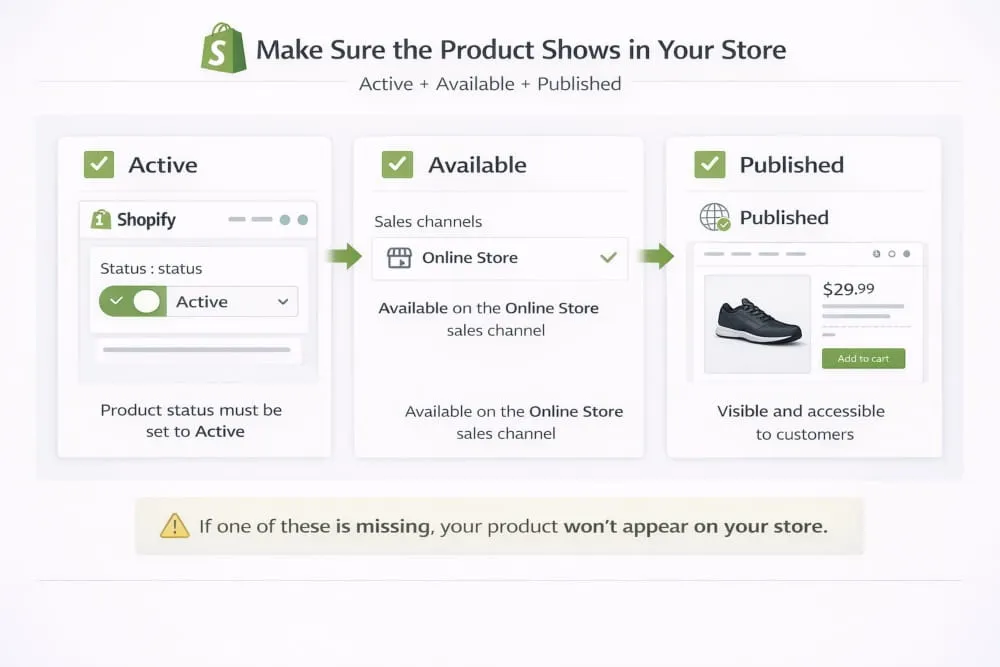
Sales Channels: Online Store Must Be Enabled
When you add products to your Shopify store, you can control where each product is available. These locations are called sales channels.
If your goal is to show the product on your website, the Online Store channel must be enabled for that product.
Inside the product settings, look for the section labeled Sales channels and apps. Make sure the Online Store is selected. If it’s unchecked, the product exists in your admin but will never appear on your storefront.
Many beginners think something is broken when they add a product to Shopify and can’t see it live. In reality, the product simply wasn’t made available to the Online Store channel.
Visibility: Active + Available + Published
For a product to appear publicly, three things must align:
- The product status must be set to Active (not Draft).
- It must be available on the Online Store sales channel.
- It must not be restricted by scheduling or hidden settings.
If even one of these is misconfigured, your product won’t show.
For example, if you create a product and leave it in Draft mode, it won’t be visible. If it’s Active but not assigned to the Online Store channel, it still won’t appear. If inventory tracking is enabled but stock is zero, and your theme hides out-of-stock products, it may also disappear from collections.
When learning how to add a product to your Shopify store, understanding this visibility chain prevents most product not showing issues right away.
Product Template + Theme Display Basics
Your Shopify theme controls how products are displayed. Even if you add products to your Shopify store correctly, your theme layout determines whether they’re actually showcased.
Every product is assigned a product template. Most stores use the default template, but if you accidentally assign a custom template that isn’t properly configured, your product may not display as expected.
Additionally, some themes display products only when linked through collections or homepage sections. If you don’t add the product to a collection or featured section, it may technically exist, but customers won’t easily find it.
Always preview the product from the admin after publishing. If it loads correctly but isn’t visible in navigation, the issue is usually organization, not product creation.
Add Products to Collections (So Customers Can Find Them)
Creating a product is only half the job. Organizing it is what makes it discoverable.
Collections act as categories. Without collections, customers would have to rely entirely on search or direct links. When you add products to a Shopify store, make sure they’re assigned to the appropriate collections, like New Arrivals, Men’s Clothing, or Digital Downloads.
You can assign products manually or use automated collection rules. Either way, collections improve navigation, increase browsing time, and make your Store feel structured and professional.
If you’ve followed all the steps and your product is Active, available to the Online Store, properly templated, and added to collections, it will show correctly.
Now that your product is visible and live, the next step is learning how to speed up product creation and avoid repetitive manual work as your Store grows.
Add New Products Faster (Without Turning This Into an App Page)
Once you understand how to add products to my Shopify store, the next challenge is speed. Manually entering every detail from scratch works when you have one or two products. But as your catalog grows, that approach becomes inefficient.
The good news is that Shopify already includes built-in workflows that let you add products to your Shopify store faster, without relying on third-party apps or complicated integrations.
Efficiency isn’t about shortcuts. It’s about structure.
Duplicate an Existing Product (Fast Workflow)
One of the simplest ways to speed up product creation is by duplicating an existing product.
If you’re selling similar items, like the same shirt in different colors, or similar digital templates with small variations, you don’t need to rebuild everything from scratch. Instead, open a product in your Shopify admin and select Duplicate.
This copies the structure, including:
- Description formatting
- Pricing setup
- Variant structure
- Shipping settings
- SEO fields
From there, you only adjust what’s different, such as title, images, SKU, or specific variant details.
If you’re repeatedly asking, How do I add products to my Shopify store quickly?, duplication is the cleanest built-in solution. It keeps formatting consistent and reduces human error.
Use Consistent Naming + SKU Patterns to Save Time.
Speed doesn’t only come from clicking faster; it comes from thinking ahead.
When you add products to a Shopify store with a consistent naming system, you eliminate confusion later. For example, structured naming like:
Brand + Product Type + Key Feature
helps you maintain clarity across your catalog.
The same applies to SKUs. A clean SKU pattern, such as category initials, product number, and variant code, makes inventory management easier as your store scales. Instead of randomly typed SKUs, you’ll have a logical structure that saves Time when tracking stock, managing orders, or reviewing analytics.
Consistency reduces friction. And reduced friction makes adding new products faster every Time.
Bulk Workflow Concept (What It Is, When It Matters)
When your Store grows beyond a handful of items, you’ll eventually need a more scalable workflow.
Shopify allows bulk editing directly inside the admin. This means you can update multiple products at once, such as prices, inventory levels, tags, or product status, without opening each product individually.
Bulk workflows become essential when:
- Launching seasonal price updates
- Adjusting inventory across many items
- Updating tags for collections
- Activating multiple products at once
Instead of thinking of bulk editing as a technical feature, think of it as operational efficiency. It keeps your catalog organized and prevents repetitive manual edits.
Once you move from how to add a product to my Shopify store to managing dozens or hundreds of products, these workflows are what make the difference between a store that feels chaotic and one that runs smoothly.
Next, we’ll cover a specific type of product that requires a slightly different setup, digital products, and how to add them correctly inside Shopify.
How to Add Digital Products to Shopify
If you’re selling downloads like ebooks, templates, music, courses, or printable files, learning how to add products to my Shopify store comes with one extra layer: delivery. A digital product isn’t shipped in a box; it needs to be delivered instantly and correctly after payment, without confusing the customer or triggering shipping errors at checkout.
The good news is that adding digital products to Shopify still uses the same product setup process. You’ll create a normal product listing in your Shopify admin, just like a physical item. The difference is how you handle fulfillment and shipping settings so the experience feels smooth and professional.
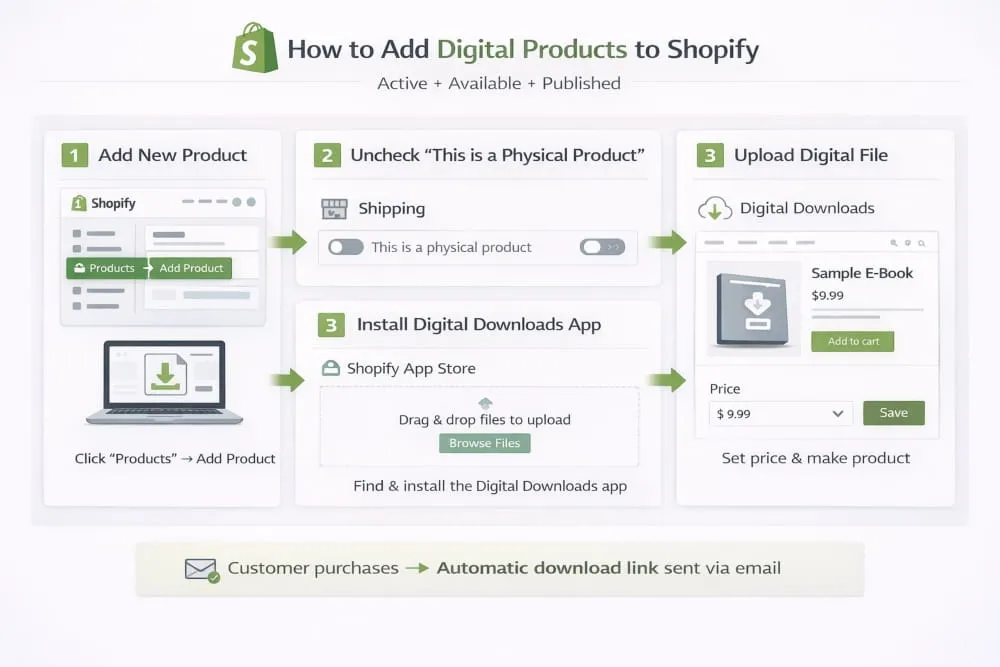
Digital Delivery Basics (What Shopify Needs to Fulfill)
For a digital product to work properly, Shopify needs two things: a clear product listing and a reliable way to deliver the file after purchase.
Your product page should clearly state what the customer is getting, how it will be delivered, and the format (e.g., PDF, ZIP, MP3, or a Canva template link). This reduces refunds, prevents confusion, and builds trust.
From a fulfillment perspective, a digital product needs a way to send the download after checkout automatically. In Shopify, the product itself is created normally, but the delivery part is handled by how fulfillment is configured for digital items. If the fulfillment workflow isn’t set up, customers may place an order but never receive their file, which is exactly where most digital product not working complaints come from.
Disable Shipping Where Appropriate
One of the most common mistakes people make when adding digital products is accidentally leaving shipping enabled.
If Shopify thinks your product requires shipping, customers may see unnecessary shipping fees, address fields, delivery options, and even shipping rate errors at checkout. That creates friction and kills conversions, especially for low-cost digital items.
For digital products, you want checkout to feel instant and clean. That usually means treating the product as a non-shippable item so the customer isn’t forced through a shipping process that doesn’t apply.
Common Mistakes That Cause Digital Product Not Working
Digital products usually fail for simple reasons, not complicated ones. The product is often created correctly, but the delivery or settings are missed. The most common issues include:
- The file isn’t actually attached to the order fulfillment workflow, so the customer pays but receives nothing
- Shipping remains enabled, creating extra checkout steps or pricing issues
- The product description doesn’t explain delivery clearly, leading to confusion and refund requests
- The product is left as a draft or not published to the Online Store, so it never appears publicly
When you handle delivery setup properly, turn off shipping where needed, and publish the product correctly, digital products in Shopify can run smoothly with minimal ongoing work.
Next, we’ll tackle the biggest pain point most beginners face after setting everything up: troubleshooting issues like product not showing or my products won’t add to my Shopify store, and how to fix them fast.
Troubleshooting, My Products Won’t Add or Product Not Showing
Even after you learn how to add products to my Shopify store, it’s completely normal to hit a wall where something doesn’t look right. Maybe you added the product, but it’s not appearing on your website. Or you’re trying to add products to a Shopify store, and it feels like the changes aren’t saving properly.
Here’s the truth: most Shopify isn’t working moments aren’t technical failures; they’re visibility settings, channel availability, theme behavior, or permissions. Once you know what to check, you can fix the issue in minutes.
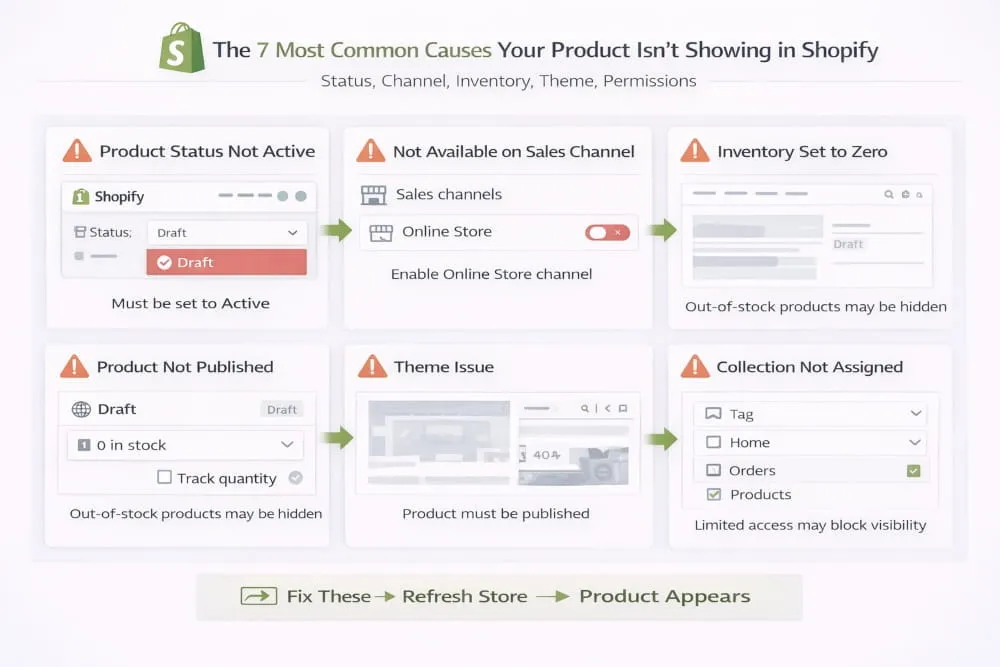
The 7 Most Common Causes (Status, Channel, Inventory, Theme, Permissions)
Product status is still Draft.
If the product is saved as Draft, it exists in your admin but won’t show publicly. This is the most common reason people say, I added a product to the Shopify store, but it’s not in the store.
The online store sales channel isn’t enabled for the product.
A product can be Active and still not appear if it isn’t available to the Online Store channel. If you only enabled another channel (or none), customers won’t see it on your website.
The product is not published or is restricted by visibility settings.
Sometimes the product is Active, but availability is limited by publishing settings, scheduling, or channel selections. Shopify separates created from visible, so a product can be real but not public.
Inventory settings are blocking visibility or purchase.
If inventory is tracked and your quantity is zero, your theme may hide it from collections or show it as sold out. Some stores also turn off continue selling when out of stock, which can make the product feel unavailable even though it’s in stock.
Theme or product template issues
If your product is assigned to a template that isn’t configured correctly, or your theme doesn’t display products unless they’re added to certain sections, your product may not show where you expect it.
The product isn’t in any collection or navigation path.
You can successfully add products to your Shopify store and still feel like they disappeared if they’re not linked anywhere customers can browse. If it’s not in a collection, not featured, and not searchable, it can feel invisible.
Permissions or account role restrictions
If you’re not the store owner or don’t have staff permissions, Shopify may restrict product editing, publishing, or channel settings. That can create a situation where my products won’t add to my Shopify store because the changes don’t fully apply.
Quick Fixes Checklist (In Order)
When something isn’t showing, don’t guess; check in a clean sequence. Start with the basics first:
- Confirm the product is saved successfully in Shopify Admin.
- Set product status to Active.
- Ensure the product is available on the Online Store sales channel.
- Verify inventory isn’t accidentally set to 0 (or adjust out-of-stock settings)
- Preview the product directly from the admin.
- Add the product to a relevant collection so it appears in browsing paths.
- Review theme/template settings if it still doesn’t show where expected.
This order matters because most issues are solved in the first two or three checks. Theme-level issues are real, but they’re usually not the first problem.
When to Test in an Incognito Window vs. Admin Preview
Shopify Admin preview is helpful because it shows you what the product page looks like inside the system, even if it isn’t fully visible to the public yet. It’s the best first step when you’re verifying whether the product is created correctly.
However, if you want to confirm what real customers can see, you should test in an incognito/private window. This avoids cached sessions, saved logins, and browser memory that can make you think a product is live when it’s not, or hide updates that are actually live.
A simple rule works well:
Use the admin preview to confirm the product is built correctly.
Use incognito to confirm the product is truly visible to customers.
Once you’ve resolved visibility issues, the final step is making sure customers can find your product quickly through search, collections, and a clean store structure, so your product pages don’t just exist; they actually sell.
Final Checklist (Publish-Ready Product in 60 Seconds)
If you’ve followed this guide on how to add products to my Shopify store, you’re almost done. Before you move on to marketing or launching ads, take one minute to run through this final checklist.
This is the difference between a product that simply exists in your Shopify admin and one that is fully live, visible, and ready to convert.
Required Fields
First, confirm the fundamentals are complete. A product without core details may technically be added, but it won’t perform well.
Make sure you have:
- A clear, descriptive product title
- A persuasive product description
- At least one high-quality image
- Correct pricing entered
- Inventory settings are configured properly
- Variants set up cleanly (if applicable)
If any of these are incomplete, your product may look unfinished or create confusion at checkout. When you add products to your Shopify store, completeness builds trust.
Visibility + Channel Confirmation
Next, confirm that the product is actually available to customers.
Check that:
- Product status is set to Active
- The Online Store sales channel is enabled
- There are no scheduling or hidden visibility restrictions
- Inventory is not accidentally set to zero (unless intentional)
Most product not showing issues are solved right here. If you’re ever unsure after adding a product to your Shopify store, preview it in the admin, then check it in an incognito window to see what customers see.
Collection + Navigation Sanity Check
Finally, make sure customers can actually find the product.
Ask yourself:
- Is this product assigned to the correct collection?
- Is that collection linked in your store navigation?
- Is the product searchable on the storefront?
You can successfully add products to a Shopify store, but if they’re not placed inside collections or connected to navigation menus, they’ll feel invisible.
When all three areas, product setup, visibility, and organization, are aligned, your product is truly publish-ready.
At this point, you’re not just learning how to add a product to your Shopify store. You’re building a structured, scalable catalog that looks professional, ranks well, and delivers a seamless buying experience for customers.
Frequently Asked Questions (FAQ’s)
How do I add products to my Shopify store?
To add products to your Shopify store, go to your Shopify Admin, click Products, then select Add product. From there, enter your product title, description, images, pricing, and inventory details. Once everything is set, change the product status to Active and make sure it’s available on the Online Store sales channel so customers can see it.
If you’re learning how to add products to my Shopify store for the first Time, focus on getting the basics right: clear product info, correct pricing, clean images, and visibility settings.
How do you add products to a Shopify store quickly?
The fastest way to add products to a Shopify store is to duplicate an existing product and edit only what needs to change. This is ideal when you’re adding similar items with the same structure, pricing layout, or variant setup.
You can also save Time by using consistent naming and SKU patterns so you’re not rethinking your format every Time you add products to your Shopify store. Once your catalog grows, Shopify’s bulk editing workflows help you update multiple products at once without opening each listing.
Can I add digital products to my Shopify store?
Yes, you can add digital products to your Shopify store. The setup starts the same way as a physical product: you create the product in Shopify, add the description and media, and set your price. The difference is ensuring digital delivery is handled correctly and that shipping isn’t applied when it shouldn’t be.
When you’re figuring out how to add digital products to my Shopify store, the key is ensuring customers receive their download after purchase and that the checkout experience stays clean.
Why isn’t my product appearing in my Shopify store?
In most cases, your product isn’t showing because of one of these issues: it’s still set to Draft, it isn’t available on the Online Store sales channel, or it isn’t properly published/visible. Inventory settings can also affect visibility if your theme hides out-of-stock products.
Start by checking product status, channel availability, and visibility settings. Then confirm it’s placed into the right collection and connected to navigation so customers can find it easily.


)