Whether you are a developer checking out a potential client, a marketer studying a competitor, or simply someone curious about what powers a store you like, knowing how to figure out if a website runs on Shopify is a genuinely useful skill. Shopify powers millions of online stores worldwide, and its technical fingerprints are scattered across every site it supports. You just need to know where to look.
This guide walks you through every detection method available in 2026, from a quick 30-second visual check to a deeper inspection of HTTP headers, JavaScript objects, and API patterns. It also covers stores that go out of their way to hide their infrastructure.
Why Identifying Shopify Stores Matters
Platform detection is not just a technical curiosity. Knowing whether a site runs on Shopify has concrete, practical applications across several professional roles.
For Developers and Agencies
If you are pitching Shopify development, customization, or migration services, you need first to confirm that a prospect’s store actually runs on Shopify. Proposing a Shopify redesign to a WooCommerce store wastes everyone’s time. Accurate platform identification is the foundation of credible outreach and proper project scoping.
For Marketers and Competitive Analysts
Knowing your competitors run on Shopify tells you a great deal about their operational stack, the apps they use, the checkout experience their customers go through, and the customization limitations they work within. That context sharpens your strategic thinking considerably.
For Investors and Researchers
Tracking which platforms dominate specific verticals such as fashion, health, or electronics provides meaningful data on market dynamics, Shopify’s growth trajectory, and where investment dollars are flowing in the e-commerce ecosystem.
Understanding How Shopify Stores Are Structured
Before diving into detection methods, it helps to understand what makes Shopify stores technically distinct. Shopify is a fully hosted SaaS platform, meaning every store shares a common infrastructure that leaves consistent and predictable traces.
The Frontend Layer
Shopify themes are built using Liquid, the company’s own open-source templating language. Liquid syntax appears throughout the page source of any standard Shopify store. The platform also bundles its own CSS and JavaScript assets that are loaded from Shopify’s content delivery network.
The Backend Layer
Shopify fully manages the backend, including checkout, inventory, and customer data. This means certain URL structures, HTTP headers, and checkout behaviors remain consistent across every Shopify store, regardless of how uniquely the front end has been designed.
The Infrastructure Layer
Shopify serves static assets such as images, fonts, and scripts through its own CDN. These assets load from domains like cdn.shopify.com and shopifyassets.com, which are exclusive to the Shopify platform and appear in network requests for any standard store.
Manual Detection Methods
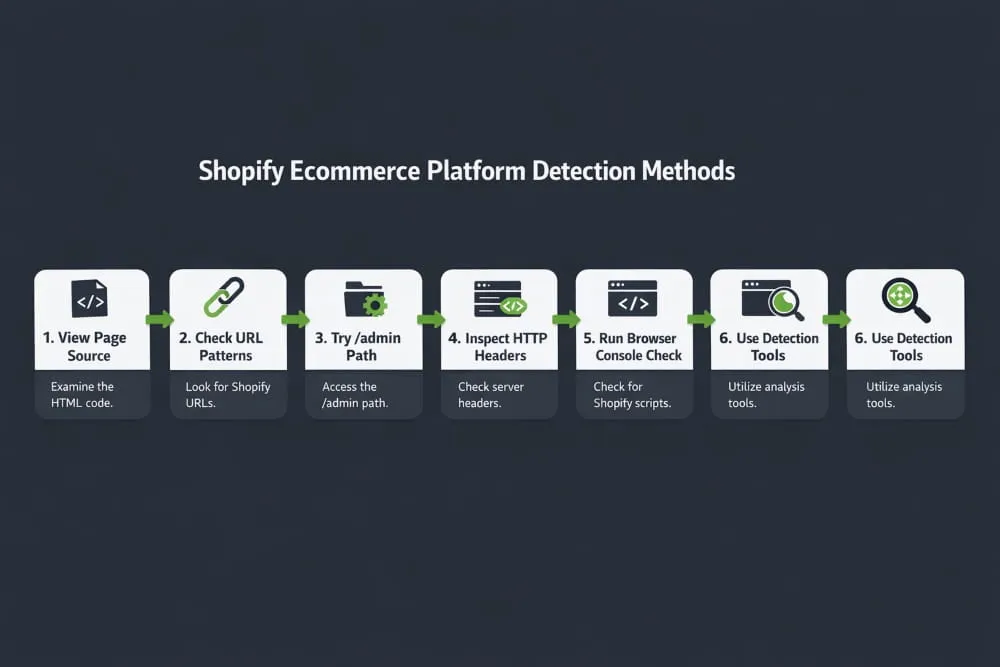
Manual checks are the most reliable way to confirm Shopify usage. They require no additional software and work for any store, including those that have customized their setup to minimize visible Shopify branding.
Method 1: Inspect the Page Source
This is the single most dependable check available. Right-click anywhere on the page and select View Page Source, or press Ctrl + U on your keyboard. Then search for the Word “Shopify” using Ctrl+F.
Standard Shopify stores will contain references such as cdn.shopify.com, Shopify.theme, window. Shopify, Shopify. routes, and Shopify Analytics. Even heavily customized themes usually leave at least one of these signals intact in the source code.
Method 2: Try the /admin Path
Append /admin to the store’s root URL. For example, if the store is at www.example.com, navigate to www.example.com/admin. If the site runs on Shopify, you will be redirected to the Shopify admin login page. Stores using custom domains will still redirect to Shopify’s login interface, even if their storefront domain does not mention Shopify.
Method 3: Check the URL Structure
Shopify enforces standardized URL patterns across all stores. Look at the address bar as you navigate the site. Shopify stores consistently use paths like /products/product-name, /collections/collection-name, /cart, and /checkout. These paths are built into Shopify’s routing system, and finding all of them together strongly suggests Shopify is the platform in use.
Method 4: Observe the Checkout
Add a product to the cart and proceed to checkout. Shopify’s checkout system is hosted on Shopify’s own infrastructure, so the checkout URL typically includes a pattern like /checkouts/ followed by a unique identifier. The checkout page itself also follows Shopify’s multi-step layout for contact information, shipping, and payment. This is one of the hardest patterns to replicate on any other platform convincingly.
Method 5: Check the robots.txt File
Navigate to the store’s robots.txt file by typing the domain followed by /robots.txt into your browser. Shopify’s default robots.txt file includes specific disallow rules and references that differ from those generated by other platforms. It will not confirm Shopify on its own, but it serves as a useful supporting signal when combined with other checks.
Method 6: Inspect HTTP Headers
Open your browser’s developer tools by pressing F12, go to the Network tab, reload the page, and click on the main document request. Look in the Response Headers section for Shopify-specific values such as X-ShopId, X-Shopify-Stage, and X-Sorting-Hat-ShopId. Shopify’s infrastructure injects these headers, making it extremely difficult to fake. If they appear, you have one of the strongest possible confirmations that the store runs on Shopify.
Automated Detection Tools
When you need to analyze many stores quickly, such as for a competitor audit, lead generation campaign, or market research project, manual inspection does not scale well. Automated tools can identify Shopify usage in seconds.
Widely used tools include Wappalyzer, BuiltWith, WhatRuns, and Store Leads. These tools scan page source code, script references, HTTP headers, and CDN domains to classify the underlying platform. Installing Wappalyzer or WhatRuns as a browser extension lets you see detected technologies, including Shopify, directly in your toolbar as you browse.
One important limitation to keep in mind: automated tools can produce inaccurate results for headless Shopify stores, where the frontend is completely decoupled from Shopify’s theme layer. They can also be confused by sites that use the Shopify Buy Button widget embedded on a non-Shopify site. Always supplement automated results with at least one manual check when accuracy is critical.
Advanced Identification Techniques
JavaScript Object Detection
Open your browser console from the developer tools panel and type window. Shopify, then press Enter. On a Shopify store, this returns a JavaScript object with properties such as shop, currency, routes, and theme. On a non-Shopify site, it returns undefined. This technique works even on highly customized stores that have stripped out visible Shopify branding from the page.
Third-Party App Fingerprinting
Shopify stores rely heavily on apps from the Shopify App Store, and these apps leave traces in the page source. Look for scripts loaded from /apps/ directories or network requests going to app-specific endpoints. If you spot integrations with tools like Klaviyo or Judge.me, Recharge, or Yotpo, note that these apps work almost exclusively with Shopify merchants, which adds further weight to your identification.
CDN Domain Analysis
Open the browser’s Network tab and filter requests to see where assets are loaded from. Domains like cdn.shopify.com and shopifyassets.com are exclusive to the Shopify platform. If your browser is loading images or scripts from these domains, you have definitive confirmation.
Meta Tag Inspection
In the page source, look for meta tags that contain the Word “Shopify” in their names or values. Many Shopify themes automatically inject store-specific meta tags that reference Shopify’s systems, providing another confirmatory signal.
Spotting Shopify Plus Stores
Shopify Plus is the enterprise tier of the platform, used by high-volume and well-known brands. It does not announce itself with obvious labels, but a few signals point strongly toward Plus usage.
Shopify Plus lets merchants fully customize the checkout template, unlike basic Shopify plans. If a store’s checkout page features a heavily branded layout with custom fonts, loyalty program integrations, or unique upsell flows built directly into the checkout experience, that is a strong indicator of Shopify Plus.
Other Plus signals include the use of Shopify’s Storefront API at scale, multiple storefronts operating under a single organization, and the presence of enterprise-tier tools referenced in the page source. Large, recognizable brands with obviously polished and non-standard storefronts are strong candidates for Shopify Plus.
Detecting Headless Shopify Stores
Headless commerce is a growing architectural approach in which the storefront is built with modern JavaScript frameworks like Next.js, Nuxt, or Remix, completely decoupled from Shopify’s theme system. These stores can look and behave nothing like a standard Shopify store, and they will fool most automated detection tools. However, the Shopify backend is still powering everything behind the scenes.
The most reliable approach is to follow the checkout. Even in a fully headless setup, adding an item to the cart and proceeding to checkout will almost always route through Shopify’s own checkout infrastructure. The checkout URL will reveal the Shopify origin regardless of how custom the storefront appears.
You can also look in the browser’s Network tab for calls to GraphQL JSON endpoints or requests to myshopify.com subdomains. Headless stores query Shopify’s Storefront API to fetch product and cart data, and these requests are visible in developer tools. Finally, the /admin path trick still works on headless stores, since the backend administration panel remains hosted on Shopify.
Avoiding False Positives
Not every site showing partial Shopify signals actually runs on Shopify. Two common scenarios trip up even experienced researchers.
The first is the Shopify Buy Button. Merchants can embed Shopify’s Buy Button widget on non-Shopify sites, including WordPress blogs and custom HTML pages. The embedded widget loads scripts from cdn.shopify.com, which can mislead source code scans. The telltale sign is that only a small, isolated cart or buy widget shows Shopify signals while the rest of the site’s architecture clearly points to a different platform.
The second is CDN obfuscation. Some brands route their Shopify assets through a custom CDN or reverse proxy, hiding the cdn.shopify.com domain entirely. In these cases, rely on the checkout URL, HTTP headers, and the browser console JavaScript object rather than CDN domains alone.
The general best practice is to confirm at least three independent signals before concluding that a site runs on Shopify. Checkout behavior, combined with HTTP headers and source code references, is a near-definitive indicator.
Ethics and Legality
Everything described in this guide uses publicly available information, including page source, network requests, and headers that any browser can access when visiting a website. This is entirely legal and is standard practice in web development, competitive intelligence, and platform research.
The important boundaries to respect are these: never attempt to use discovered information to gain unauthorized access to a store’s admin panel, and never use platform identification as a stepping stone to scrape private customer data or exploit security vulnerabilities. Responsible platform detection stays at the infrastructure and frontend signal level, using only what the website voluntarily sends to any visiting browser.
Real-World Use Cases
Shopify Agency Lead Generation
Agencies offering Shopify development, SEO, speed optimization, or migration services use platform detection to build targeted prospect lists. Identifying that a store runs on Shopify, and perhaps spotting which apps it currently uses or whether it could benefit from moving to Shopify Plus, turns a generic cold outreach into a relevant and personalized pitch.
Competitor Research
Understanding that a competitor runs on Shopify gives you insight into their operational constraints and capabilities, from their checkout experience to the apps they have access to. This context is valuable when planning your own store’s feature roadmap or positioning strategy.
Technology Market Analysis
Researchers and investors track Shopify’s market penetration across different verticals by identifying which stores use the platform. This data informs market-sizing reports, competitive landscape analyses, and investment decisions across the broader e-commerce technology ecosystem.
Quick-Reference Checklist
Use the following checklist when evaluating any store. The more signals that match, the higher your confidence.
- Page source contains cdn.shopify.com or window. Shopify
- URL structure includes /products/ and /collections/ paths
- The /admin path redirects to a Shopify login page
- Checkout URL routes through Shopify’s checkout infrastructure
- HTTP response headers include X-ShopId or X-Sorting-Hat-ShopId
- The browser console returns a window. Shopify object when queried
- Network requests load assets from cdn.shopify.com or shopifyassets.com
- An automated tool, such as Wappalyzer or BuiltWith, confirms Shopify
Three or more of these signals matching gives strong confidence. Five or more is essentially conclusive.
Final Thought
Platform identification is a foundational skill in modern e-commerce, whether you are building services around Shopify, analyzing the market, or simply trying to understand the technology behind the stores you interact with. The signals are present on every Shopify store. Now you know exactly where to look.
Frequently Asked Questions (FAQ’s)
Can I identify a Shopify store just by how it looks?
Design alone is unreliable. Shopify themes are highly customizable, and many stores look nothing like the default Shopify aesthetic. Always verify using technical signals rather than visual impression.
Can a store completely hide the fact that it runs on Shopify?
It is nearly impossible to do completely. Headless setups can conceal most frontend signals, but the checkout infrastructure, HTTP headers, and Storefront API calls are typically still traceable. With a thorough investigation, Shopify usage is almost always confirmable.
Are automated detection tools accurate enough to rely on?
They are excellent for speed and scale, but they struggle with headless stores and Buy Button configurations. Treat them as a starting point and follow up with manual checks for any decision that requires high accuracy.
Does detecting a store’s platform give me access to its backend?
No. Platform detection uses only publicly available signals. Confirming that a site runs on Shopify gives you no access to the store’s admin panel, customer data, or any private systems whatsoever.
How do I detect Shopify in a headless frontend built with Next.js or React?
Proceed through the checkout flow, which will route through Shopify. Then check the Network tab for Storefront API calls going to graphql.json or myshopify.com endpoints. Finally, try the /admin path, which remains functional even on fully headless Shopify setups.