

Starting an online store has never been more accessible, but with so many platforms, tools, and conflicting advice floating around the internet, it’s easy to feel overwhelmed before you even begin. This guide cuts through the noise.
Whether you want to build a professional brand store from scratch, launch a dropshipping business, use AI to speed up the process, or simply explore whether Shopify is worth your time and money, this is the only guide you need. By the time you finish reading, you’ll know exactly how to create a Shopify store that’s built to grow.
Let’s start from the very beginning.
What Is Shopify and Why Is It the Best Platform to Build Your Store?
Shopify is a cloud-based e-commerce platform that lets anyone, regardless of technical skill, build, launch, and manage an online store. It handles everything from product listings and payment processing to shipping, inventory, and marketing integrations.
Founded in 2006, Shopify now powers over 4.6 million businesses across 175 countries. That kind of adoption doesn’t happen by accident. The platform is beginner-friendly enough for first-time entrepreneurs, yet powerful enough for enterprise-level brands doing millions in revenue.
Here’s why Shopify stands out from competitors like WooCommerce, Wix, and BigCommerce:
You don’t need to touch a single line of code to launch a polished, professional store. The interface is clean and intuitive. Hosting, security (SSL), and software updates are all handled for you. And Shopify’s ecosystem of apps, with over 8,000 integrations, means you can add virtually any feature your business needs as it grows.
For beginners and seasoned entrepreneurs alike, Shopify is simply the most balanced platform available in 2025. It removes technical barriers without limiting what you can build.
Is Creating a Shopify Store Worth It in 2026?
This is one of the most common questions new entrepreneurs ask, and the answer is a clear yes, with the right expectations.
The e-commerce industry is not slowing down. Global e-commerce sales are projected to surpass $6.8 trillion by 2028. Shopify sits right at the center of that growth, continuously adding features, AI tools, and infrastructure to help store owners compete at every level.
Creating a Shopify store is worth it if you have a product or niche you believe in, you’re willing to invest time in learning the basics, and you treat it as a real business rather than a passive-income shortcut. The platform won’t guarantee success, but it will give you every tool you need to build it.
If you’re wondering whether it’s easy to create a Shopify store, the answer is also yes. Most store owners complete their initial setup within a single day. The learning curve is gentle, and Shopify’s onboarding process walks you through every step.
How Long Does It Take to Create a Shopify Store?
A basic Shopify store with a theme, a few products, payment setup, and a domain can be live in as little as a few hours. A polished, professional store with custom branding, a full product catalog, and marketing integrations typically takes one to three days of focused work.
The timeline depends on how prepared you are before you start. If your product photos are ready, your copy is written, and you know your niche, you’ll move fast. If you’re starting from scratch on all of those elements, give yourself a week to do it properly.
The good news is that Shopify doesn’t require a “complete” store before launch. Many successful store owners launch with just five to ten products and build from there.
Step-by-Step: How to Create a Shopify Store from Scratch
This is the core of everything. Follow these steps in order, and you’ll have a live, functional store by the end.

Step 1: Sign Up and Start Your Free Trial
Go to Shopify.com and click “Start free trial.” You’ll enter your email address, create a password, and answer a few basic questions about your business stage. Shopify uses these answers to personalize your dashboard; there are no wrong answers.
Once inside, you’ll land in your Shopify admin, the central hub where you’ll manage everything. Take a few minutes to explore before jumping in.
Step 2: Choose Your Store Name
Your store name matters for branding and SEO. It should be memorable, easy to spell, and relevant to what you’re selling. Avoid names that are too generic or too similar to existing brands.
During setup, Shopify assigns you a default URL (yourstore.myshopify.com). This is your permanent backend URL, but you’ll connect a custom domain before launch so customers see something professional like yourstore.com.
If you’re struggling to brainstorm a name, Shopify’s built-in business name generator is a useful starting point. Think about your long-term brand, not just your first product.
Step 3: Pick and Customize Your Theme
Your theme controls how your store looks and feels. Shopify’s Theme Store offers both free and premium options. For most beginners, a free theme like Dawn, Craft, or Sense is more than enough to build a professional-looking store.
To install a theme, go to Online Store → Themes in your admin and browse the library. Once you’ve chosen one, click “Add to theme library” and then “Customize” to enter the visual editor.
Inside the editor, you can change colors, fonts, layout sections, and content blocks, all without any coding. Match your theme settings to your brand identity. Upload your logo, set your brand colors, and adjust the homepage layout to highlight your best products or categories.
Don’t obsess over perfection at this stage. A clean, fast-loading, mobile-responsive theme is the goal. You can refine the design over time.
Step 4: Add Your Products
Go to Products → Add product in your admin. For each product, you’ll fill in the title, description, price, and upload images.
Your product description is one of the highest-leverage areas of your store. Don’t just list features, explain benefits. Answer the questions your customer is already asking. What does this product do for them? Why is it better than alternatives? How does it arrive?
For product images, quality matters enormously. Clean, well-lit photos on a consistent background build trust instantly. If you’re dropshipping, most suppliers provide product images, but custom photography or mockups will always outperform generic shots.
Organize your products into Collections (categories) to make navigation easier for shoppers. A clothing store might have collections for Men, Women, and Accessories. An electronics store might organise products by type. A well-structured site improves both the user experience and SEO.
Step 5: Set Up Payments
Go to Settings → Payments. Shopify Payments is the default and simplest option; it’s Shopify’s native payment processor, powered by Stripe. Enabling it means no additional transaction fees on top of your subscription.
To activate Shopify Payments, you’ll need to enter your bank account details and verify your identity. This process takes a few minutes and is required before you can receive payouts.
You can also enable PayPal, Amazon Pay, or any of Shopify’s 100+ third-party gateways to offer more payment options at checkout.
Step 6: Configure Shipping
Go to Settings → Shipping and Delivery. Set up shipping zones for the regions you’ll sell to. You can offer free shipping (often the highest-converting option), flat-rate shipping, or carrier-calculated rates based on real-time quotes from carriers like UPS, USPS, or FedEx.
If you’re dropshipping, your supplier handles fulfilment, so your shipping settings should reflect the timelines and costs your supplier provides.
Step 7: Add Your Domain and Launch
Go to Settings → Domains. You can buy a domain directly through Shopify (which auto-connects it) or connect a domain you already own from providers like GoDaddy or Namecheap.
Once your domain is connected, do a final walkthrough of your store: check every page on mobile, place a test order, review your checkout flow, and confirm your payment settings are live.
When everything looks right, go to Online Store → Preferences and remove the password protection. Your store is now live.
How Much Does It Cost to Create a Shopify Store?
This is the question every first-time entrepreneur asks before they type a single word into the signup form, and it’s the right question to ask. Understanding the real cost of creating a Shopify store before you commit means no surprises, no abandoned projects, and no wasted money on things you don’t actually need.
The short answer is that you can get started for very little. The more complete answer is that your costs will depend entirely on how you build, what you sell, and how fast you want to grow. Let’s break it all down clearly.

Is Shopify Free?
Shopify is not free in the long term, but it gives you a meaningful window to build and explore before you spend a dollar.
New users get access to a free trial that lets you set up your store, customize your theme, add products, and configure payments, all before committing to a plan. As of 2025, Shopify also offers your first paid month for just $1, effectively giving you 5 or more weeks of real store access for the cost of a coffee.
During the trial, your store is fully functional on the backend. You can build everything, test everything, and get a genuine feel for the platform. The only limitation is that your storefront stays password-protected, meaning real customers can’t browse or buy until you activate a paid plan.
So is Shopify free? Free to start, yes. Free forever, no. But the barrier to entry is low enough that cost alone shouldn’t stop anyone from taking the first step.
Shopify Pricing Breakdown
Shopify offers three core plans designed to serve businesses at different stages of growth. Each plan includes hosting, SSL security, unlimited products, and access to Shopify’s core features. What changes across plans are the depth of reporting, the number of staff accounts, and, most importantly, the transaction fees.
Basic, $39/month
This is where most new store owners start, and it covers everything you need to launch a real, professional business. You get a fully functional online store, two staff accounts, basic analytics, and Shopify Payments integration. If you’re building your first store, testing a new product idea, or launching a dropshipping business, the Basic plan is more than sufficient.
Shopify, $105/month
The mid-tier plan adds professional sales reports, five staff accounts, and slightly lower credit card rates. It’s the right move once your store is generating consistent revenue and you need better visibility into how your business is actually performing.
Advanced, $399/month
The Advanced plan is built for stores that are scaling seriously. It includes custom report building, up to 15 staff accounts, the lowest transaction fees across all plans, and third-party calculated shipping rates at checkout. The lower fees at this tier often pay for themselves once you’re processing significant volume.
Shopify Plus, Starting at $2,300/month
This is Shopify’s enterprise offering, used by major brands like Gymshark, Allbirds, and Kylie Cosmetics. It includes multi-store management, advanced automation, dedicated support, and custom checkout capabilities. Unless you’re already doing millions in annual revenue, this isn’t where you start.
One thing worth noting: all plans include a significant discount if you pay annually rather than month-to-month. The Basic plan drops to around $29/month with an annual commitment, a meaningful saving over 12 months.
| Feature | Basic | Shopify | Advanced | Shopify Plus |
|---|---|---|---|---|
| Staff Accounts | 2 | 5 | 15 | Unlimited |
| Online Store | ✓ | ✓ | ✓ | ✓ |
| Unlimited Products | ✓ | ✓ | ✓ | ✓ |
| Analytics | Basic | Standard | Advanced | Enterprise |
| Sales Reports | — | ✓ | ✓ | ✓ |
| Custom Reports | — | — | ✓ | ✓ |
| Credit Card Rate | 2.9% + 30¢ | 2.6% + 30¢ | 2.4% + 30¢ | Custom |
| Transaction Fee | 2% | 1% | 0.5% | 0.15% |
| 3rd-Party Shipping | — | — | ✓ | ✓ |
| Multi-Store Management | — | — | — | ✓ |
Hidden Costs to Consider
The subscription fee is just the beginning. A fully operational Shopify store has a few additional costs that don’t always appear in headline pricing, and knowing them upfront lets you budget intelligently rather than get caught off guard.
Domain Name
Your store’s default URL will be yourstore.myshopify.com. That’s fine for testing, but customers expect a real domain. Purchasing a custom domain through Shopify costs around $14-$16 per year. If you buy through a third-party registrar like Namecheap or GoDaddy, you can often find first-year deals for even less. Either way, a custom domain is a non-negotiable investment for any serious store.
Premium Themes
Shopify’s free themes, Dawn, Craft, Sense, and others, are genuinely good. Most new store owners don’t need to spend anything on a theme to launch a professional-looking store. That said, premium themes from the Shopify Theme Store range from $180 to $400 as a one-time purchase. If a paid theme offers specific functionality that would otherwise require custom development, it can be worth the investment. But it’s not a requirement to get started.
Apps and Integrations
This is where costs can quietly creep up if you’re not paying attention. The Shopify App Store has over 8,000 apps, many with generous free tiers, and many with monthly subscription fees that add up. A review app might run $15/month. An email marketing platform like Klaviyo might cost $20-$45/month, depending on your list size. An upsell tool, a loyalty program, and a subscription management app each add to your monthly overhead.
The discipline here is only to install apps that solve a real, current problem in your business. Don’t install apps speculatively. Start lean, and add tools as your store grows and the need becomes clear.
Transaction Fees
If you use Shopify Payments as your payment processor, there are no additional transaction fees on top of your standard credit card processing rates (which range from 1.5% to 2.9% + 30¢ depending on your plan). If you choose a third-party payment gateway, Shopify charges an additional fee of 0.5% to 2% per transaction, depending on your plan tier. For most store owners, using Shopify Payments is the simplest and most cost-effective choice.
Email Marketing
Shopify Email, Shopify’s built-in email tool, is free for up to 10,000 emails per month, which is plenty when you’re starting. As your list grows and your campaigns become more sophisticated, you may migrate to a dedicated platform like Klaviyo or Omnisend. Budget for this as your store scales, not on day one.
Advertising
This isn’t a Shopify cost directly, but it’s the expense that catches most new store owners off guard. Getting traffic to your store requires marketing, and marketing costs money. Facebook and Instagram ads, Google Shopping campaigns, TikTok ads, and influencer partnerships are not free. Serious store owners typically budget at least $10 to $30 per day for paid advertising once they’re ready to scale. Starting with organic social media and SEO can reduce this dependency early on, but plan for it in the long term.
Can You Start With $0?
Realistically? Almost.
During Shopify’s free trial, you can build an entire store without spending anything. If you’re launching a dropshipping business, you have no inventory costs. If you use a free theme, you have no design costs. If you write your own copy and take your own photos, you have no content costs. And if you drive traffic through organic social media, TikTok, or SEO rather than paid ads, your marketing costs are zero.
When your trial ends, and you move to the $1 first-month offer, your total outlay for a fully operational dropshipping store could be as low as $1.
After that, the Basic plan at $39/month plus a domain at roughly $1.15/month gives you a complete, professional store for around $40/month, less than most people spend on streaming subscriptions.
Where the zero-budget model breaks down is in speed. Without paid advertising, growing your store takes longer and requires more effort. Without premium apps, some processes will be more manual. Without a paid theme, your design options are somewhat limited (though not severely). These are real trade-offs, but manageable ones, especially in the early stages, when your goal is validation, not scale.
The honest answer to “Can I start a Shopify store for free?” is yes, you can build it for free. To sell to real customers with a professional setup, budget around $40-$50 per month as your true minimum. That’s an extraordinarily low bar to start a real business.
What you invest beyond that, in apps, advertising, branding, and tooling, should be driven by results, not guesswork. Spend when the data tells you to. Start lean, stay intentional, and let your revenue fund your growth.
How to Create a Shopify Store Using AI (The Faster Way in 2026)
Artificial intelligence has fundamentally changed how fast you can build a Shopify store. If you want to move quickly without sacrificing quality, AI tools are your biggest advantage.

Shopify Magic, Built-In AI
Shopify has integrated AI directly into the platform through a suite of tools called Shopify Magic. These tools can generate product descriptions, suggest SEO-optimized titles, create email marketing content, and even edit product photos, all from within your Shopify admin.
To use it, simply click the AI icon (✦) when you’re editing a product description or writing an email. Enter a brief prompt about your product, and Shopify Magic generates polished, on-brand copy instantly. You can regenerate as many times as you want until the output matches your voice.
Can ChatGPT Help You Create a Shopify Store?
Yes, and it’s remarkably effective when used strategically. ChatGPT can’t build your store for you, but it can accelerate almost every part of the process.
Use it to generate product descriptions at scale, write your About page and brand story, create FAQ content, develop your store’s policies (refund, shipping, privacy), brainstorm store names and taglines, and outline your entire content and marketing strategy.
The key is giving ChatGPT specific context. Tell it your niche, your target customer, and your brand tone. The more detail you provide, the more useful the output will be.
Third-Party AI Tools for Shopify
Beyond Shopify Magic and ChatGPT, a growing number of AI-powered apps integrate directly with Shopify. Tools like Tidio AI handle customer service. Loox and Judge.me automate review collection. Klaviyo uses AI to personalize email campaigns. And tools like AdCreative.ai can generate Facebook ad visuals and copy in minutes.
The bottom line: using AI to create a Shopify store doesn’t mean cutting corners. It means working smarter. The time you save on copywriting and content creation can be reinvested into strategy, marketing, and customer experience.
How to Create a Shopify Dropshipping Store
Dropshipping is one of the most popular business models for new Shopify store owners, and for good reason. You don’t hold inventory, you don’t handle shipping, and your upfront costs are minimal. When a customer places an order, your supplier ships the product directly to them.
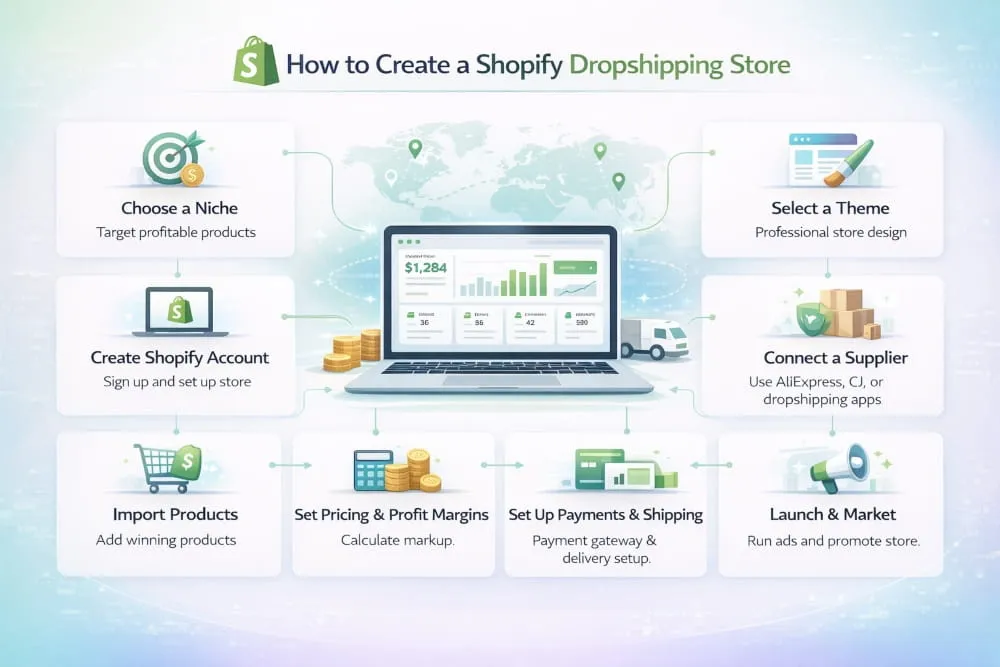
Here’s how to build a dropshipping store on Shopify the right way.
Choose Your Niche First
The biggest mistake new dropshippers make is picking products before picking a niche. Start with a clear niche, a specific audience with a specific problem, and then find products that solve it. A niche store almost always outperforms a general store because it’s easier to target, brand, and build repeat customers around.
Connect a Dropshipping App
The easiest way to source dropshipping products on Shopify is through an app. DSers (which connects to AliExpress) is one of the most popular and is officially recommended by Shopify. Spocket is a strong alternative if you want suppliers based in the US or the EU for faster shipping. Zendrop and AutoDS are also well-regarded in the space.
To create a Shopify dropshipping store with AliExpress: install DSers from the Shopify App Store, connect your AliExpress account, browse products, and import them into your store with a single click. DSers automatically syncs orders, pricing, and inventory.
Price Your Products for Profit
A common dropshipping pricing formula is to charge 2.5-3x your product cost. This covers your transaction fees and ad spend, leaving room for a healthy margin. Always check what competitors are charging before setting your prices.
Optimize for Trust
Dropshipping stores often struggle with consumer trust because buyers know these products exist on AliExpress for a fraction of the retail price. The way to overcome this is through branding, social proof, and excellent customer communication. Install a reviews app like Loox, add real product photos, write detailed shipping policies, and make your contact information easy to find.
How to Create a Professional Shopify Store That Actually Converts
Getting traffic to your store is one challenge. Converting that traffic into customers is another. Here’s how to build a Shopify store that doesn’t just look good, it sells.

Build a Strong Brand Identity
Your brand is more than a logo. It’s the combination of your visual design, your tone of voice, your values, and the experience you create for customers. Before you customize anything in Shopify, define your brand clearly. Who is your customer? What do they care about? What feeling should your store evoke?
Use Canva or Adobe Express to create a professional logo if you don’t have one. Keep your color palette to two or three colors. Choose one or two fonts and use them consistently throughout your store.
Write Copy That Sells
Every word in your store should serve a purpose. Your homepage headline should immediately communicate what you sell and who it’s for. Your product descriptions should focus on transformation, how the customer’s life improves after the purchase. Your checkout page should reassure buyers that their information is safe and their order will arrive.
Avoid filler phrases like “welcome to our store” or “we offer the highest quality products.” Be direct. Be specific. Be useful.
Optimize for Mobile First
More than 70% of e-commerce traffic now comes from mobile devices. If your store doesn’t look and perform perfectly on a phone, you’re losing sales. Always preview every page on mobile after making changes. Test your checkout process on a real device. Ensure images load quickly and buttons are easy to tap.
Add Social Proof
Customer reviews are one of the most powerful conversion tools available. Install a review app like Loox, Stamped.io, or Judge.me, and actively request reviews from every customer. Display them prominently on your product pages and homepage.
Beyond reviews, add trust badges (secure checkout, money-back guarantee, free returns) near your add-to-cart button. These small elements meaningfully reduce purchase hesitation.
How to Create a One-Product Shopify Store
A one-product store is exactly what it sounds like, a store built around a single, carefully chosen product. This model has produced some of Shopify’s biggest success stories because it allows you to focus every ounce of your marketing, branding, and copy on one thing.
The key to making a one-product store work is choosing a product with a compelling story and a clear problem it solves. Your entire homepage becomes a long-form sales page for that product. Your ads, your email sequences, your social media, all of it centers on one hero item.
Structurally, your Shopify store will be simpler: a strong homepage, a detailed product page, an About page, and your policy pages. The theme should be stripped back and distraction-free. The buying experience should feel inevitable.
One-product stores work exceptionally well with paid advertising, particularly Facebook and TikTok ads, because you can test and optimize a single offer rather than spreading your budget across a catalog.
How to Create Multiple Shopify Stores
If you’re running multiple brands or business verticals, you may need more than one Shopify store. Shopify lets you create multiple stores, but each requires its own subscription; they don’t share a single account.
To create a second Shopify store, simply sign up with a different email address or use the “Add a store” option in your Shopify account settings if you’re on Shopify Plus. Plus, you can manage multiple stores under one account with unified reporting.
For agencies and developers managing stores on behalf of clients, the Shopify Partner Program allows you to create unlimited development stores for free, a critical tool for building and testing before handing a store off to a client.
Managing multiple Shopify stores effectively requires strong systems. Use separate email accounts, clear naming conventions, and a project management tool to track tasks across stores.
How to Create a Shopify Development Store (For Agencies and Developers)
A Shopify development store is a free, full-featured store created through the Shopify Partners program. It’s designed for agencies, freelancers, and developers who build and test stores for clients without needing a paid subscription during development.
To create one: sign up for a free Shopify Partner account at partners.shopify.com, navigate to “Stores” in your Partner dashboard, and click “Add store → Development store.” You can build the entire store, theme customization, apps, products, everything, before transferring it to your client.
When the client is ready to launch, they select a paid plan, and the store transfers to their ownership. You retain access as a collaborator.
Development stores are also an excellent way to test new apps, themes, or custom code in a sandbox environment without touching a live store.
How to Create an App for Your Shopify Store
There are two scenarios where you might want to create an app for your Shopify store: building a custom private app to extend your store’s functionality, or creating a public app to sell in the Shopify App Store.
For most store owners, the answer isn’t to build an app from scratch; it’s to find an existing app in the Shopify App Store that already does what you need. With over 8,000 apps available, the chances are high that a solution already exists.
If you’re a developer and need custom functionality, Shopify supports app development through its Shopify CLI and Admin API. Custom apps can be built using Node.js, Ruby, or PHP, and can interact with nearly every part of your store’s data. Shopify’s developer documentation at shopify.dev is the definitive resource for this.
For building a mobile app version of your Shopify store so customers can shop on iOS or Android, apps like Vajro, Tapcart, and Plobal Apps let you create a branded mobile app connected to your Shopify backend without any coding.
How to Set Up Email for Your Shopify Store
A professional email address (like [email protected]) is one of the most important trust signals for any e-commerce store. Customers are far less likely to trust a store with a Gmail or Hotmail address in the contact section.
If you purchased your domain through Shopify, you can use Shopify Email or Google Workspace to set up a custom business email. Google Workspace starts at around $6/month per user and gives you a full Gmail interface with your custom domain.
Once your email is set up, connect it to your Shopify store under Settings → Notifications so that all order confirmations, shipping updates, and customer inquiries are routed through your professional address.
Shopify Email, Shopify’s built-in email marketing tool, also lets you send branded campaigns directly from your admin. It’s free for up to 10,000 emails per month and integrates seamlessly with your customer list.

How to Market Your Shopify Store After Launch
Building the store is only half the work. Getting your first customers requires deliberate, consistent marketing. Here’s where to start.
Facebook and Instagram Ads
Paid social is still one of the fastest ways to drive targeted traffic to a new Shopify store. Facebook and Instagram ads allow you to target by demographics, interests, and behaviors, putting your products in front of people who are likely to buy.
To create Facebook ads for your Shopify store, connect your store to Meta Business Suite through the Shopify Facebook & Instagram app. This integration automatically syncs your product catalogue, making it easy to run dynamic product ads that show shoppers the exact products they’ve viewed.
Start with a small daily budget ($10–$20) and test multiple ad creatives. Let data guide your decisions, don’t scale spend until you see a profitable return on ad spend (ROAS).
Create a Facebook Page for Your Store
Before running ads, you need a Facebook Business Page. Go to facebook.com/pages/create, choose “Business or Brand,” and fill in your store name, category, and profile image. Connect this page to your Meta Ads account to run paid campaigns.
Your Facebook page also serves as social proof. Customers who discover your ads often check your page before making a purchase. A complete, active page with real posts and reviews builds confidence.
Social Media Strategy
Beyond paid ads, organic social media is a long-term brand-building tool. Choose one or two platforms where your target customer is most active: TikTok and Instagram for visual, lifestyle, or fashion brands; Pinterest for home goods and crafts; LinkedIn for B2B products.
Create a content calendar. Post consistently. Show behind-the-scenes content, product demonstrations, customer stories, and educational content related to your niche. Organic growth takes time, but it compounds in ways paid advertising doesn’t.
QR Codes for Offline Marketing
If you sell at markets, pop-ups, or events, a QR code linking directly to your Shopify store is a powerful bridge between offline and online. Generate a free QR code at qr-code-generator.com or directly inside Shopify’s marketing tools, link it to your store URL, and include it on business cards, flyers, or packaging inserts.
How to Create Store Credit on Shopify
Store credit is an effective tool for customer retention; it rewards loyal customers, resolves support issues gracefully, and encourages repeat purchases.
Shopify doesn’t offer a native store credit system on basic plans, but it’s easy to set up using gift cards or a dedicated loyalty app. To use gift cards as store credit, go to Products → Gift Cards, create a gift card, and issue it manually to a customer through their order page or customer profile. The customer receives an email with a code they can apply at checkout.
For a more robust store credit and loyalty system, apps like Rise.ai, LoyaltyLion, or Smile.io integrate directly with Shopify and automate the entire process, from earning points to redeeming rewards.
Final Thoughts
Creating a Shopify store in 2025 is more accessible than ever. The platform is mature, the tools are powerful, and the opportunity, across niches, business models, and markets, is genuinely enormous.
The most important step is also the simplest: start. Don’t wait for the perfect product, the perfect brand, or the perfect moment. Launch something real, learn from actual customers, and iterate. Every successful Shopify store you’ve ever admired started as someone’s first attempt.
Start your free trial, follow the steps in this guide, and build something worth selling.
Frequently Asked Questions
Is it easy to create a Shopify store?
Yes. Shopify is specifically designed to be accessible to people with no technical background. The setup process is guided, the interface is intuitive, and most store owners complete a basic store within a few hours.
How many stores can I create on Shopify?
You can create as many stores as you want, but each requires its own paid subscription. Shopify Plus users get multi-store management under one account. Through the Shopify Partner program, you can create unlimited free development stores.
Can I create a Shopify store on my phone?
Yes. Shopify has mobile apps for iOS and Android that let you manage your store, process orders, and add products from your phone. Building a store from scratch on mobile is possible, but easier on a desktop.
Can AI create a Shopify store for me?
AI tools like Shopify Magic and ChatGPT can dramatically accelerate the process, generating copy, descriptions, and policies in minutes. However, you’ll still need to make strategic decisions, upload assets, and manually configure settings. Think of AI as a powerful assistant, not an autopilot.
How do I create a Shopify store for a client?
Sign up for a free Shopify Partner account at partners.shopify.com. Create a development store, build everything to the client’s specifications, then transfer ownership when the store is ready to launch. You keep collaborator access and earn revenue share on the client’s subscription.
Do I need a business license to create a Shopify store?
Requirements vary by country and business type. In many places, you can start selling as an individual without a formal business entity. As you grow, consulting a local accountant or business advisor about registering your business is always worthwhile.
How do I create a profitable Shopify store from scratch?
Profitability comes from choosing the right niche, managing your costs carefully, converting traffic efficiently, and building repeat purchase behavior. No platform guarantees profit, but Shopify gives you every tool you need to systematically build toward it.


