
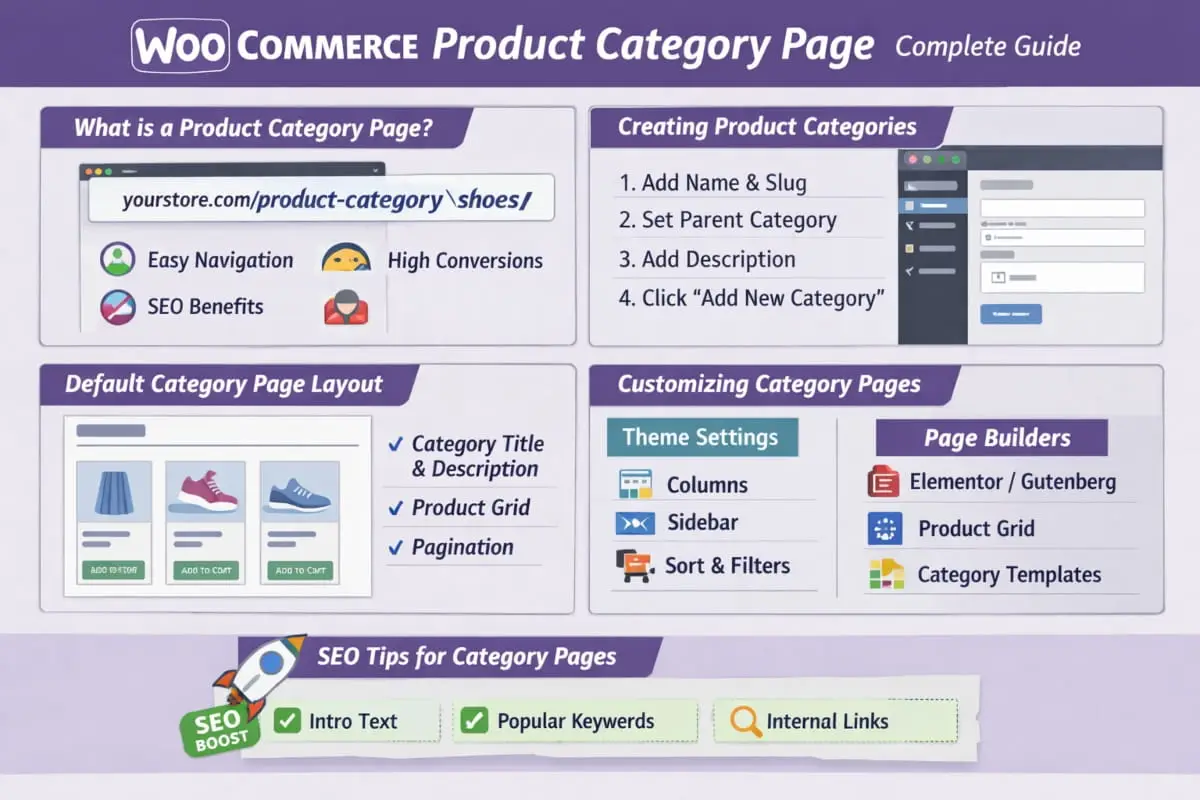
A WooCommerce product category page is one of the most essential parts of any online store. It acts as a bridge between your main shop page and individual product pages, helping users browse efficiently while also providing search engines with clear context for your product structure.
This guide fully covers what a WooCommerce product category page is, how it works, how to customize it, and how to optimize it for usability and SEO. By the end, you won’t need another tutorial on this topic.
What Is a WooCommerce Product Category Page?
A product category page displays a group of related products under a shared category, such as Hoodies, Shoes, or Accessories. WooCommerce automatically generates these pages based on categories you create in the WordPress dashboard.
In technical terms, this page is a WooCommerce product category archive page and part of WordPress’s taxonomy system. Each category gets its own unique URL and layout, making it easy for both users and search engines to understand your store’s structure.
A product category page in WooCommerce groups similar products on a single page, making it easier for customers to browse your store. Instead of viewing items one by one, visitors can explore products by category, such as Clothing, Shoes, or Accessories.
What Does a Product Category Page Show?
A typical category page includes:
- Category name and optional description
- A grid of products in that category
- Sorting and pagination options
These pages are created automatically when you add product categories in WooCommerce.
Why Product Category Pages Matter
Product category pages help:
- Improve store navigation
- Make browsing faster for users
- Organize products clearly
- Support search visibility through structured content
This beginner guide has covered what a product category page in WooCommerce is, what it displays, and why it matters. With this foundation, you can confidently understand and use product category pages without needing any further explanation.
How Product Category Pages Work in WooCommerce
When you create a product category in WooCommerce and assign products to it, WooCommerce automatically generates:
- A category archive URL
- A category title and description
- A grid-based product listing
- Pagination and sorting options
This behavior is consistent across most WordPress WooCommerce product category pages, unless you customize it with a theme or page builder.
Default Structure of a WooCommerce Product Category Page
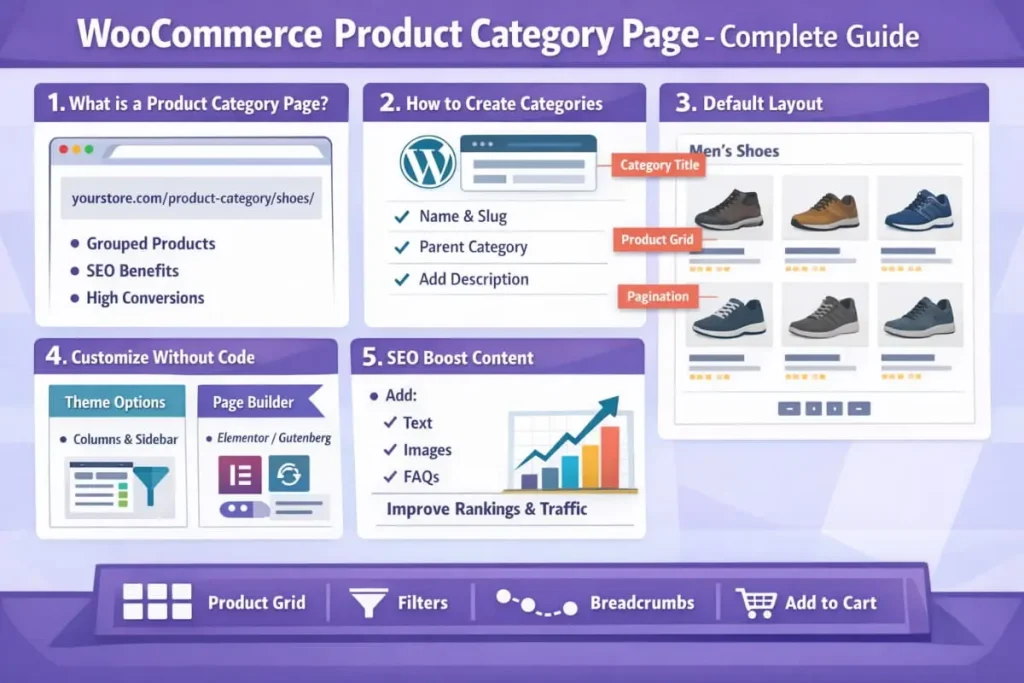
Out of the box, a typical category page includes:
- Category title (H1)
- Optional category description
- Product grid (image, title, price, rating)
- Sorting dropdown
- Pagination
This structure is intentionally simple, but WooCommerce allows extensive customization if you want to enhance design, UX, or SEO.
Creating and Managing Product Categories
Creating a Product Category
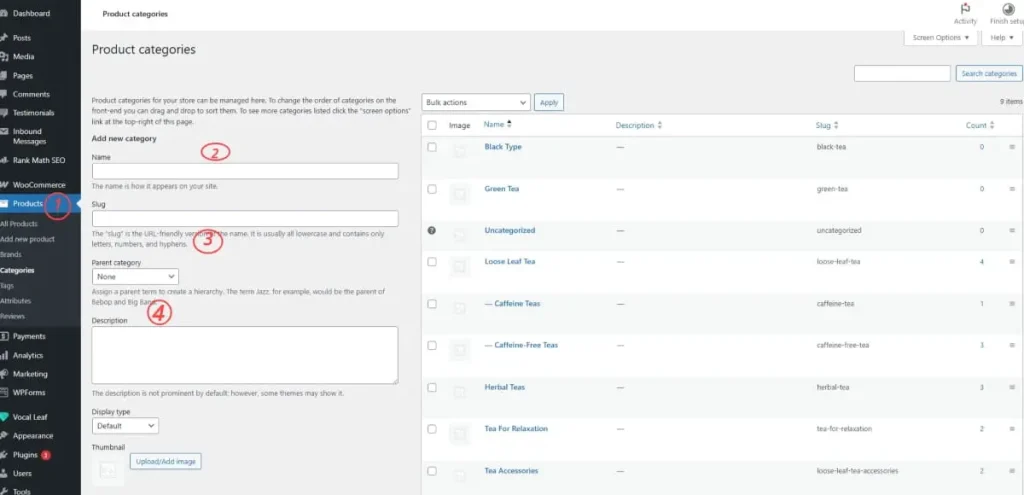
You can create categories directly from the WordPress dashboard:
- Go to Products → Categories
- Add a name, slug, and optional description
- Assign products to the category
Once created, the product category page generated by WooCommerce becomes live instantly.
Assigning Products Correctly
Products can belong to:
- One primary category
- Multiple related categories
- Optional subcategories
Clear category hierarchy improves navigation and prevents duplicate or thin pages.
Enhancing Category Pages with Page Builders
Page builders allow more flexibility than default templates. You can:
- Add banners or intro sections
- Display subcategories visually
- Control product grid layout
- Insert custom text for context
These enhancements are beneficial for high-traffic or SEO-focused category pages.
Common Issues and How to Avoid Them
- Empty categories: Avoid indexing categories with no products
- Duplicate content: Prevent near-identical categories targeting the same intent
- Overlapping categories: Keep category purposes distinct
These issues can weaken SEO performance if not managed properly.
When Deeper Customization Makes Sense
If your store has complex category logic, custom layouts, or advanced filtering needs, working with a professional WooCommerce team can help ensure everything remains scalable and search-friendly without disrupting core functionality.
The WooCommerce product category page is far more than a simple product listing. It plays a critical role in navigation, user experience, and search visibility. From understanding how category archive pages work to customizing layout, structure, and SEO elements, this guide covers every essential aspect.
How to Edit Product Category Page in WooCommerce
Learning how to edit product category pages in WooCommerce is essential if you want better control over your store’s layout, navigation, and user experience. Product category pages often attract more traffic than individual product pages, so even minor improvements can make a noticeable difference.
This guide explains every practical way to edit and customize WooCommerce product category pages, from beginner-friendly settings to advanced template overrides. By the end, you’ll have a complete understanding of the topic, no additional guide needed.
Default Ways to Edit WooCommerce Product Category Pages
Editing Category Details
From Products → Categories, you can edit:
- Category name
- Slug (URL)
- Description
- Thumbnail image
These changes affect how the category page appears and how search engines understand it.
Customizing the WooCommerce Product Category Page Using Your Theme
Most modern themes offer built-in options to customize category pages without code.
Theme-Based Customization
Depending on your theme, you may be able to:
- Change product grid columns
- Adjust spacing and typography
- Turn sidebars on or off
- Modify category headers
For example, a Divi WooCommerce product category page can be customized visually using Divi’s theme options and modules, allowing you to adjust layouts, add banners, or insert text blocks without touching code.
This method is ideal for store owners who want flexibility with minimal technical effort.
Customizing Product Category Page Design
Styling with CSS
Many design changes can be handled with CSS alone, such as:
- Spacing and alignment
- Typography
- Button styles
- Grid responsiveness
How to Change the Background Color of WooCommerce Product Category Pages
To change the background color, you can:
- Target category-specific body classes in CSS
- Apply styles globally or per category
- Use theme customizer options if available
This method keeps your changes lightweight and update-safe.
Using Page Builders to Edit Product Category Pages
Page builders provide more control than standard theme options.
With a page builder, you can:
- Design custom headers for categories
- Add explanatory content above or below product grids
- Display featured products or subcategories
- Control layout on desktop and mobile separately
This approach is often chosen when people search for editing the WooCommerce product category page in a visual, drag-and-drop way.
Template-Level Customization (Advanced Method)
For complete control, developers can edit WooCommerce template files.
Key Template Files
The most commonly overridden files are:
- archive-product.php
- taxonomy-product_cat.php
By copying these files into your theme or child theme, you can fully customize:
- Page structure
- Product loops
- Custom HTML placement
- Conditional logic for specific categories
This method offers maximum flexibility, but it requires careful handling to ensure compatibility with future WooCommerce updates.
Best Practices When Editing WooCommerce Category Pages
- Keep layouts consistent across categories
- Avoid duplicating content across multiple categories
- Ensure category descriptions are helpful, not promotional
- Test changes on mobile devices
- Use a staging site before applying template changes
Following these practices prevents usability and SEO issues.
When Professional Help May Be Useful
If your category pages require complex layouts, custom logic, or significant theme-level changes, working with experienced WooCommerce experts can help ensure everything remains stable and scalable while adhering to best practices.
WooCommerce Product Category Page Template
A WooCommerce product category page template controls how your category pages are structured, styled, and displayed. For developers and advanced store owners, understanding these templates is essential for creating custom layouts, improving usability, and maintaining consistency across a WooCommerce store.
How WooCommerce product category page templates work, which files control them, and how to customize layout and design safely. Everything you need to know about this topic is covered here, so you won’t need to refer to another guide.
Default WooCommerce Product Category Template Structure
By default, WooCommerce uses its core templates to generate category pages. These templates include:
- Page header (category title and description)
- Product loop
- Sorting and pagination
- Sidebar (if enabled by the theme)
The default layout is intentionally generic so it can adapt to most themes.
Key WooCommerce Product Category Page Template Files
taxonomy-product_cat.php
This is the primary WooCommerce product category page template file. If present in your theme, WooCommerce will use it specifically for category pages.
archive-product.php
If
taxonomy-product_cat.php
does not exist, WooCommerce falls back to archive-product.php, which controls all product archive pages, including categories and tags.
WooCommerce Template Hierarchy (Simplified)
taxonomy-product_cat.php
archive-product.php
- WooCommerce core templates
To safely customize category pages, these files should be copied into a child theme before editing.
WooCommerce Product Category Page Layout Explained
The WooCommerce product category page layout is made up of several configurable elements:
- Header section (title and description)
- Product grid (rows and columns)
- Sorting dropdown
- Pagination
- Optional sidebar
Each of these elements can be modified through theme settings, filters, or template overrides.
How to Change Product Category Page Layout and Content
Adding Custom Content to Category Pages
Enhancing category pages with custom content improves both user experience and clarity. Common additions include:
- Introductory text to explain the category
- Images or banners for visual context
- Internal links to related categories
Custom content can be added using category descriptions, hooks, or directly within template files, depending on your approach.
Adjusting Product Display Settings
WooCommerce provides multiple ways to fine-tune how products appear on category pages.
You can:
- Change sorting options (default, price, popularity, rating)
- Control pagination behavior
- Modify product grid columns for desktop and mobile
These adjustments let you tailor your browsing behavior to match your audience’s expectations.
Theme vs Template Customization: What to Choose?
- Theme options are ideal for quick layout adjustments without code
- Template overrides offer complete control but require careful maintenance
- CSS-based changes are best for visual tweaks without altering the structure
Choosing the correct method depends on how much control you need and how comfortable you are with code.
Common Mistakes to Avoid
- Editing WooCommerce core plugin files directly
- Making changes without a child theme
- Overloading category pages with unnecessary elements
- Creating inconsistent layouts across categories
Avoiding these mistakes ensures your customizations remain stable and scalable.
How to Hide Product Category From Shop Page in WooCommerce
Knowing how to hide product categories from the shop page in WooCommerce gives you precise control over how users browse your store. In many cases, categories are helpful for structure but unnecessary, or even confusing, on the front end. Strategically hiding or removing categories can improve clarity, reduce distractions, and create a cleaner shopping experience.
This advanced guide fully covers every reliable way to hide or remove categories from both shop and product pages in WooCommerce. From simple settings to code-based solutions, everything you need is explained here; no additional guide is required.
Why Hide or Remove Categories in WooCommerce?
Store owners typically want to hide categories when they:
- Use categories only for internal organization
- Want a minimalist product page design
- Avoid exposing technical or backend-only categories
- Reduce visual clutter for better UX
- Prevent duplicate or unnecessary information
Understanding the difference between hiding and removing categories is essential before making changes.
Hiding vs Removing Categories: What’s the Difference?
- Hiding categories keeps them functional in the backend but invisible to users
- Removing categories eliminates their display from specific locations
In most cases, hiding is preferred because it preserves structure without affecting product organization.
How to Hide Product Category From Shop Page in WooCommerce
Method 1: Using WooCommerce Visibility Settings
WooCommerce allows categories to be hidden directly from the shop page.
Steps:
- Go to Products → Categories
- Edit the category you want to hide
- Set visibility to hidden (theme-dependent)
- Save changes
This approach works well for themes that respect WooCommerce visibility rules.
Method 2: Hiding Categories Using CSS
If your theme doesn’t offer visibility controls, CSS provides a simple solution.
This method hides categories visually without altering functionality. It’s useful when you want categories available for filtering or internal linking, but not displayed on the shop page.
How to Hide a Category in the WooCommerce Product Page
Many store owners prefer not to show category labels on individual product pages.
Hiding Categories From Product Pages (Non-Destructive)
To hide a category from the product page in WooCommerce, you can:
- Disable category metadata via theme settings (if available)
- Use CSS to hide category elements
- Remove category output using hooks
This approach keeps categories assigned to products but removes them from the front-end display.
How to Remove a Category from a Product Page in WooCommerce
If you want categories completely removed from product pages:
Removing Category Display via Hooks
WooCommerce outputs categories using template hooks. By unhooking these elements, you can control exactly what appears on the product page.
This is the safest way to remove a category from the WooCommerce product page without editing core files.
WooCommerce Hide Category on Product Page (Theme-Based Options)
Some themes include built-in toggles to:
- Hide product meta
- Disable category display
- Customize product page elements
If available, this is the easiest solution and doesn’t require custom code.
WooCommerce Remove SKU and Category From Product Page
For stores focused on clean, conversion-driven layouts, removing both SKU and category information is common.
This can be done by:
- Adjusting theme settings
- Removing specific product meta hooks
- Applying targeted CSS
This keeps the product page focused on visuals, pricing, and calls to action.
Best Practices When Hiding or Removing Categories
- Avoid hiding categories that are used for navigation elsewhere
- Test changes across multiple product types
- Check mobile layouts after hiding elements
- Use a staging site before applying code-based changes
These steps prevent usability issues and layout conflicts.
Complete Guide to Conditional Logic & Page Detection of Product Category Page WooCommerce
When building custom WooCommerce functionality, a common requirement is detecting whether the current page is a product category page. On a product category page, WooCommerce allows developers to apply conditional logic for layouts, scripts, styles, or features only where needed.
This guide fully covers how WooCommerce identifies product category pages, which conditional tags to use, how they work internally, and best practices for real-world development. After reading this article, you will not need another reference on this topic.
 Understanding Conditional Logic in WooCommerce
 Understanding Conditional Logic in WooCommerce
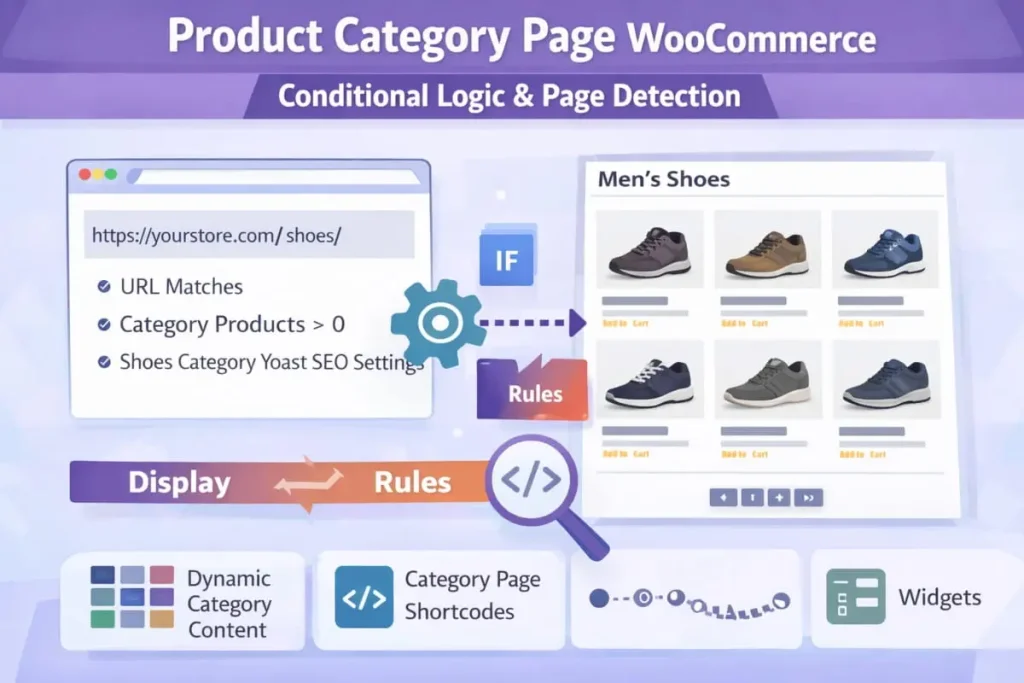
Conditional logic lets you run code only when certain conditions are met, such as:
- A single product page
- The main shop page
- A product category page
- A product tag archive
When developers ask WooCommerce whether WooCommerce is on a product category page, they are typically looking for a reliable way to check this context before executing code.
The Correct Way to Detect a Product Category Page
Using
is_product_category()
WooCommerce provides a built-in conditional tag specifically for this purpose:
is_product_category();
This function returns true when:
- The current page is a product category archive
- A valid product_cat taxonomy term is being viewed
- It returns false everywhere else.
This is the recommended and most reliable method.
Using Conditional Logic With if Statements
To apply logic only on category pages, wrap your code like this:
This directly addresses the typical use case behind the product category page WooCommerce searches.
Checking for a Specific Product Category
Sometimes you need to target a single category or a group of categories.
By Category Slug
By Category ID
Multiple Categories
This is useful for category-specific layouts or logic.
Difference Between is_product_category() and is_tax()
You may also see developers use:
is_tax( ‘product_cat’ )
While this works, there is an important distinction:
- is_product_category() is WooCommerce-specific and clearer
- is_tax(‘product_cat’) is more generic and WordPress-level
For WooCommerce development, is_product_category() is preferred for clarity and maintainability.
Where Conditional Checks Can Be Used
You can safely use product category conditionals in:
- functions.php
- Custom plugins
- Template files
- Hook callbacks
- Shortcode logic
They should not be used before WordPress has fully loaded the query (for example, too early in wp-config.php).
Common Mistakes to Avoid
- Using is_page() for category detection
- Running conditionals before the main query is set
- Confusing shop page detection with category detection
- Applying global styles instead of scoped conditional logic
Avoiding these mistakes prevents unexpected behavior across your store.
Practical Use Cases
Developers commonly use product category detection to:
- Load category-specific stylesheets
- Modify product loops conditionally
- Add banners or notices only on specific categories
- Control layout or sidebar visibility
- Apply SEO or UX enhancements selectively
This keeps code clean, efficient, and context-aware.
WooCommerce Product Category Page Not Working Complete Troubleshooting & Fix Guide
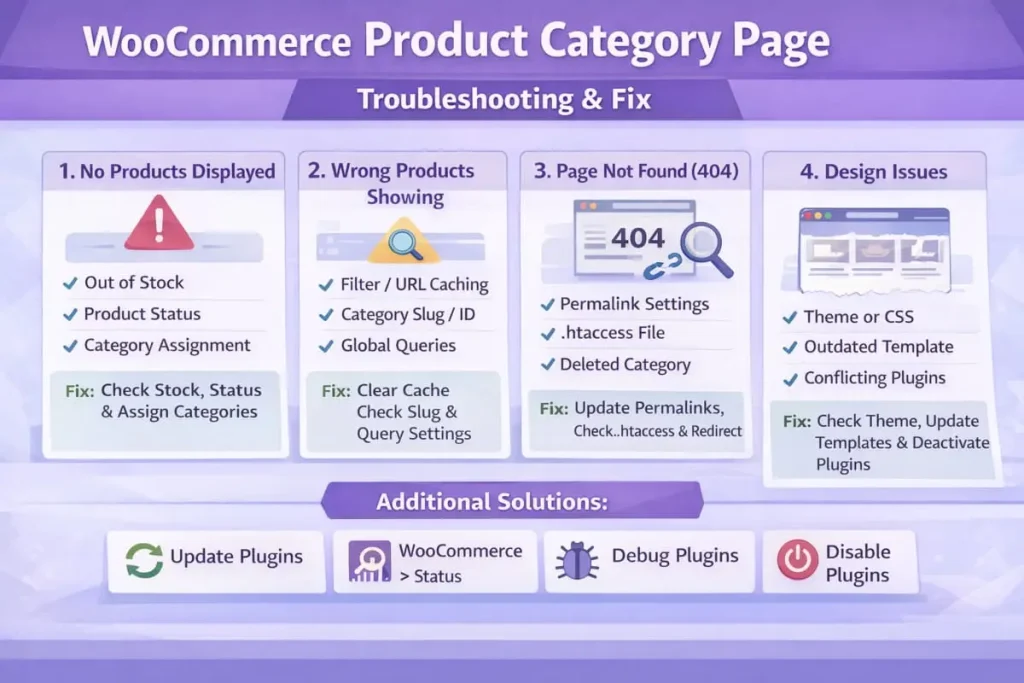
If you’re facing an issue where a WooCommerce product category page isn’t working, you’re not alone. Category pages are dynamic archive pages, and even small misconfigurations can cause them to break, return errors, or display incorrectly.
This guide fully covers every common cause and proven fix for category page problems in WooCommerce, from “page not found” errors to blank layouts and missing products. By the end, you’ll have a complete, step-by-step troubleshooting framework so that you won’t need another guide.
 What Does WooCommerce Product Category Page Not Working Mean?
This issue usually appears in one of these forms:
- Category page shows 404 not found
- Category page loads but displays no products
- Layout is broken or missing elements
- Category page redirects incorrectly
- Category page works for admins but not visitors
Understanding the exact symptom helps pinpoint the root cause faster.
Common Causes of WooCommerce Category Page Errors
1. Permalink Issues (Most Common Cause)
Improper permalinks are the #1 reason for a WooCommerce product category page not found error.
Fix:
- Go to Settings → Permalinks
- Click Save Changes (without changing anything)
This flushes rewrite rules and often resolves the issue immediately.
2. Category Has No Assigned Products
WooCommerce will still load the category page, but it may appear empty.
Check:
- Go to Products → Categories
- Open the affected category
- Confirm products are assigned correctly
Products set to Draft or Private will not appear to visitors.
3. Incorrect Product Visibility Settings
Even if products are assigned, visibility settings can hide them.
Verify:
- Product visibility is set to Shop and search results
- Catalog visibility is not restricted
- Stock status is not set to Out of stock (depending on settings)
4. Theme or Template Override Issues
Many themes override WooCommerce templates. If outdated or broken, category pages may fail to load.
Check your theme for:
- taxonomy-product_cat.php
- archive-product.php
If these files are outdated or incorrectly edited, the category page may not load properly.
Quick test:
- Switch temporarily to a default theme
- If the category page works, the issue is theme-related
5. Plugin Conflicts
Plugins that modify queries, filters, or layouts can cause category pages to break.
Troubleshooting steps:
- Disable all non-essential plugins
- Test the category page
- Reactivate plugins one by one
Common culprits include filtering, caching, and page builder plugins.
6. Broken Custom Queries or Hooks
Custom code added to functions.php or plugins can interfere with category archives.
Example of problematic logic
- Custom WP_Query replacing the main query
- Incorrect pre_get_posts filters
- Hooks are applied globally instead of conditionally
Always ensure custom logic checks for category context are correctly implemented.
7. Incorrect WooCommerce Page Assignments
If WooCommerce pages are misconfigured, category routing may fail.
Check:
- Go to WooCommerce → Settings → Advanced
- Ensure the Shop page is correctly assigned
- Confirm no category slug conflicts exist
8. Category Slug Conflicts
If a category slug matches:
- A page slug
- A product slug
- A custom post type slug
WooCommerce may fail to load the category archive.
Fix:
- Rename the category slug
- Re-save permalinks afterward
9. Server or Caching Issues
Aggressive caching can cause category pages to appear broken.
Try:
- Clearing site cache
- Clearing server-level cache
- Disabling CDN temporarily
Also, ensure PHP and WordPress memory limits are sufficient.
How to Debug WooCommerce Category Page Issues Safely
Enable Debug Mode (Temporarily)
define( ‘WP_DEBUG’, true );
define( ‘WP_DEBUG_LOG’, true );
define( ‘WP_DEBUG_DISPLAY’, false );
This helps identify errors without exposing them publicly.
Preventing Future Category Page Problems
- Keep WooCommerce and themes updated
- Avoid editing core plugin files
- Use child themes for template overrides
- Test changes on staging sites
- Document custom hooks and filters
These practices reduce long-term maintenance issues.
How to Display Product Categories on Shop Page in WooCommerce
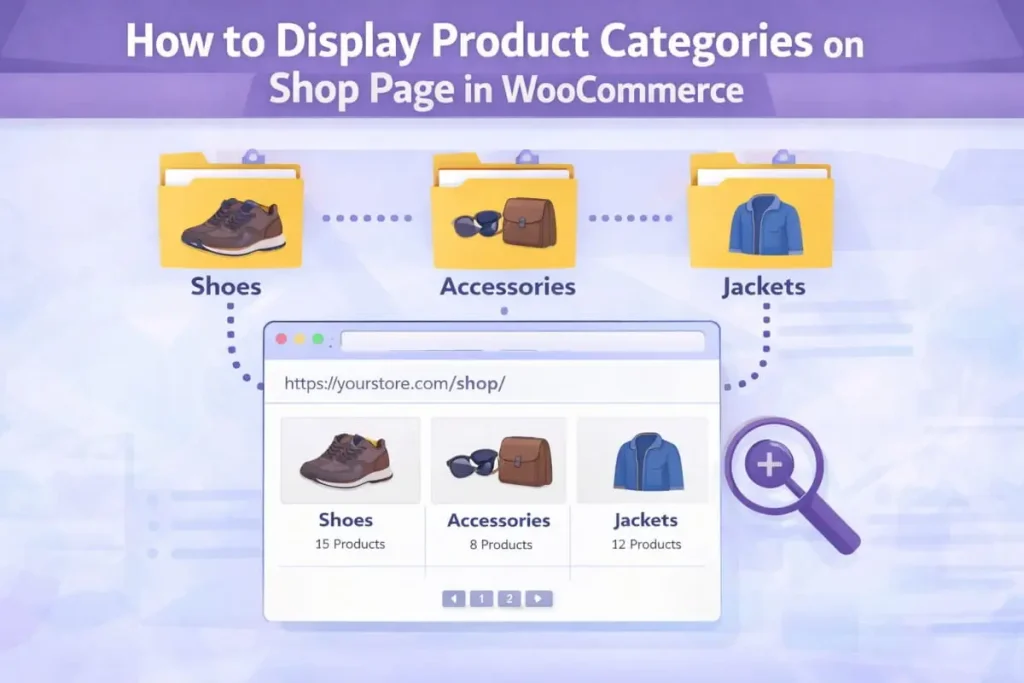
Knowing how to display product categories on the WooCommerce shop page is essential for creating a clear, user-friendly browsing experience. Categories help visitors quickly understand what your store offers and guide them to the right products without friction.
This guide fully covers every reliable way to show product categories on the WooCommerce shop page, from default settings to advanced customization methods. Once you finish this article, you won’t need another tutorial on the topic.
Why Display Product Categories on the Shop Page?
Displaying categories on the shop page improves both usability and navigation. It helps users:
- Scan your product range at a glance
- Jump directly to relevant sections
- Avoid endless scrolling through unrelated products
- Understand your store structure immediately
For stores with many products, category visibility is often more effective than showing products alone.
Default WooCommerce Shop Page Behavior
By default, WooCommerce allows you to choose what appears on the shop page:
- Products only
- Categories only
- Categories and products
This setting controls whether categories are visible by default.
How to Display Product Categories on Shop Page WooCommerce (Default Method)
Using WooCommerce Display Settings
This is the simplest and most common approach.
Steps:
- Go to WooCommerce → Settings → Products
- Open the Display section
- Under the Shop page display, select:
- Show categories
- or Show categories & products
- Save changes
This instantly enables category display on the shop page.
Displaying Categories Using the Category Block or Shortcode
Using the Product Categories Block
If you’re using the block editor:
- Edit the Shop page
- Add the Product Categories block
- Configure:
- Number of columns
- Show hierarchy
- Hide empty categories
This method gives you more layout control than the default setting.
Using Shortcodes (Classic Editor or Templates)
WooCommerce also supports shortcodes:
[product_categories]
You can customize it by controlling columns, parent categories, or limits. This approach works well inside pages or templates
Showing Categories Before Products on the Shop Page
Many store owners prefer to have categories appear above products for better navigation.
You can achieve this by:
- Setting the shop page display to categories and products
- Adjusting theme layout options
- Using hooks to reorder category and product output
This creates a clear visual hierarchy for users.
Customizing the Category Layout on the Shop Page
Adjusting Category Grid Layout
You can customize:
- Number of columns
- Image size
- Spacing between categories
- Alignment and typography
Most modern themes include settings for this, while others rely on CSS.
Showing Only Parent Categories
For cleaner navigation, you may want to display only top-level categories.
This reduces clutter and keeps the shop page focused, especially for extensive catalogs with many subcategories.
Displaying Categories Conditionally
Advanced setups may require categories to display only in certain situations, such as:
- On the main shop page, but not in search results
- Only for specific user roles
- Only when no filters are applied
Conditional logic and hooks make this possible without duplicating pages.
Common Issues When Displaying Categories
- Categories not appearing due to visibility settings
- Empty categories are hidden by default
- Theme overriding WooCommerce display logic
- Cached shop pages are not updating
When categories don’t show as expected, clearing the cache and rechecking the display settings usually resolves the issue.
Best Practices for Category Display UX
- Use clear category names
- Avoid displaying too many categories at once
- Ensure category images are consistent
- Keep layouts responsive on mobile
- Link categories logically to subcategories
A good category presentation directly impacts how easily users find products.
SEO for WooCommerce Product Category Pages
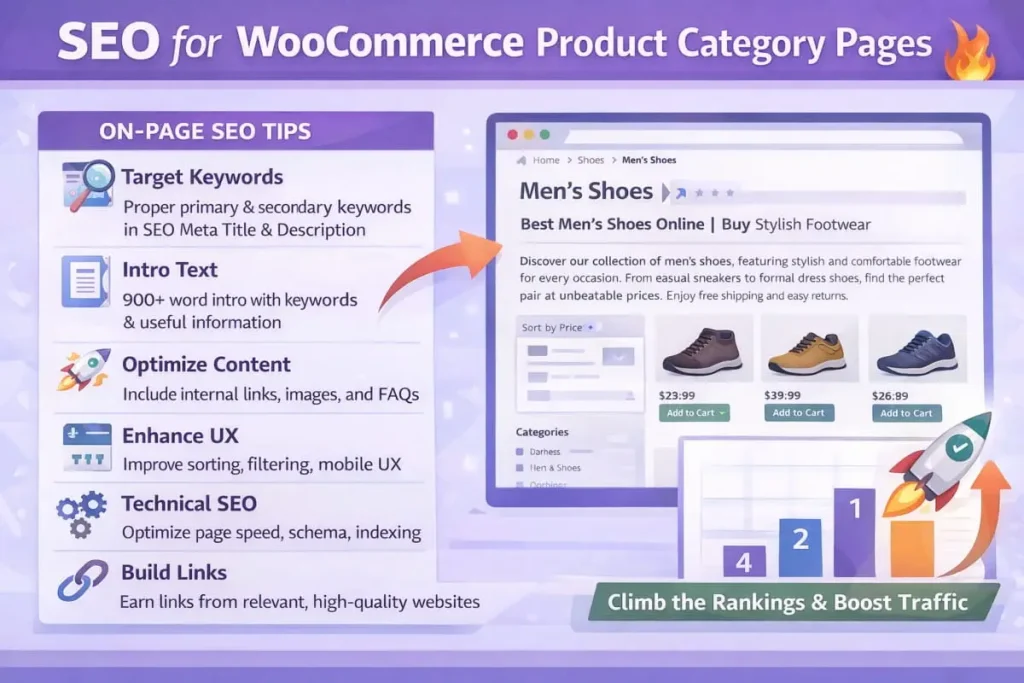
SEO for WooCommerce product category page optimization is one of the most effective ways to grow organic traffic for an online store. Category pages often outperform individual product pages because they target broader search intent and capture users earlier in the buying journey.
This guide fully covers how to optimize WooCommerce product category pages for SEO, including structure, content, internal linking, and best practices. Once you finish reading, you’ll have a complete SEO framework for category pages, no additional guide needed.
Why Category Pages Are Critical for WooCommerce SEO
Category pages sit at the center of your store’s architecture. They help search engines understand:
- How products are grouped
- Which topics are your store authoritative for
- How pages are related internally
Well-optimized category pages can rank for high-volume, competitive keywords that individual product pages usually can’t.
SEO Best Practices for WooCommerce Product Category Pages
Optimize Category Titles and Descriptions
Your category title is usually the page’s main heading, making it a strong relevance signal.
Best practices:
- Use clear, descriptive category names
- Match titles to real user search intent
- Write category descriptions that explain what users will find
- Avoid keyword stuffing or repetitive phrasing
Descriptions should be helpful, not sales-focused.
Clean URLs and Category Hierarchy
A clean structure improves crawlability and usability.
Recommended approach:
- Keep category slugs short and readable
- Avoid unnecessary words or dates
- Use logical parent–child relationships
- Prevent deep or confusing category nesting
A clear hierarchy helps both users and search engines navigate your store.
Internal Linking for Category Page SEO
Internal links strengthen category pages and distribute authority across your site.
Effective internal linking includes:
- Linking to category pages from relevant blog posts
- Linking between related categories
- Ensuring no significant category page is orphaned
This helps search engines discover and prioritize your most valuable pages.
Content Depth on Category Pages
Thin category pages struggle to rank, especially in competitive niches.
To improve depth:
- Add helpful introductory content above the product grid
- Include guidance, comparisons, or buying tips
- Add supporting content below the grid if needed
This extra context improves relevance and user engagement without overwhelming the page.
Technical SEO Considerations for Category Pages
While content is essential, technical setup also matters.
Key points to check:
- Category pages are indexable
- Pagination is handled correctly
- Filters don’t create duplicate URLs
- Categories with no products are handled properly
These factors prevent crawl waste and duplicate content issues.
Avoiding Common Category Page SEO Mistakes
- Creating multiple categories targeting the same keyword
- Leaving category descriptions empty
- Overloading pages with unnecessary text
- Allowing low-value categories to be indexed
- Ignoring internal linking opportunities
Avoiding these mistakes keeps category pages strong and focused.
When Category Page SEO Gets Complex
If your store has many categories, layered navigation, or competitive SEO goals, working with experienced WooCommerce experts can help ensure category pages are optimized correctly without harming site structure.


