
A WooCommerce product page is where buying decisions are made. Even small changes, like adding custom tabs, improving call-to-action buttons, or embedding product videos, can significantly impact conversions, engagement, and SEO performance. In this guide, we’ll break down how to customize a WooCommerce product page the right way, using proven techniques that align with modern UX, technical SEO, and conversion optimization best practices. This blog also supports businesses looking for expert help from a WooCommerce web development agency with real-world implementation experience.
Why WooCommerce Product Page Customization Matters
Out-of-the-box WooCommerce product pages are functional, but generic. Customization helps you:
- Increase conversion rates with clearer CTAs
- Improve SEO with richer on-page content
- Reduce bounce rates through better UX
- Match your brand identity consistently
How to Add a WooCommerce Product to a Page (WordPress + WooCommerce Guide)
If you want to create high-converting landing pages, promotional pages, or curated collections, knowing how to add a WooCommerce product to a page is essential. WooCommerce gives you multiple ways to display products across your WordPress site, beyond the default shop layout, so that customers can discover and buy faster.
At Apso Tech, we help brands implement these layouts as part of our WooCommerce website development services, ensuring product pages and landing pages are clean, fast, and optimized for conversions.
Why Add WooCommerce Products to a WordPress Page?
The default Shop page is useful, but it’s not always the best experience for marketing campaigns or category-specific promotions. When you add a WooCommerce product to page layouts, you can:
- Build SEO-focused landing pages (collection pages, seasonal offers, bundles)
- Showcase best-sellers or featured products on service pages
- Create targeted pages for paid ads and email campaigns
- Improve internal linking and product discovery
 Add WooCommerce Product to Page: Most Common Ways
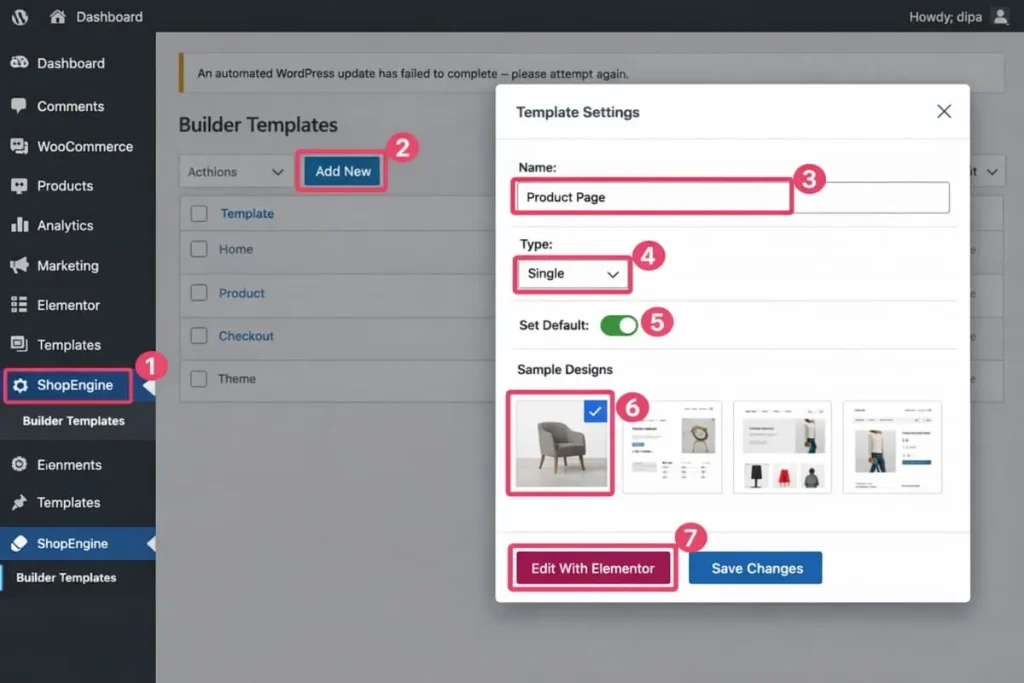 Add WooCommerce Product to Page: Most Common Ways
1) Use WooCommerce Blocks (Best for Gutenberg)
- Pages → Add/Edit Page.
- Click + and add a Products block (Featured / On Sale / By Category / Best Sellers)
- Configure layout (columns, sorting, filters)
- Publish and test on mobile.
Best for quick product sections on homepages and campaign pages.
2) Use Shortcodes (Reliable for Classic Editors + Page Builders)
- Pages → Add/Edit Page.
- Paste a WooCommerce product shortcode.
- Adjust attributes (IDs, category, limit, columns)
- Publish and test the responsive grid.
Best for predictable layouts across older themes.
3) Link to a Dedicated Product Page (Best for Focused Sales Pages)
Create a conversion-focused landing page (benefits, proof, FAQs) and link users to the product page for checkout. This keeps the funnel clean and reduces layout complexity.
How to Add Products to the WooCommerce Shop Page
The Shop page automatically lists published products. If items aren’t showing, check:
- Product status is Published
- Catalog visibility isn’t hidden.
- Products are assigned to the right categories.
- Shop page settings are configured correctly.
Best Practices for Adding Products to Pages
- Keep layouts fast (avoid heavy plugins)
- Add a short intro for context and SEO.
- Use clear CTAs (View Product / Add to Cart / Buy Now)
- Optimize grids for mobile tapping
- Link to related categories and best-sellers
How to Add a Button on a WooCommerce Product Page (Best Practices for Conversions)
Adding a custom button on a WooCommerce product page is a strategic way to improve user experience, guide customer actions, and increase conversions. Whether you want to add a Buy Now button, link users to a custom inquiry form, or replace the default Add to Cart flow, the right implementation can directly impact revenue and usability.
At Apso Tech, we regularly help businesses implement these enhancements as part of our professional WooCommerce website development services, ensuring every customization aligns with performance, SEO, and conversion goals.
Why Add a Custom Button to a WooCommerce Product Page?
The default WooCommerce setup works well for basic stores, but growing businesses often need more flexibility. When you add a button to a WooCommerce product page, you can:
- Direct customers to instant checkout with a Buy Now option
- Route users to a quote or consultation page
- Highlight limited-time offers or custom actions
- Improve conversions by simplifying the purchase journey
This approach is commonly used by brands working with a WooCommerce web development agency to optimize user flows beyond standard templates.
Add Buy Now Button in WooCommerce Product Page
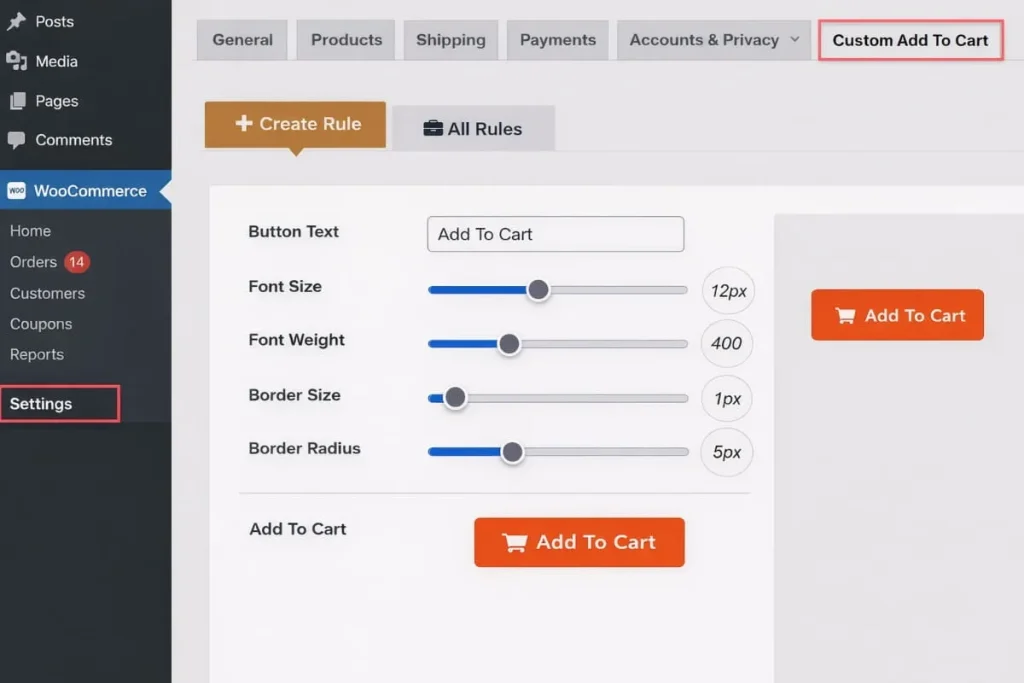 Add Buy Now Button in WooCommerce Product Page
To add a buy now button in the WooCommerce product page, set it to:
- Skip cart → go to checkout, or
- Add to Cart → go to checkout.
This is especially effective on mobile, where fast checkout matters.
Add a Button on the Product Page WooCommerce for Custom Actions
If you sell services, subscriptions, or custom products, you can add a button on the product page in WooCommerce for actions like:
- “Request a Quote”
- “Schedule a Demo”
- “Contact Sales”
For best results, implement it with clean, scalable code (not multiple heavy plugins).
WooCommerce Remove Add to Cart Button on Product Page
If your store is service-based, B2B, wholesale, or catalog-style, remove the add to cart button on the product page and replace it with a lead-focused CTA. This keeps the product page aligned with your sales process without breaking core WooCommerce structure.
Technical Checklist (Do This Right)
When you add a button to the product page in WooCommerce, confirm:
- Correct placement (above/below Add to Cart)
- Mobile responsiveness
- No negative impact on speed/Core Web Vitals
- Theme + plugin compatibility
- Works on simple + variable products
Practical Steps
Add Buy Now
- Use a lightweight Buy Now plugin or add a custom button via WooCommerce hooks.
- Set behavior: direct to checkout or skip Cart
- Test: guest checkout, coupons, variable products
Remove Add to Cart
- Decide scope: all products or specific categories.
- Remove using a plugin or WooCommerce hooks/filters.
- Add replacement CTA (Quote/Contact/WhatsApp)
- Confirm product schema and layout remain intact.
Redirect After Add to Cart
- WooCommerce settings or plugin: enable redirect to cart/checkout/custom URL
- Test with AJAX add-to-cart and quick view
Why Work With a Professional WooCommerce Development Partner?
While plugins can handle simple changes, custom development provides greater control, scalability, and security. A trusted WooCommerce website development agency in the USA ensures:
- Clean, future-proof code
- Conversion-focused UI/UX decisions
- SEO-friendly implementation
- Ongoing compatibility with WooCommerce updates
At Apso Tech, we specialize in advanced WooCommerce customization for growing businesses. From adding custom CTAs to redesigning entire product pages, our team operates as a full-service WooCommerce web development agency serving clients across the U.S.
How to Add More Tabs to a WooCommerce Product Page (Best Practices for Better UX)
Adding more tabs to a WooCommerce product page is an effective way to organize content, improve user experience, and increase conversions. Custom product tabs allow you to present detailed information, such as specifications, FAQs, shipping details, or size guides, without overwhelming the main product layout.
At Apso Tech, we frequently implement advanced tab customizations as part of our professional WooCommerce website development services, helping businesses create structured, conversion-focused product pages.
Why Add More Tabs to a WooCommerce Product Page?
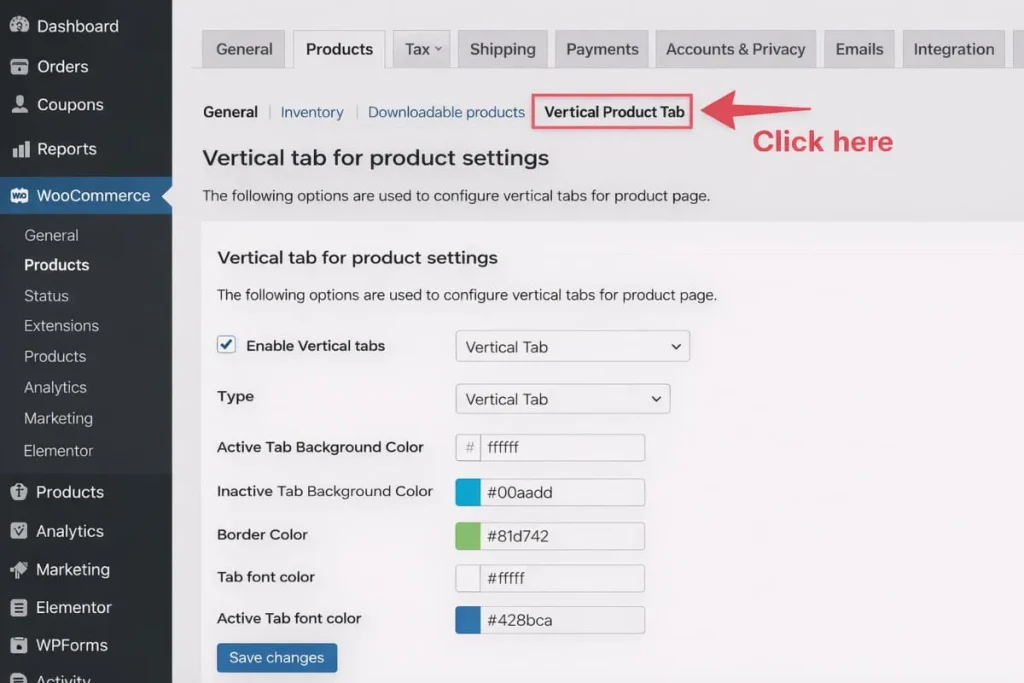 Why Add More Tabs to a WooCommerce Product Page?
The default WooCommerce product page includes limited tabs (Description, Additional Information, Reviews). While functional, this setup often falls short for stores with complex products or service-based offerings.
When you add more tabs to WooCommerce product page layouts, you can:
- Improve readability by grouping related information
- Reduce bounce rates with a cleaner page structure
- Increase time on page, supporting SEO performance
- Guide buyers through the decision-making process
Common Tabs to Add (High-Impact)
When you add tabs to WooCommerce product page templates, the most useful additions include:
- FAQs
- Specifications/compatibility
- Shipping & returns
- Warranty/support
- Size guide or installation guide
Technical Checklist
Before you add more tabs to the product page in WooCommerce, confirm:
- Theme and plugin compatibility
- Mobile responsiveness
- No negative impact on speed/Core Web Vitals
- Clean accessibility (keyboard-friendly tabs)
Practical Steps
Plugin Method
- Install a Custom Product Tabs plugin.
- Create tabs globally or per-product
- Add tab title + content → Save
- Verify on frontend (desktop + mobile)
Custom Method
- Use a child theme
- Add/remove tabs using the woocommerce_product_tabs filter.
- Add tab content via callbacks (text, shortcode, video embed)
- Test: tab order, mobile layout, accessibility
Why Work With a Professional WooCommerce Development Partner?
While plugins can add basic tabs, custom development provides greater control, scalability, and long-term stability. A trusted WooCommerce website development agency in the USA ensures:
- Clean, maintainable code
- UX-driven tab layouts
- SEO-friendly content structure
- Ongoing compatibility with WooCommerce updates
How to Add Video to a WooCommerce Product Page (A Conversion-Focused Guide)
Adding video to a WooCommerce product page is one of the most effective ways to increase engagement, improve product understanding, and drive more conversions. Whether you’re selling physical products, digital downloads, or service-based packages, product videos help shoppers make faster, more confident decisions.
At Apso Tech, we implement video integrations as part of our professional WooCommerce website development services, ensuring the setup is fast, mobile-friendly, and aligned with your conversion goals.
Why Add Video to a WooCommerce Product Page?
Product videos consistently outperform static images when it comes to buyer confidence and purchase intent. When you add video to WooCommerce product page layouts, you can:
- Showcase product features and benefits more clearly
- Reduce product returns by setting accurate expectations
- Increase time on page and engagement signals
- Strengthen trust through demonstrations, testimonials, or walkthroughs
For brands optimizing performance and UX, video is a high-impact enhancement typically handled by a WooCommerce web development agency to avoid slowing down page speed.
 Best Placement Options
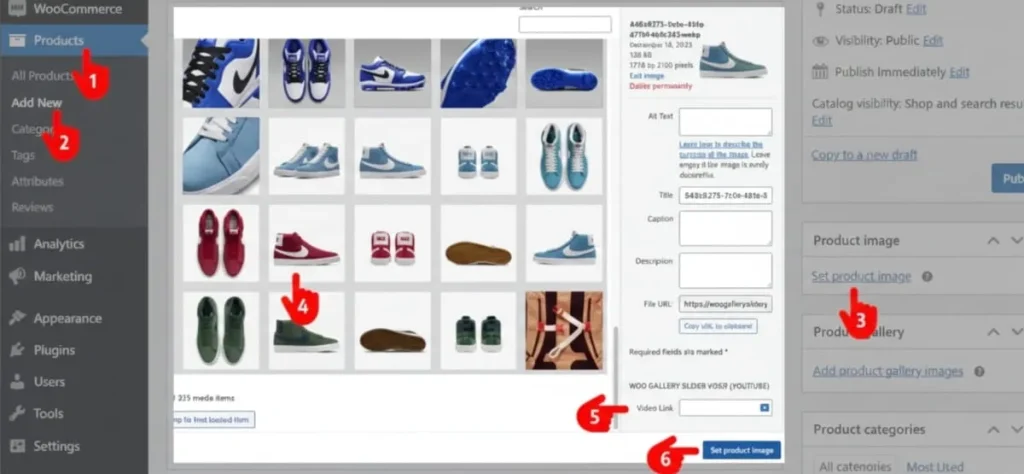 Best Placement Options
1) Product Image Gallery
Best for high visibility and mobile-first browsing.
2) Below the Product Summary
Best for longer demos or tutorials without crowding the top section.
3) Inside a Custom Tab
Best for detailed products where you want a clean layout and structured content.
Practical Steps
Quick Method (Embed Link)
- Products → Edit Product
- Paste the video embed/link into the Description or a Video tab.
- Update
- Test playback on mobile + desktop
Gallery Method (Better UX)
- Install a reputable Product Video Gallery plugin (or implement via custom development)
- Add video per product (YouTube/Vimeo/self-hosted)
- Enable lazy-load and a poster image (if available)
- Test: layout, speed, and gallery behavior across devices
Why Work With a WooCommerce Development Partner?
Adding video sounds simple, but poor implementation can slow down your store, create layout issues, or conflict with themes and plugins. Working with a professional WooCommerce website development agency in the USA ensures your product videos:
- Load quickly without hurting performance
- Display properly across all devices
- Fit naturally into your product page design
- Scale efficiently as you add more products
At Apso Tech, we help businesses integrate video into WooCommerce product pages in a way that supports conversions and long-term growth. As a full-service WooCommerce web development agency, we build and optimize stores that are fast, modern, and built to convert.
How to Add Text to a WooCommerce Product Page (Professional Guide)
Adding custom text to a WooCommerce product page is a common requirement for businesses that want to communicate additional information clearly and improve the overall buying experience. Whether you need to display product notes, service details, delivery information, or custom messaging, knowing how to add a text box in a WooCommerce product page can significantly improve usability and conversions.
At Apso Tech, we implement these enhancements as part of our professional WooCommerce website development services, ensuring text additions are clean, scalable, and aligned with SEO best practices.
Why Add Text to a WooCommerce Product Page?
The default WooCommerce product layout is designed for general use, but growing businesses often need more flexibility. When you add text to WooCommerce product page layouts, you can:
- Highlight key product or service information
- Display delivery timelines or service terms
- Add trust-building content near CTAs
- Improve SEO by adding relevant on-page content
These improvements are commonly delivered by a WooCommerce web development agency focused on both conversion optimization and technical stability.
 How to Add a Text Box in a Product Page
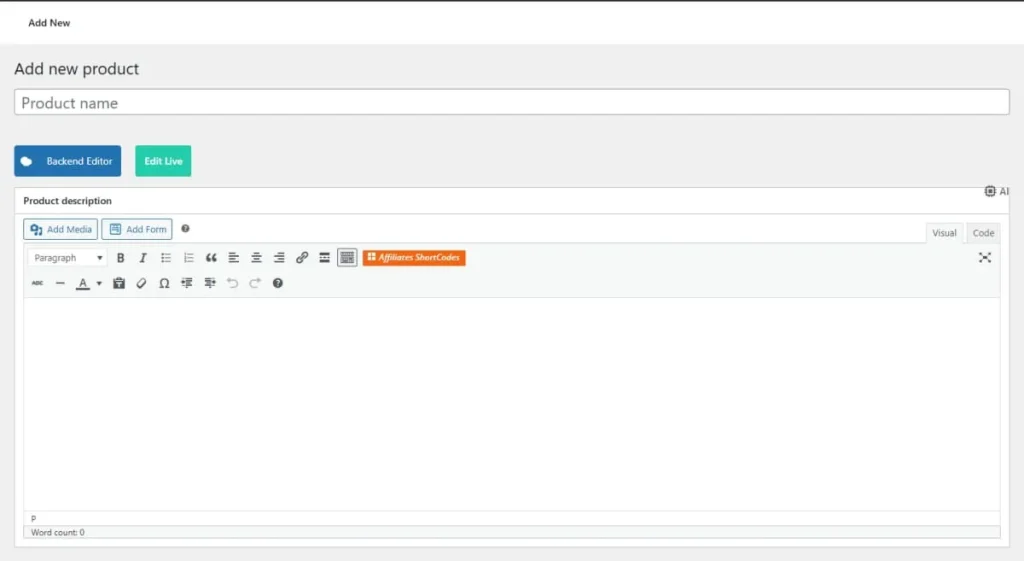
When users search WooCommerce how to add a text box in product page, they usually mean one of two things:
- Static text (display-only): informational content customers read
- Input text box: a field where customers enter information (e.g., personalization)
Each requires a different implementation, depending on your store’s goals.
Add Static Text to WooCommerce Product Page
Best for:
- Service descriptions
- Product highlights
- Warranty, policy, or delivery notes
- Promotional messages
Static text is typically placed near the product summary, below the Add to Cart button, or inside a custom tab to keep the layout clean.
Add a Custom Text Input Box to Product Page
Best for:
- Personalized products (engraving, custom notes)
- Service-based WooCommerce stores
- B2B ordering workflows
Input fields must be implemented so that the entered data carries through the Cart, checkout, and order details. A professional implementation ensures security, validation, and compatibility with WooCommerce updates.
Why Choose Professional WooCommerce Development Services?
While plugins can add basic text boxes, custom development provides better control, scalability, and long-term reliability. Partnering with a professional WooCommerce website development agency in the USA ensures:
- Clean, maintainable implementations
- Compatibility with themes and future updates
- SEO-friendly structure
- Optimized performance and UX
At Apso Tech, we specialize in advanced WooCommerce customization that supports business growth. From adding simple text sections to implementing complex product personalization, our team delivers solutions tailored to your goals.
How to Add HTML to a WooCommerce Product Page (Clean, Scalable Methods)
Adding custom HTML to a WooCommerce product page is one of the most effective ways to enhance layout, highlight key selling points, and improve conversion-focused messaging. Whether you want to add trust badges, feature lists, delivery notes, size charts, or styled callouts, learning how to add HTML to WooCommerce product page templates helps you create a more branded, high-performing shopping experience.
At Apso Tech, we implement these customizations as part of our WooCommerce website development services, ensuring your HTML is placed correctly, remains compatible with your theme, and doesn’t compromise performance or SEO.
Why Add HTML to a WooCommerce Product Page?
Many WooCommerce stores outgrow the default product layout as they scale. When you use WooCommerce add HTML to product page sections, you can:
- Create custom design blocks (feature highlights, icons, trust elements)
- Add structured content for better SEO
- Improve clarity with formatted shipping/returns policies
- Support conversion goals with strategic messaging near the CTA
For businesses investing in growth, these enhancements are often delivered by a WooCommerce web development agency to ensure clean implementation and long-term stability.
Best Placement Areas for HTML
1) Above the Add to Cart Button
Use for promo notes, key benefits, urgency messaging.
2) Below the Add to Cart Button
Use for returns, delivery estimates, payment/security trust badges.
3) Inside Product Tabs
Use for specs, size charts, FAQs, and warranties.
4) Near the Product Description
Use for SEO-supporting content without disrupting the purchase flow.
Practical Steps
Fast (Per Product)
- WP Admin → Products → Edit Product
- Add HTML in Short Description (above fold) or Description (below fold)
- Update and verify on the frontend.
Scalable (Site-Wide / Template)
- Create/use a Child Theme.
- Insert HTML using WooCommerce hooks (via functions.php) for the exact placement.
- Test across simple + variable products and mobile.
Why Work With a Professional WooCommerce Development Partner?
While it’s possible to add HTML manually, many stores run into issues like broken layouts, inconsistent design across products, or theme conflicts after updates. Partnering with a professional WooCommerce website development agency in the USA ensures:
- Safe placement using WooCommerce best practices
- Clean, maintainable implementation
- Conversion-focused design decisions
- Compatibility with your theme and future updates
How to Add an Extra Field in a WooCommerce Product Page (Scalable, Business-Ready Options)
Adding an extra field in a WooCommerce product page is a common requirement for stores that need more flexibility than the default product setup. Whether you want to collect customization details (engraving text, color preferences), show additional product specs, or add a new input field that carries through to checkout and the order details, knowing how to add an extra field in WooCommerce product page layouts is essential for improving user experience and operational accuracy.
At Apso Tech, we implement these enhancements as part of our WooCommerce website development services, ensuring the solution is clean, secure, and scalable as your store grows.
Extra Fields in WooCommerce: What It Means + Best Implementation
When people search WooCommerce add field to product page, they usually mean one of two things:
1) Informational field (display-only)
Examples: material, warranty, compatibility notes, “ships in 24–48 hours.”
Customers see it, but don’t enter anything.
2) Customer input field (interactive)
Examples: engraving text, custom notes, measurements.
Customers enter data, and it should appear in Cart → checkout → order admin (and ideally emails) for fulfillment.
Best Ways to Add an Extra Field
Option A: Plugin (fast for basic needs)
- Install a Product Add-ons / Extra Product Options plugin
- Create field type (text, dropdown, checkbox)
- Set required/optional (+ pricing rules if needed)
- Confirm it shows in Cart → Checkout → Order details
Option B: Custom development (best for scale + control)
- Add the field using WooCommerce hooks on the product page
- Validate + sanitize input
- Save value to cart item → order meta
- Display it in admin orders + emails
- Test variable products + quantity changes
Where to Place the Field (UX best practice)
- Above Add to Cart: required selections (dropdowns/options)
- Near Quantity/Add to Cart: personalization text inputs
- Inside a tab: optional inputs or extended instructions
- Below product summary: supplemental info
Technical checklist (must-have)
- Required fields block incomplete checkout
- Input is sanitized (security)
- Data saves correctly to the order
- Layout stays responsive across devices
- No heavy scripts that slow product pages
Why Work With a Professional WooCommerce Development Partner?
Adding product fields seems straightforward, but the “right way” depends on your theme, plugins, checkout setup, and fulfillment workflow. Working with a professional WooCommerce website development agency in the USA ensures:
- Clean and maintainable implementation
- Better compatibility with WooCommerce updates
- Faster, more reliable product page performance
- A UX that supports conversions (not confusion)
How to Add a Shortcode to a WooCommerce Product Page (Clean, Scalable Methods)
Adding a shortcode to a WooCommerce product page is one of the fastest ways to extend functionality without rebuilding the entire layout. Whether you want to display a custom FAQ, trust badges, related products, a contact form, promotional banners, or dynamic content from a plugin, learning how to add shortcodes to WooCommerce product page templates can help you improve UX, boost conversions, and support SEO.
At Apso Tech, we implement shortcode placements as part of our WooCommerce website development services, ensuring the shortcode displays correctly across devices, doesn’t slow down the page, and remains compatible with your theme and WooCommerce updates.
Why Add Shortcodes to WooCommerce Product Pages?
When businesses search for WooCommerce, add a shortcode to the product page, they usually want one of these improvements:
- Add conversion elements near the Add to Cart button (trust, shipping notes, guarantees)
- Insert a form for inquiries or quotes (common for B2B/service stores)
- Embed reviews, product bundles, or cross-sells
- Add structured content blocks to improve readability and engagement
Shortcodes are popular because they’re flexible, but a professional WooCommerce web development agency will ensure they’re used strategically, without clutter or performance issues.
Best Places to Add a Shortcode on a WooCommerce Product Page
Placement affects performance and conversions. Use the shortcode where it supports the buying flow:
1) Above the Add to Cart Button
Best for: offer/urgency banners, key highlights, trust badges.
2) Below the Add to Cart Button
Best for: shipping/returns, payment/security badges, support messaging.
3) Inside a Product Tab
Best for: FAQs, size charts, warranty/policy content, embedded guides/videos.
4) In the Product Description
Best for: long-form content blocks, feature lists, SEO-supporting explanations.
Add Shortcode to WooCommerce Product Page (Practical Options)
Option A: Per Product (Quick)
- Products → Edit Product
- Paste the shortcode into Description / Short Description / Tab.
- Update and verify frontend output.
Option B: Site-Wide (Scalable)
- Use a child theme
- Output shortcode via WooCommerce hooks
- Add rules (only specific products/categories)
- Confirm it doesn’t load heavy scripts on every product page
Best Practices (Avoid Common Shortcode Mistakes)
When you add a shortcode to WooCommerce product page layouts, follow these best practices:
- Keep it lightweight: avoid shortcodes that load heavy scripts
- Test mobile responsiveness: many shortcodes break layouts on mobile
- Avoid duplication: don’t repeat the same content in multiple places
- Protect speed: Shortcodes can impact Core Web Vitals if poorly optimized
- Validate conflicts: some plugins clash with themes or page builders
Why Work With Apso Tech for WooCommerce Product Page Customization?
Shortcodes are powerful, but using them incorrectly can slow pages, clutter layouts, and reduce conversions. With Apso Tech’s WooCommerce website development services, you get:
- Strategic shortcode placement based on conversion flow
- Theme-safe implementation that survives updates
- Performance-minded execution to protect load time
- Clean structure that supports SEO and user experience
As a full-service WooCommerce website development agency in the USA, we help businesses build product pages that are polished, functional, and designed to convert.
WooCommerce Enhancements That Improve UX and Conversions (Header Image, Breadcrumbs, Forms, Shop Descriptions & Checkout Upsells)
If you’re investing in WooCommerce growth, these are five upgrades that consistently improve user experience, reduce friction, and increase conversion rates, especially for stores competing in high-intent markets. Below is a polished, service-ready explanation of each request, written the way we’d present it on a site like Apso Tech, with an emphasis on scalable implementation and performance.
Add Header Image to Product Page WooCommerce
Adding a header image creates a stronger first impression and supports branding—especially for collections, seasonal launches, and merchandising.
Common uses
- Highlight a collection (e.g., “Winter Sale”, “Limited Edition”)
- Add a branded banner above the fold.
- Improve visual hierarchy before product details and CTAs
Practical Steps
Option A: Per Product (Quick)
- Products → Edit Product
- Add an image block at the top of the Description.
- Compress image + use correct dimensions.
- Test responsive behavior on mobile/tablet.
Option B: Template-Based (Consistent)
- Use a child theme
- Add a header section in the single-product template (or via WooCommerce hooks)
- Source the banner from: featured image/custom field/category banner.
- Add a fallback image.
- Confirm no layout shift (avoid CLS) and test speed.
WooCommerce Add Breadcrumbs to Product Page
Breadcrumbs are a proven UX and SEO enhancement because they help users understand where they are and quickly navigate back to categories or collections. When you add breadcrumbs to product page layouts in WooCommerce, you improve:
- Category discoverability (users can browse more products faster)
- On-site navigation and usability
- SEO structure (breadcrumbs can support richer search results when implemented correctly)
Practical Steps
- Confirm theme already supports breadcrumbs (some do)
- If not, add the WooCommerce breadcrumb function to the product template location.
- Ensure it sits near the top (above the title)
- Optional: enable breadcrumb structured data (SEO plugin/theme)
- Test category path correctness
Best practice: Breadcrumb placement should be clean, non-intrusive, and consistent across product types. At Apso Tech, breadcrumb implementations are handled with attention to structured data and theme compatibility, so they support both UX and SEO.
How to Add a Checkout Form to a Product Page in WooCommerce (Inline Checkout)
Inline checkout on a product page is designed to reduce steps in the purchase journey, ideal for single-product stores, high-conversion landing pages, and mobile-first shoppers. When businesses ask how to add a checkout form to a product page in WooCommerce, they typically want a “buy now” flow that minimizes cart friction.
This can help:
- Reduce cart abandonment by removing extra steps
- Speed up checkout for returning customers
- Improve conversions for targeted campaigns (ads, email traffic)
Practical Steps
- Decide: show inline checkout for specific product(s) only
- Use a trusted “Direct Checkout / One Page Checkout” plugin or custom build
- Ensure shipping methods, taxes, and coupons still work
- Test payment gateways (Stripe/PayPal/COD)
- Validate analytics (purchase event still fires)
Best practice: Inline checkout must be implemented carefully to avoid breaking payment flows, shipping calculations, taxes, or analytics tracking. A conversion-focused WooCommerce development company that USA retailers trust will ensure it’s properly tested, secure, and compatible with your checkout setup.
WooCommerce Add Form to Product Page (Inquiry, Quote, or Custom Request)
Adding a form to a WooCommerce product page is a common request for businesses that sell:
- Services packaged as products
- B2B items requiring a quote
- Custom or made-to-order products
- High-ticket items where customers need pre-sales support
When you add a WooCommerce add form to a product page, you can capture leads directly at the point of interest, without sending users to another page. Typical form use cases include “Request a Quote,” “Ask a Question,” or “Book a Consultation.”
Add a form to the product page (quote/inquiry)
- Create a form in your form tool (Contact Form 7 / WPForms / Gravity)
- Copy shortcode/embed.
- Place it:
- Below, Add to Cart, or
- Inside a “Request Quote” tab, or
- Modal triggered by a CTA button
- Add hidden fields (product name/URL/SKU)
- Test submissions + spam protection + email delivery
Best practice: The form should be lightweight, mobile-friendly, and positioned strategically near the product summary or below the CTA. As a professional WooCommerce website development agency, USA, Apso Tech ensures forms are implemented without slowing down product pages or disrupting the purchase experience.
WooCommerce Add Product Description to Shop Page
By default, the Shop page often lacks meaningful context, especially for SEO. When businesses request WooCommerce add product description to the shop page, they usually want:
- A short SEO intro above the product grid
- Category-style content to explain offerings and strengthen relevance
- Supporting copy that improves internal linking and crawlability
This can improve:
- Keyword targeting for collection-level queries
- User clarity (what the shop offers, shipping info, value proposition)
- Engagement and browsing depth
Practical Steps
- Pages → Shop (or the page set as Shop)
- Add a short intro section above the product grid
- If theme blocks content, use the hook/template edit to inject content
- Keep it short; add internal links to key categories
- Confirm it doesn’t push products too far down on mobile
Best practice: Content should be concise, well-structured, and optimized for readability. We typically implement this using theme templates or WooCommerce hooks to keep the shop layout clean and maintainable.
WooCommerce Add Product on Checkout Page (Upsells / Order Bumps)
Adding products on the checkout page is a proven strategy for increasing average order value. When you add a product to the WooCommerce checkout page, you can offer:
- Add-on products (“Frequently bought together”)
- One-click order bumps (warranty, accessories, add-ons)
- Small impulse buys that don’t interrupt checkout
This approach is especially effective when:
- Checkout is already optimized and fast
- Add-ons are highly relevant to the cart contents
- The UX is minimal and doesn’t overwhelm users
Add product to the checkout page
- Choose bump logic (fixed product OR based on cart category)
- Use an “Order Bump” plugin or custom checkout hooks.
- Place bump near order review (clean UI)
- Ensure one-click add/remove works
- Test: coupons, taxes, shipping recalculation
Best practice: Checkout upsells should be frictionless and performance-friendly. Poor implementations can slow checkout, confuse users, or reduce conversion rate. Apso Tech implements checkout add-ons in a way that protects speed, keeps UX clean, and supports long-term scalability.
Why A WooCommerce Development Partner Best handles these Enhancements
All of the above requests are achievable, but the difference between a “quick fix” and a professional implementation comes down to:
- Performance: avoiding slow scripts and layout bloat
- Compatibility: staying stable through WooCommerce/theme updates
- UX: placing elements where they actually improve conversions
- Scalability: applying changes across products/categories cleanly
As a full-service WooCommerce web development agency, Apso Tech delivers these upgrades with a conversion-first mindset, ensuring your WooCommerce store remains fast, SEO-friendly, and built to scale.
If you’d like, tell me which one of the five enhancements is your top priority, and I’ll turn it into a polished standalone service-style section (with recommended placement + best-practice approach).
Why Work With a Professional WooCommerce Development Partner
While plugins can handle basic changes, advanced customization often requires custom development to avoid performance issues and technical debt. Partnering with a WooCommerce development service in New York, USA ensures:
- Clean, scalable code
- SEO-friendly implementations
- Faster load times
- Conversion-optimized layouts
At Apso Tech, we specialize in building and customizing WooCommerce stores that are designed to scale. Our team operates as a full-service WooCommerce web development agency, supporting brands across the U.S. with tailored solutions.
Final Thoughts
Customizing your WooCommerce product pages isn’t just about aesthetics; it’s about performance, conversions, and long-term growth. From adding custom tabs and videos to optimizing CTAs and layouts, each improvement contributes to a better shopping experience and stronger search visibility.
Whether you’re optimizing an existing store or building from scratch, working with an experienced WooCommerce development that brands trust can accelerate results and reduce costly mistakes. For scalable, conversion-focused WooCommerce solutions, Apso Tech is here to help.


