
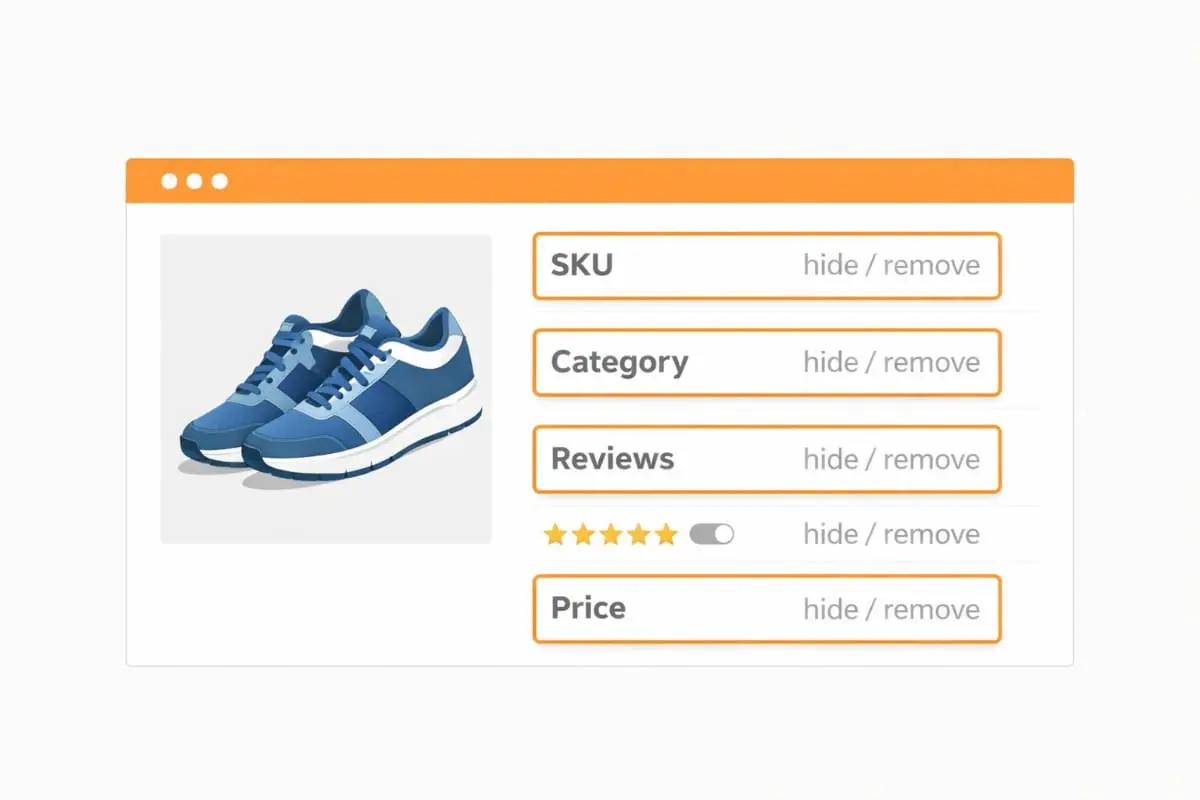
If you want a cleaner WooCommerce single product page, you can remove specific elements like the SKU, category, reviews, price (including sale price), Add to Cart button, breadcrumbs, sidebar, related products, tabs, tags, short description, product image, and even the PayPal button.
This guide covers the fastest and most reliable ways to remove each element using theme settings, WooCommerce hooks (code snippets), or CSS, depending on whether you want to hide it visually or obliterate it from the page output.
Why Remove Elements From a Woocommerce Single Product Page?
Removing unnecessary sections from a WooCommerce single product page can help you create a cleaner layout, improve focus, and guide shoppers toward the actions that matter most. Whether you want to remove the SKU, category, reviews, price, tabs, or even the Add to Cart button, simplifying the page often results in a better shopping experience, especially when your store has a specific selling model or design style.
Common Reasons (Ux, Conversions, Wholesale/catalog Mode, Minimal Layout)
- Improve UX (user experience): A clutter-free product page is easier to scan, helping customers find key details faster.
- Increase conversions: Removing distractions like extra tabs, breadcrumbs, or related products can keep attention on the main offer and CTA.
- Wholesale or catalog mode: Many stores remove the price, quantity selector, or Add to Cart button to create a request-a-quote or inquiry-based setup.
- Minimal product layout: If you’re building a modern design, you may want to remove the sidebar, product meta (SKU/category/tags), or extra sections to keep the page clean and consistent.
Remove WooCommerce Product Page Elements
To remove elements from a WooCommerce single product page, you can use (1) theme settings, (2) WooCommerce or (3) CSS to hide sections. The best method depends on whether you want to hide the element visually or remove it from the page output entirely.
Quick Fixes to Remove WooCommerce Product Page Elements
| Element to remove | Best method |
|---|---|
| SKU | Hook / CSS |
| Category | Hook / CSS |
| Reviews | Disable reviews / remove Reviews tab |
| Additional information | Remove “Additional information” tab |
| Price / Sale price | Hook (conditional) |
| Add to cart button | Hook |
| Quantity selector | Hook / CSS |
| Breadcrumbs | Hook |
| Sidebar | Theme layout / remove sidebar |
| Related products | Hook |
| Tabs | Filter tabs |
| Tags | Hook / CSS |
| Short description | Hook |
| Product image | Hook / CSS |
| PayPal button | Plugin setting / hook |
If you’re looking for the fastest solution, start here. These quick fixes work for most stores and remove the most common WooCommerce product page elements people want to remove, such as the SKU, category, reviews, price, tabs, and more.
Works with most themes: These methods are compatible with most WooCommerce themes, but heavily customized product templates may require theme-specific adjustments.
Before You Remove Anything (Best Method by Use Case)
Before making changes, it helps to choose the right approach so you don’t waste time testing fixes that won’t apply to your setup. The goal is to remove WooCommerce product page elements cleanly while avoiding layout issues, theme conflicts, and unnecessary troubleshooting.
Theme settings (fastest)
If your theme includes WooCommerce toggles (for things like breadcrumbs, sidebar, or product meta), this is the easiest and safest option, no code needed.
WooCommerce hooks (best + clean)
WooCommerce hooks remove the element from the page output entirely. This is usually the best long-term method when you want a clean, stable result without relying on visual hiding.
CSS hiding (quick but not a true removal)
CSS is a fast way to hide elements, but the content may still exist in the HTML. Use CSS when hooks aren’t available, or when your theme overrides default WooCommerce templates.
Tip: If you’re adding PHP snippets, use a child theme or a code snippets plugin so your changes don’t get overwritten during theme updates.
Before you start (best method depends on your setup)
Theme settings vs code snippet vs plugin
- Use theme settings for quick layout toggles
- Use code snippets for clean removal via WooCommerce hooks
- Use a plugin setting when the element comes from a payment or feature plugin (like a PayPal button)
Child theme + backups (recommended)
Even small changes can affect layout or functionality. Using a child theme and taking a quick backup makes it easy to undo changes safely if needed.
How to Remove SKU from WooCommerce Product Page
Check Your WooCommerce Settings (No Code)
Most WooCommerce themes let you hide product meta like SKU without code.
Try this:
- Open WooCommerce → Product Page (or Single Product)
- Look for options like:
- Show SKU
- Turn OFF the SKU/meta option
- Click Publish
This is the cleanest no-code method.
If you want a cleaner WooCommerce single product page, removing the SKU is a quick way to simplify the product meta area—especially if the SKU isn’t valid for customers.
Remove SKU only
WooCommerce typically displays the SKU inside the product meta section. To hide only the SKU line (without affecting other meta details), add this CSS:
.product_meta .sku_wrapper {

display: none;

}
Note: If you hide the entire product meta block, it may also remove the category and tags display. If you only want to remove the SKU (or remove SKU + category while keeping tags), continue to the category and tags sections below.
How to Remove Category from WooCommerce Product Page
Check Your WooCommerce Settings (No Code)
Most WooCommerce themes let you hide product meta like Category.
Try this:
- Open WooCommerce → Product Page (or Single Product)
- Look for options like:
- Show categories
- Turn OFF the category/meta option
- Publish
This is the cleanest no-code method.
If you want a cleaner WooCommerce layout, you can remove the category display from the single product page, especially if it distracts users or doesn’t align with your design.
Remove category from product meta
WooCommerce usually shows the product category inside the product meta section. To remove only the category line (without affecting other meta items), add this CSS:
.product_meta .posted_in {

display: none;

}
Keep category for SEO, hide it visually
If you still want categories for store organization and navigation, but don’t want them visible on the product page, this approach is ideal. It keeps categories active in WooCommerce while hiding the on-page category display:
.product_meta .posted_in {

display: none;

}
How to Remove Reviews from WooCommerce Product Page
If you want a cleaner WooCommerce single product page, removing reviews can help reduce distractions, especially if you don’t use product reviews or prefer a minimal layout.
Disable reviews completely (No Code)
If you want reviews removed entirely (no star ratings and no Reviews tab), you can disable them in WooCommerce:
- Go to WooCommerce → Settings → Products
- Uncheck Enable product reviews
- Save changes
Remove the Reviews tab only
If you want to keep reviews enabled but remove the Reviews tab from the product page tabs, use this snippet:
.add_filter( 'woocommerce_product_tabs', function( $tabs ) {

unset( $tabs['reviews'] );

return $tabs;

}, 98 );
How to Remove Additional Information in WooCommerce Product Page
If you want a cleaner WooCommerce single product page, removing the Additional information section is a standard customization, especially if you don’t want product attributes shown in a separate tab.
Remove the Additional information Tab
WooCommerce displays product attributes inside the Additional information tab by default. To remove that tab from the product page, add this snippet:
add_filter( 'woocommerce_product_tabs', function( $tabs ) {
    unset( $tabs['additional_information'] );
    return $tabs;
}, 98 );
Hide the attributes table but keep attributes for filtering
If you still want attributes available for filtering and product setup, but don’t want the attributes table visible on the product page, removing the Additional information tab is usually the cleanest approach:
add_filter( 'woocommerce_product_tabs', function( $tabs ) {

unset( $tabs['additional_information'] );

return $tabs;

}, 98 );
How to Remove Additional Information in WooCommerce Product Page (WordPress)
If you want a cleaner WooCommerce single product page, removing the Additional information tab is a popular customization, especially if you don’t want product attributes shown to customers.
Check Your WooCommerce Settings (No Code)
Many WooCommerce let you hide product tabs, such as the Additional Information tab.
Try this:
- Open WooCommerce → Product Page (or Single Product)
- Look for options like:
- Additional information tab
- Turn OFF Additional Information
- Click Publish
Best no-code method if your theme supports it.
How to Remove Price from WooCommerce Product Page (Including Sale Price)
Removing the price is a standard WooCommerce customization when you’re building a cleaner layout, running a wholesale setup, or using a catalog-style product page. Since WooCommerce outputs the regular price and sale price using the same template hook, removing the price output removes both automatically.
Check Your WooCommerce Settings (No Code)
Most WooCommerce themes let you hide the product price (including sale price) without any code.
Try this:
- Open WooCommerce → Product Page (or Single Product)
- Look for options like:
- Show price
- Product price
- Show sale badge/sale price
- Product elements
- Hide price
- Turn OFF the Price option
- Click Publish
This removes the regular price and sale price from most themes.
Remove price for all users
To remove the price output from the WooCommerce single product page for everyone, use this snippet:
remove_action( 'woocommerce_single_product_summary', 'woocommerce_template_single_price', 10 ); Remove price for guests only (optional variant)
If you want to hide the price only for logged-out users (while still showing it to logged-in customers), use this:
add_action( 'wp', function() {
    if ( ! is_user_logged_in() ) {
        remove_action( 'woocommerce_single_product_summary', 'woocommerce_template_single_price', 10 );
    }
});
How to remove the sale price from the WooCommerce product page
WooCommerce displays sale pricing using the same price template as regular pricing. So if you remove the price block, it removes both the regular price and the sale price together:
remove_action( 'woocommerce_single_product_summary', 'woocommerce_template_single_price', 10 );Remove the Add to Cart button from the WooCommerce Single Product Page
If you want a cleaner WooCommerce single product page or you’re building a catalog-style layout, removing the Add to Cart button is one of the most common changes. This is also useful for stores that want customers to contact them before purchasing or request a quote instead.
Check Your WooCommerce Settings (No Code)
Many WooCommerce themes let you turn off the Add to Cart button on product pages.
Try this:
- Open WooCommerce → Product Page (or Single Product)
- Look for options like:
- Show the Add to Cart button
- Add to cart button
- Catalog mode
- Hide cart buttons
- Turn OFF the Add to Cart option
- Click Publish
Cleanest way without code
Remove the Add to Cart button only
To remove the Add to Cart button from the WooCommerce product page, use this snippet:
remove_action( 'woocommerce_single_product_summary', 'woocommerce_template_single_add_to_cart', 30 ); Remove Add to Cart + quantity selector (catalog mode)
WooCommerce outputs the quantity selector inside the same Add to Cart section. So removing the Add to Cart block also removes the quantity selector automatically:
remove_action( 'woocommerce_single_product_summary', 'woocommerce_template_single_add_to_cart', 30 );
How to Remove Quantity Selector from WooCommerce Product Page
If you want a cleaner WooCommerce single product page, you can remove the quantity selector while keeping the Add to Cart button visible. This is useful when you only want customers to purchase one item at a time or you prefer a more straightforward layout.
Check Your WooCommerce Settings (No Code)
Some WooCommerce themes let you turn off the quantity box in product settings.
Try this:
- Open WooCommerce → Product Page (or Single Product)
- Look for options like:
- Quantity selector
- Show quantity
- Product form layout
- Turn OFF the Quantity option
- Click Publish
Best no-code option if your theme supports it.
Hide quantity input but keep Add to Cart.
To hide the quantity input on the WooCommerce product page, add this CSS:
.quantity {
  display: none;
}
Remove Breadcrumbs from WooCommerce Product Page
Breadcrumbs can be helpful for navigation, but on a cleaner WooCommerce single product page, you may want to remove them to reduce clutter or match a minimal layout.
Disable Breadcrumbs in Theme Settings (No Code)
Many WooCommerce themes include a toggle to turn off breadcrumbs.
Try this:
- Open WooCommerce → Product Page (or Single Product)
- Look for options like:
- Breadcrumbs
- Show breadcrumbs
- Page header breadcrumbs
- Navigation breadcrumbs
- Turn OFF breadcrumbs
- Click Publish
Cleanest no-code method.
Remove WooCommerce breadcrumbs
To remove WooCommerce breadcrumbs from product pages, add this snippet:
remove_action( 'woocommerce_before_main_content', 'woocommerce_breadcrumb', 20 );
Theme breadcrumb conflicts (quick troubleshooting)
Some themes add their own breadcrumb system on top of WooCommerce. If breadcrumbs still appear after removing the WooCommerce breadcrumb hook, check your theme settings and turn off breadcrumbs there as well.
Remove Sidebar from WooCommerce Product Page
If you want a cleaner WooCommerce single product page, removing the sidebar can help create a more focused layout and give your product content more space, especially on modern, full-width designs.
Set Full-Width Layout in Theme Settings (No Code)
Most WooCommerce themes include layout controls for product pages.
Try this:
- Open WooCommerce → Product Page (or Single Product)
- Look for options like:
- Layout (Full Width / Sidebar Left / Sidebar Right)
- Sidebar settings
- Product page layout
- Select Full Width
- Click Publish
Best and cleanest method (no code).
Full-width product page layout
Many WooCommerce themes include a built-in option to switch the product page layout to full-width. Check your Customizer or theme settings first, since this is usually the easiest and safest method.
Remove sidebar only on product pages.
If your theme doesn’t provide a full-width toggle, you can hide the sidebar only on WooCommerce product pages using CSS:
.single-product #secondary {
  display: none;
}

.single-product #primary {
  width: 100%;
}
Remove Related Products WooCommerce Single Product Page
Check Your Theme Settings (No Code)
Many WooCommerce themes let you turn off Related Products without code.
Try this:
- Open WooCommerce → Product Page (or Single Product)
- Look for options like:
- Related products
- Show related products
- Product recommendations
- Similar products
- Turn OFF Related Products
- Click Publish
Cleanest no-code method.
Disable related products output
To remove related products from the WooCommerce single product page:
remove_action( 'woocommerce_after_single_product_summary', 'woocommerce_output_related_products', 20 ); Optional: replace with upsells/cross-sells
If you remove related products, you can still use upsells/cross-sells elsewhere, but keep this page focused on removal.
How to Remove Tabs from WooCommerce Product Page
If you want a cleaner WooCommerce single product page, removing product tabs (Description / Reviews / Additional Information) is a standard customization.
Disable Tabs in WooCommerce Settings (No Code)
Many WooCommerce themes let you hide product tabs without code.
Try this:
- Open WooCommerce → Product Page (or Single Product)
- Look for options like:
- Product tabs
- Tabs layout
- Show description tab
- Show reviews tab
- Show additional information tab
- Turn OFF the tabs you don’t want
- Click Publish
Cleanest no-code method
WooCommerce product tabs (like Description, Reviews, and Additional information) can be helpful, but they can also add extra scrolling and clutter on a clean WooCommerce single product page. If you want a more straightforward layout, removing tabs is an easy way to streamline the design.
Remove all tabs
To remove all WooCommerce product tabs from the product page, use this snippet:
add_filter( 'woocommerce_product_tabs', '__return_empty_array', 98 );Remove specific tabs only.
If you only want to remove certain tabs (for example, remove Reviews and Additional information but keep the Description tab), use this:
add_filter( 'woocommerce_product_tabs', function( $tabs ) {
    unset( $tabs['reviews'] );
    unset( $tabs['additional_information'] );
    return $tabs;
}, 98 );
How to Remove Tags from WooCommerce Product Page
If you want a cleaner WooCommerce single product page, hiding product tags is an easy way to simplify the product meta area.
Check Your WooCommerce Settings (No Code)
Many WooCommerce themes allow you to disable product tags from the product meta section.
Try this:
- Open WooCommerce → Product Page (or Single Product)
- Look for options like:
- Product meta
- Show tags
- Product tags
- Turn OFF tags (or product meta)
- Click Publish
Cleanest no-code method
Remove Tags from WooCommerce Product Page
If you want a cleaner WooCommerce single product page, removing product tags can help simplify the product meta area, especially if tags aren’t important for your store navigation or customer experience.
Hide product tags in product meta
WooCommerce displays tags inside the product meta section. To hide the tags line on the product page, add this CSS:
.product_meta .tagged_as {
  display: none;
}
How to Remove Product Image from WooCommerce Single Product Page
If you want a cleaner WooCommerce single product page, you can remove the featured image + gallery completely.
Check Your WooCommerce Settings (No Code)
Many WooCommerce themes let you turn off the product gallery/featured image.
Try this:
- Go to Appearance → Customize
- Open WooCommerce → Product Page (or Single Product)
- Look for options like:
- Product gallery
- Featured image
- Show product image
- Image zoom/slider
- Turn OFF the product image/gallery option
- Click Publish
Best no-code method.
Remove Product Image from WooCommerce Single Product Page
If you want a cleaner WooCommerce single product page layout, you can remove the main product image or gallery, especially for simple products, digital items, or minimal product page designs.
Hide featured image/gallery output.
WooCommerce displays the product image and gallery above the product summary. To remove it from the single product page, use this snippet:
remove_action( 'woocommerce_single_product_summary', 'woocommerce_template_single_excerpt', 20 );CSS vs hook removal (which is better?)
- Hook removal (recommended): Cleaner and removes the image output properly
- CSS hiding: A quick visual fix if your theme rebuilds the product page template and the hook doesn’t apply
How to Remove PayPal Button from WooCommerce Product Page
If your PayPal plugin adds a PayPal Smart Button on the single product page, removing it can make the layout cleaner, while still keeping PayPal available on checkout (recommended).
Best method because it properly removes the button (not just hides it).
Disable Product Page PayPal Button in Plugin Settings (No Code)
Most PayPal plugins include an option to disable buttons on product pages.
Try this:
Go to WordPress Dashboard → WooCommerce → Settings
Open the Payments tab
Click your PayPal method (example: PayPal, PayPal Payments, PayPal Checkout)
Look for options like:
Smart Buttons
Show on product pages
Product page button
Express checkout button
Turn OFF the product page button option
Click Save changes
Best method because it fully removes the button properly (not just hiding it).
Remove the PayPal smart button on the product page only.
If your PayPal integration adds a PayPal button to the product page, the first step is to check the plugin settings (many PayPal plugins let you turn off product page buttons without code).
If you need to hide it visually on the product page only, add this CSS:
.single-product .paypal-button,
.single-product .ppcp-button {
  display: none !important;
}
Keep PayPal on checkout (recommended)
Most stores keep PayPal enabled on the checkout page even after removing it from the product page, so customers can still pay with PayPal at the final step.
Frequently Asked Questions (FAQ’s)
Can I remove SKU without breaking WooCommerce?
Yes. Removing or hiding the SKU display does not break WooCommerce; it only changes what’s shown on the product page. The SKU remains in the backend for inventory management, and removing it doesn’t affect any functionality.
What’s the difference between hiding and removing?
- Hiding (CSS): Hides the element from the page, but the element’s HTML still exists in the code.
- Removing (hooks): Fully removes the element from the page output, so it’s not present in the HTML.
Why is my theme ignoring WooCommerce hooks?
Some themes override WooCommerce templates or use custom page builders that bypass default WooCommerce hooks. In these cases, theme-specific settings or CSS are more effective than hooks.
Will removing reviews affect SEO?
Removing reviews can reduce the visibility of social proof, potentially affecting user trust. However, it is mostly a design decision. If reviews are crucial to conversions, consider removing the Reviews tab rather than turning off reviews entirely.
How do I undo changes safely?
- To undo PHP changes, remove the snippet you added (or turn it off in your snippet plugin).
- To undo CSS changes, remove the CSS block from your Customizer or stylesheet.


)