

If you’re searching for how to make an e-commerce website with WordPress, you’re likely looking for more than just a basic tutorial. You want clarity. You want control. And most importantly, you want a store that actually works, fast, secure, scalable, and built to grow with your business.
WordPress powers over 40% of the web, and when combined with WooCommerce, it becomes one of the most powerful e-commerce platforms available. Unlike closed website builders, WordPress gives you full ownership of your store, unlimited customization, and complete flexibility over design, functionality, and SEO. That’s why entrepreneurs, startups, and even large brands continue to choose it for launching online stores.
In this complete step-by-step guide, you’ll learn exactly how to build an e-commerce website with WordPress from the ground up. We’ll walk through choosing the right hosting, installing WooCommerce, selecting high-converting themes, configuring payments and shipping, and understanding real costs. You’ll also see examples of successful WordPress e-commerce websites and explore advanced options, including Elementor customization, multivendor marketplaces, speed optimization, and mobile integration.
Whether you’re starting your first online store or rebuilding an existing one, this guide is designed to give you everything you need in one place, no scattered tutorials, no missing steps, and no unnecessary complexity.
Let’s build your WordPress e-commerce website the right way.
WordPress Ecommerce Website Explained (What It Is + When It Makes Sense)
A WordPress e-commerce website is simply a WordPress site that’s been upgraded to sell products or services online. WordPress itself is a content management system; it’s built for creating pages, publishing content, and managing a website. E-commerce features like product listings, a shopping cart, payments, shipping, taxes, and order management are provided by an added “commerce layer,” most commonly a plugin such as WooCommerce.
They’re not talking about a separate platform. They’re talking about turning WordPress into a complete online store. When done correctly, this setup gives you the flexibility of WordPress with the selling power of a full e-commerce system, all under your ownership.
What Does a WordPress Ecommerce Website Mean (WordPress + Ecommerce Layer)
Think of WordPress as the foundation of your store: it handles your site structure, content, and design. The e-commerce layer adds everything needed to sell. Together, they create an e-commerce website with WordPress that can support anything from a small catalog to a large store with thousands of products, depending on how it’s built and hosted.
This approach is popular because it’s modular. You can start simple and add features only when you need them, rather than paying for a locked-in platform that forces you into a fixed set of tools. That’s also why many business owners choose WordPress for e-commerce websites when they want long-term control over SEO, branding, and functionality.
Is WordPress good for e-commerce websites?
Yes, WordPress can be excellent for e-commerce, but it depends on your goals and how you set it up. If you want flexibility, ownership, and the ability to customize your store without being limited by a closed platform, using WordPress for e-commerce website builds is a strong choice.
Where WordPress shines is control: you can choose your hosting, your theme, your checkout flow, and your features, and you can optimize every part of your site for performance and search rankings. However, WordPress is not “set it and forget it.” Unlike hosted platforms that manage everything for you, WordPress e-commerce sites require basic maintenance, such as updates, backups, and adherence to security best practices. The tradeoff is worth it for many store owners because you gain full control and the ability to scale on your terms.
WordPress makes the most sense when you want to build a store that can grow, rank, and evolve, especially if SEO and customization matter to you.
Here’s a clear breakdown of the pros and cons to help you decide whether WordPress + WooCommerce is the right fit for your online store:
| Category | Pros (Benefits) | Cons (Challenges) |
|---|---|---|
| Ownership & Cost | Full ownership of website and data; no platform transaction fees. | Requires separate hosting setup; costs can scale with premium tools. |
| Customization | Unlimited flexibility; wide theme and design options. | Advanced features often require paid plugins; can become complex. |
| Maintenance | Massive plugin ecosystem for easy feature additions. | Needs regular updates; security and backups are your responsibility. |
| Performance | Scales from small stores to large catalogs; strong SEO control. | Speed depends on proper configuration; learning curve for beginners. |
What You Need Before Starting (Domain, Hosting, WordPress Basics)
Before you build anything, you’ll want to get a few essentials in place. First is a domain name, the address customers will type to find your store. Next is reliable hosting, because e-commerce sites need stronger performance and security than a basic blog or brochure site. The better your hosting, the faster your store loads and the smoother checkout feels, which directly impacts conversions.
Finally, you don’t need to be a developer, but you should be comfortable with the basics of WordPress: installing themes, adding plugins, creating pages, and managing menus. Once those pieces are set, creating a WordPress e-commerce website becomes a straightforward process, and the rest of this guide will walk you through it step by step.
The Fastest Way to Build: WordPress + WooCommerce (Recommended Path)
If your goal is to learn how to create an e-commerce website with WordPress without overcomplicating the process, the fastest and most proven route is WordPress + WooCommerce. This combination is why so many people can confidently search for how to build an e-commerce website with WordPress and actually finish with a real, working store, complete with products, payments, shipping, and checkout.
WordPress gives you control over your website: content, design, SEO, and structure. WooCommerce adds the e-commerce engine: product management, cart functionality, order processing, shipping rules, taxes, and payment gateways. When you put them together, you’re not patching ecommerce onto a blog,you’re building a complete store that’s flexible enough for beginners and powerful enough for serious growth.
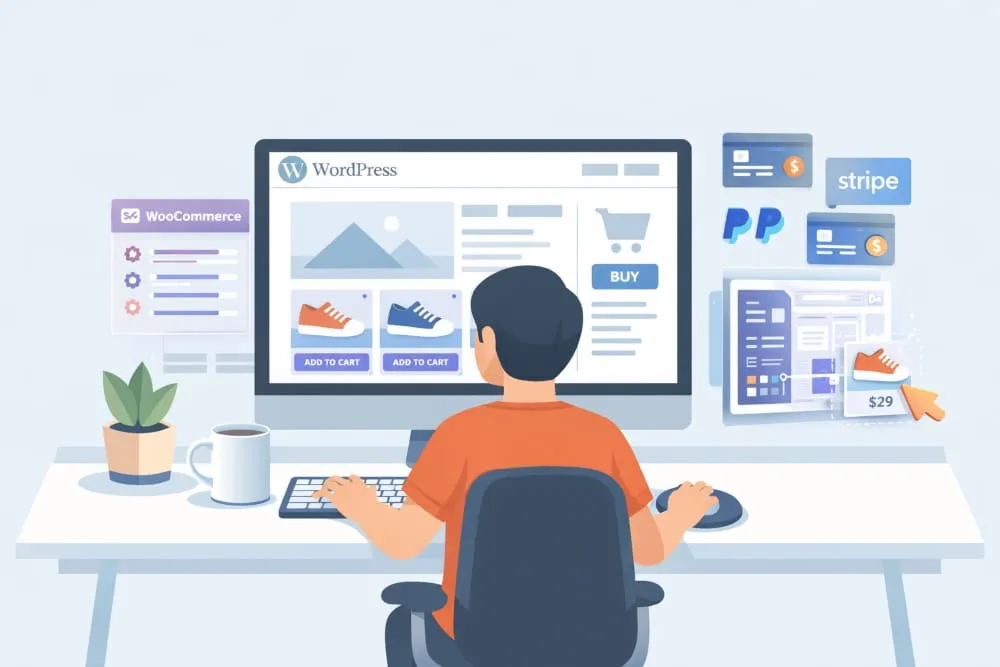
This is also the most straightforward way to add e-commerce to a WordPress website. Instead of switching to a new platform, you’re simply installing the e-commerce layer WordPress was built to support.
Why Woocommerce is the Default Choice for Most WordPress Stores
WooCommerce is the default choice because it feels native to WordPress. It’s designed to work with WordPress themes, WordPress plugins, and the way WordPress structures pages. That makes it easier to build, scale, and optimize than many alternative store plugins.
More importantly, WooCommerce gives you control. You can start with a simple setup and expand later, adding subscriptions, bookings, digital products, memberships, or even marketplace features, without rebuilding your entire site. That’s why most step-by-step tutorials for how to make an e-commerce website in WordPress use WooCommerce as the base. It’s the most supported, most widely documented, and most extensible option.
If you’re looking for the clearest path to build an e-commerce website with WordPress and WooCommerce, this is it.
Setup Checklist (Store Currency, Shipping Zones, Taxes, Pages)
When people get stuck trying to set up an e-commerce website with WordPress, it’s usually not because WooCommerce is hard; it’s because they skip the foundational settings that make a store function smoothly. The good news is WooCommerce covers these essentials early, and once you set them correctly, everything else becomes simpler.
At the setup stage, you’ll configure the basics that define how your store operates: what currency you sell in, where you ship, how shipping costs are calculated, how taxes should apply, and which essential store pages WooCommerce should generate automatically. These small decisions shape your customer experience, from product browsing to checkout.
If you’re following a guide to create an e-commerce website in WordPress step by step, think of this checklist as your store’s “operating system.” Get it right once, and you won’t have to troubleshoot later.
Core Pages to Create (Home, Shop, Product, Cart, Checkout, My Account)
A high-performing WordPress store isn’t just “a website with products”, it’s a structured shopping experience. WooCommerce relies on a set of core pages that customers expect, and search engines understand.
Your homepage is your storefront: it sets the brand, highlights best sellers, and directs people into categories. The Shop page serves as your product catalogue. Individual Product pages are where your conversions happen; images, descriptions, pricing, variations, and trust elements all matter here. Then you have the Cart and Checkout pages, where clarity and speed can make or break sales. Finally, the My Account page gives customers a place to track orders, manage details, and return for repeat purchases.
These pages are essential for setting up a WordPress e-commerce website with WooCommerce the right way, because they provide the structure that turns WordPress into a real e-commerce platform. Once these are in place, you’re no longer “setting things up”; you’re building a store that’s ready to sell.
From here, the next steps are straightforward: choose a theme that cleanly supports WooCommerce, add your products, connect payments, configure shipping, and test your checkout flow. That’s the backbone of how to build an e-commerce website with WordPress, fast, clean, and scalable.
Step-by-Step: Create Your E-commerce Website in WordPress
Once you’ve decided you’re building with WordPress, the next question is usually the same for everyone: what’s the cleanest, fastest way to get from “blank website” to “store that can accept real orders”? The key is to follow a setup sequence that prevents future problems, slow performance, messy product pages, broken checkout flows, or plugin overload.
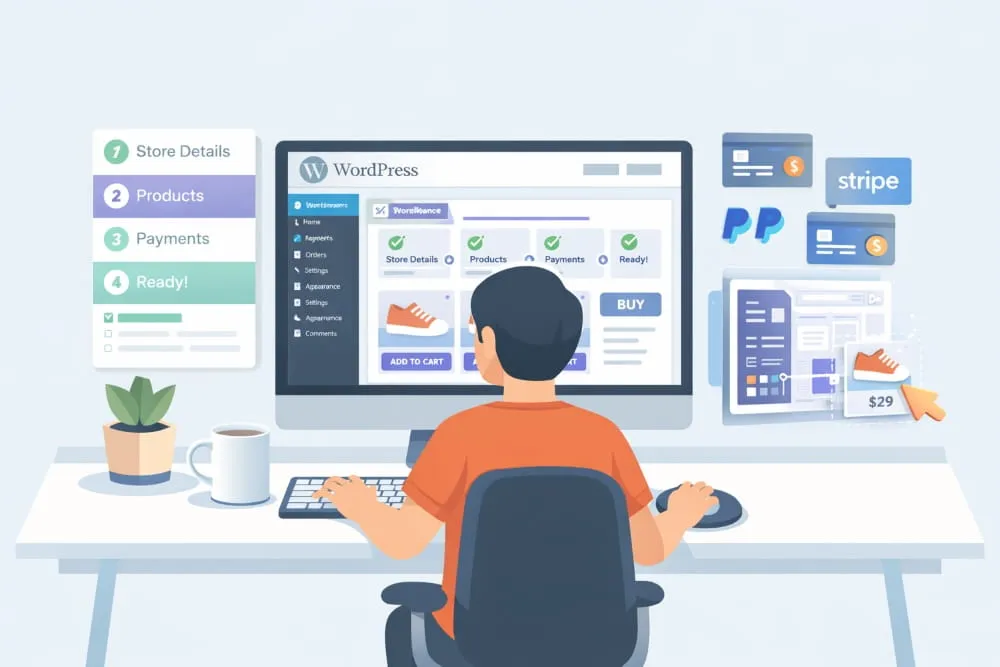
This step-by-step process shows you exactly how to create an e-commerce website in WordPress using a reliable e-commerce foundation (WooCommerce) and only the plugins you actually need. WordPress gives you the website framework, and the right WordPress plugins for ecommerce website functionality turn it into a complete store, products, payments, shipping, checkout, and order management, without locking you into a closed platform.
Install WordPress + Pick a Lightweight, Ecommerce-ready Theme
Start by installing WordPress on quality hosting and immediately choosing a theme that’s built for ecommerce performance. Your theme isn’t just about design; it also impacts speed, mobile experience, product layout, and SEO structure.
A lightweight, ecommerce-ready theme helps you avoid the common beginner mistake of choosing something that “looks good” but loads slowly or breaks WooCommerce templates. The goal here is simple: a clean foundation that supports product pages, shop layouts, and checkout pages without heavy code or unnecessary features. You can always customize later, but you can’t easily undo a bloated starting point.
Install Woocommerce + Configure Essentials
Next, install WooCommerce. This is the e-commerce engine that transforms WordPress into a store. In most cases, WooCommerce is the single most important WordPress plugin for setting up an e-commerce website because it handles the fundamentals: products, cart, checkout, order processing, taxes, shipping, and customer accounts.
Plugins → Add New → Search “WooCommerce” → Install → Activate
During configuration, focus on the essentials first: store location, currency, basic tax settings, and the pages WooCommerce automatically creates (Shop, Cart, Checkout, My Account). Getting these right early makes everything else smoother, including payments, shipping rules, and product display.
This is where WordPress becomes more than a website and starts functioning like an e-commerce platform, without needing a separate “e-commerce website builder WordPress” tool that locks you into a rigid structure.
Add products the right way (simple/variable, pricing, inventory, images)
Products are what make your store look professional or feel instantly unfinished. In WooCommerce, you’ll typically add products as either simple or variable:
Simple products work when there’s one version of an item. Variable products are for sizes, colors, bundles, or any option that changes price or inventory.
As you add products, the details matter: accurate pricing, clean product titles, consistent categories, and properly managed stock levels. Your images deserve extra attention. High-quality product photos help conversions, but they also need to be optimized to avoid slowing down the site. When product organization is clean from the start, your shop is easier to navigate and scale.
Go to Products → Add New
Configure:
- Product title
- Description
- Short description
- Price
- Inventory
- Images
- Categories
- Attributes (size, color, etc.)
Use optimized product descriptions for SEO.
Payments (Stripe/PayPal/cash on delivery patterns)
Now you connect how money actually flows. WooCommerce supports multiple payment methods, but the best approach is to keep it simple at launch: choose one or two options that match your audience and region.
Stripe and PayPal are common defaults because they’re trusted and fast to set up. Cash on delivery can make sense in certain markets, but only if you’re operationally prepared. Whatever you choose, the most important step is testing: run a full test transaction so you know checkout works, order emails fire correctly, and payments are recorded properly in WooCommerce.
Shipping setup (flat rate vs calculated, local pickup)
Shipping is one of the most common points of confusion when people build an e-commerce website with WordPress, but it becomes straightforward when you structure it properly.
Most stores start with one of two models: flat-rate shipping (simple, predictable) or calculated shipping (dynamic rates based on location, weight, or carrier). If you sell locally, local pickup can be a great option because it reduces friction and keeps fulfillment manageable. The key is to set up shipping zones correctly so customers see accurate options at checkout. Nothing kills conversions faster than unclear or surprising shipping costs.
Launch Readiness Checklist (test order, emails, legal pages)
Before you launch, treat your store like a machine that needs a full system check, not just a final glance.
You want to confirm that checkout works end-to-end, order confirmations are delivered, and customer emails look professional. You’ll also need the essential legal pages: a privacy policy, terms and conditions, a refund/return policy, and a shipping policy. These pages aren’t “extra”; they build trust and reduce customer hesitation, especially for first-time buyers.
Finally, review your store on mobile, confirm page speed is reasonable, and remove anything unnecessary. Many people assume they need dozens of tools, but the truth is the cleanest stores often use fewer plugins. The right plugins for an e-commerce WordPress website should support your sales process, not slow it down or complicate maintenance.
Once these steps are complete, you’ll have a real WordPress ecommerce website that’s ready for traffic, ready for customers, and built on a foundation you can grow confidently.
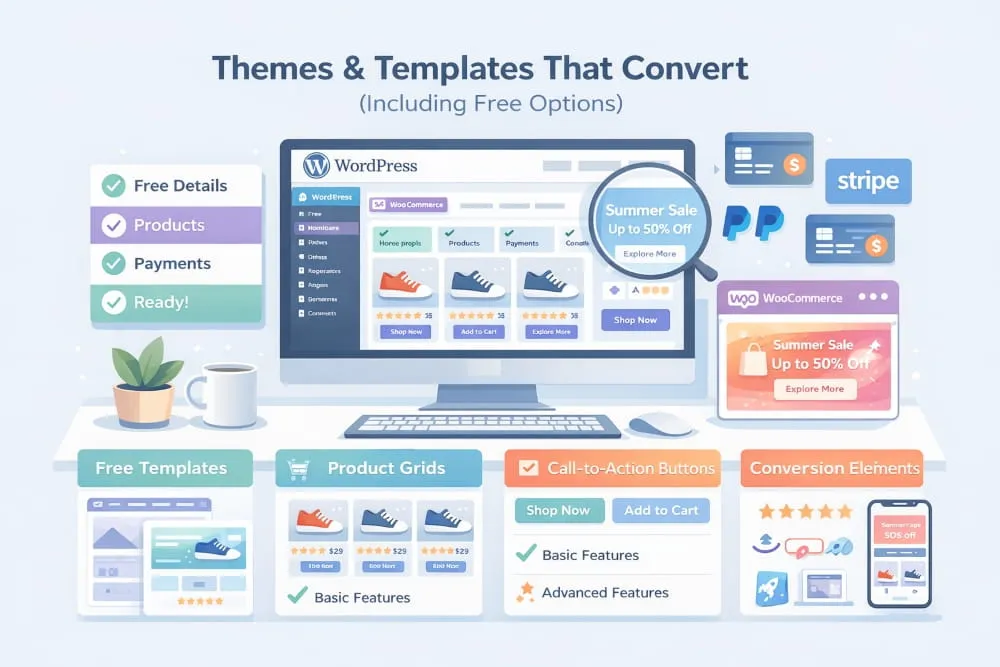
Themes & Templates That Convert (Including Free Options)
Your design isn’t just “how the store looks.” For a WordPress store, your theme determines how fast your site loads, how clean your product pages feel, how easily customers navigate categories, and how well your store performs in search results. That’s why choosing the right e-commerce website WordPress theme is one of the highest-leverage decisions you’ll make when building a store.
The best-performing WordPress stores don’t rely on flashy layouts. They win with speed, clarity, and trust, because shoppers don’t need to be impressed; they need to feel confident enough to click “Buy.” Whether you’re choosing from premium options or exploring WordPress ecommerce website templates, the goal is the same: a design foundation built to convert.
What to Look for in an E-commerce WordPress Theme (speed, schema-ready, clean product templates)
A great e-commerce theme starts with performance. Speed affects everything: rankings, user experience, and sales. A theme that loads quickly and stays lightweight gives you a competitive advantage before you’ve even written a product description.
You also want a theme that’s ecommerce-structured, not just “WooCommerce compatible.” That means it should have clean product templates that display images, pricing, variations, shipping info, and reviews in a way that feels natural and easy to scan, especially on mobile.
Finally, look for themes that support strong SEO foundations. Many modern themes handle the technical basics well. Still, the best ones make it easier to implement structured data and a clean page architecture, so your products, categories, and key pages are easier for Google to understand and display.
In short: prioritize speed, mobile layout, and product-page clarity. A theme that “looks amazing” but loads slowly will cost you traffic and conversions.
Best E-commerce Website Themes for WordPress (selection criteria + pitfalls)
When people search for the best WordPress theme for building an e-commerce website, they’re usually trying to avoid costly mistakes, because switching themes later is possible but rarely painless. The smartest approach is to select based on criteria, not hype.
The best WordPress themes for ecommerce websites typically share a few traits: they’re lightweight, actively updated, well-reviewed, and built around ecommerce layouts rather than generic multipurpose designs. They should work smoothly with WooCommerce out of the box and offer flexibility without forcing you into a cluttered design system.
The biggest pitfall is choosing a theme that tries to do everything. Many “all-in-one” themes include heavy sliders, massive libraries, and dozens of built-in features you’ll never use. They often look impressive in demos, but in real stores, they suffer from slower load times, plugin conflicts, and messy customization.
If you want the best ecommerce website themes WordPress can offer, think long-term: stability, speed, and clean templates will outperform visual gimmicks every time.
Free Ecommerce Website Templates/themes for WordPress (what “free” really includes)
Free themes can be a great starting point, especially for new store owners. There are genuinely strong free options that deliver fast performance and clean e-commerce layouts. But it’s important to understand what “free” usually means.
In most cases, free themes provide the basics: a solid design foundation, responsive layouts, and WooCommerce support. The premium version typically unlocks deeper customization, advanced headers, more shop layouts, product page enhancements, and branding controls.
So yes, you can use free e-commerce website templates/themes for WordPress, but you should evaluate them like a business decision. If the free version forces you into limited layouts or requires extra plugins just to achieve basic design goals, you may end up paying in other ways, such as time, performance, or future rebuild costs.
The best approach: start with a high-quality free theme that’s fast and ecommerce-ready, then upgrade only if you genuinely need advanced customization.
When to Use Templates vs Theme Builders
This is where many store owners get confused: WordPress website templates and e-commerce solutions can mean different things. Sometimes it refers to ready-made theme demos. Other times, it refers to page-builder templates you import and customize.
If you want a store that’s stable, fast, and easy to manage, a strong e-commerce theme (with built-in shop/product templates) is usually enough. Templates are useful when you want quicker design direction, prebuilt homepage layouts, category layouts, or product page structures that you can adapt without starting from scratch.
Theme builders and page builders can be helpful when you need deeper design control, but they come with tradeoffs. They can add complexity, increase load time, and make your site harder to maintain if you overbuild. The cleanest strategy is to use templates for structure and speed, and only lean on builders when your store genuinely needs custom layouts that your theme can’t deliver.
If your goal is conversion and growth, your design foundation should be simple: a reliable ecommerce theme, clean templates, and a layout that makes products easy to browse and easy to buy. That’s what turns design into revenue.
Plugins You Actually Need (Avoid Plugin Bloat)
One of the biggest mistakes people make when building a WordPress store is treating plugins like features you “collect.” It’s easy to install ten different tools in the name of flexibility, and then wonder why the site feels slow, the checkout breaks after updates, or random conflicts start appearing out of nowhere.
The truth is, you don’t need dozens of add-ons to run a high-performing ecommerce site. You need a clean foundation (WordPress + WooCommerce) and a small set of plugins that support three goals: rankings, reliability, and revenue. The best WordPress e-commerce websites are often the simplest under the hood.
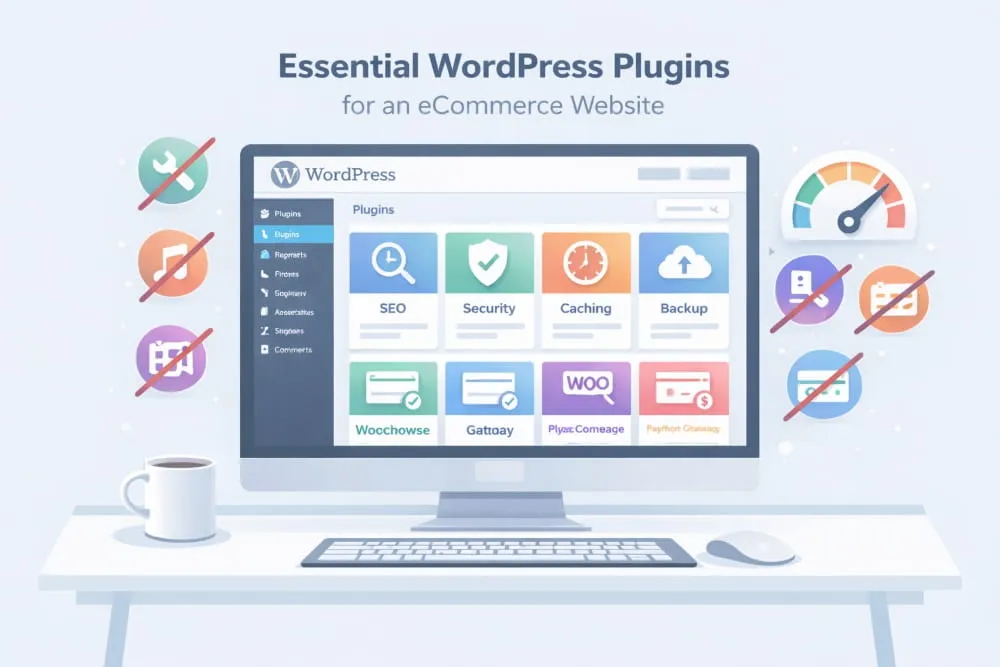
Must-have Categories: SEO, Caching, Security, Backups, Email Deliverability
There are a handful of plugin categories that almost every e-commerce store benefits from, regardless of what you sell. They’re not “nice-to-haves”, they’re the basics that protect performance and keep operations stable.
Start with SEO. A solid SEO plugin helps you control page titles, meta descriptions, canonical settings, indexing rules, and structured data that make your products and categories easier to understand in search results.
Next is caching and performance. E-commerce sites carry more weight than normal websites, including product images, scripts, checkout pages, and dynamic cart functions, so speed can drop quickly without optimization. A caching plugin can dramatically improve load times, which in turn affects both rankings and conversions.
Security and backups are non-negotiable. Your store handles customer data and order details, so you need protection against brute-force attacks, malware, and vulnerabilities. Backups ensure that if something breaks, an update, a plugin conflict, or a server issue, you can restore your site quickly without losing revenue.
Finally, email deliverability matters more than most beginners realize. Order confirmations, password resets, shipping updates, and abandoned cart emails rely on stable delivery. A simple SMTP or email deliverability plugin helps ensure your store emails actually reach customers instead of landing in spam, or never arriving at all.
If you only install a few plugins, these categories should come first. They make your site faster, safer, and more trustworthy, which directly supports growth.
E-commerce-enhancing plugins (product filters, variations UX, wishlists)
Once the store is stable, you can add plugins that improve the shopping experience, without turning your site into a bloated mess.
The best ecommerce-enhancing plugins focus on usability: helping customers find what they want faster and buy with less friction. Product filters can be powerful when you have multiple categories or a larger catalogue, especially for attributes like size, colour, price range, and brand. Variation improvements can also boost conversions by making size/color selection clearer and reducing confusion on product pages.
Wishlists are another example of a feature that can increase return visits and encourage repeat buying, especially for fashion, gifting, or higher-consideration products. But the keyword here is intentional: add these only when they align with your catalog and buying behavior. If a plugin doesn’t improve browsing or checkout, it’s probably not worth the performance tradeoff.
A good rule: every additional plugin should earn its place by improving speed, trust, or conversion. If it’s just “cool,” it’s usually bloat.
E-commerce Website Builder WordPress Options, What They Do vs What a Theme Does
When people search for an “e-commerce website builder WordPress” solution, they’re usually looking for an easier way to design the store without code. And yes, there are builder tools that make layout changes more visual. But it’s important to understand the difference between what a builder does and what a theme does, because mixing them incorrectly is what makes many stores heavy and slow.
A theme controls your site’s overall structure: headers, footers, typography, shop layouts, and how WooCommerce templates display product pages and categories. A builder typically helps you design pages visually, especially marketing pages like the homepage, landing pages, or promotional sections.
Used correctly, builders can be helpful. Used excessively, they can create unnecessary complexity, slower load times, and a harder-to-maintain store, especially if your theme already provides strong e-commerce templates.
The clean approach is to let your ecommerce theme handle core store layouts, then use builder tools only when you need custom-designed pages for branding or campaigns. That way, you get flexibility without sacrificing performance.
If your goal is a store that ranks, loads fast, and converts consistently, plugin strategy matters as much as design. Keep the stack lean, focus on essentials first, and add ecommerce enhancements only when they clearly improve the buying experience.
Essential Plugins for a WordPress E-commerce Website
To keep your store fast and stable, avoid plugin overload. Install only what supports performance, security, and conversions.
Here’s a clean breakdown of the must-have plugin categories:
| Category | Purpose | Recommended Options |
|---|---|---|
| SEO | Optimize titles, meta descriptions, sitemaps, schema, and on-page SEO structure | Rank Math, Yoast SEO |
| Caching / Speed | Improve load time, reduce server strain, enhance performance | WP Rocket (premium), LiteSpeed Cache |
| Security | Protect against malware, brute-force attacks, and vulnerabilities | Wordfence, Solid Security |
| Backups | Automatically back up your website for recovery if something breaks | UpdraftPlus |
| Email Deliverability | Ensure order confirmations and customer emails reach inboxes | SMTP plugin (e.g., WP Mail SMTP) |
Important: More plugins do not mean a better store. Every plugin adds code. Install only what you truly need, and prioritize performance and stability over unnecessary features.
Design & UX for WordPress Ecommerce (What Moves Revenue)
A WordPress e-commerce website can have the right theme, the right plugins, and even great products, and still underperform if the user experience feels uncertain. E-commerce UX isn’t about making a store “look cool.” It’s about reducing hesitation. Every click should feel obvious, every detail should feel trustworthy, and every step toward checkout should feel effortless.
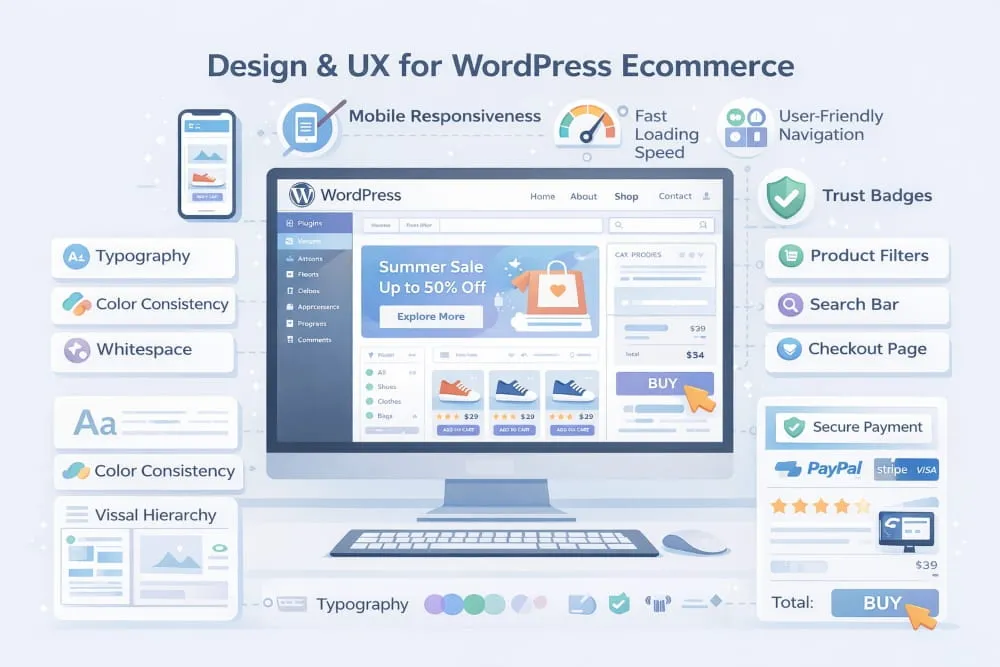
The best design decisions are the ones customers don’t notice, because nothing slows them down, confuses them, or makes them question whether they should buy from you.
Product Page Ux Checklist (trust, shipping clarity, returns, reviews)
Your product page is where interest turns into intent. If your product pages feel incomplete, vague, or hard to scan, shoppers don’t “think about it”; they leave.
A high-converting product page does three things well: it builds confidence, answers objections, and makes the next action easy.
Trust starts with clarity. Strong product images, clean pricing, and a clear add-to-cart experience are the baseline. From there, the details matter: shipping expectations, return policies, and customer reviews are often the difference between a sale and hesitation. If a shopper can’t quickly understand delivery time, costs, and what happens if the product doesn’t fit or meet expectations, you’re asking them to take a risk, and most won’t.
Reviews are especially powerful because they do the job your copy can’t. They validate quality, reduce uncertainty, and provide real-world context. Even a simple review section (with authentic feedback) adds credibility and helps shoppers feel like they’re buying from a real business, not just a website.
Category Pages That Rank (filters, internal linking, copy blocks)
Category pages are often the real SEO engine of an e-commerce site. They target broader search terms, help users browse, and guide customers toward the right products faster. But many stores treat category pages like empty product grids, missing a major opportunity to rank and convert.
A well-performing category page is structured like a helpful shopping hub. Filters improve usability by letting customers narrow down options without friction, especially in stores with multiple variations, such as sizes, colours, price ranges, or attributes. When filters are clean and fast, shoppers stay longer and find products more quickly, which improves conversion rates.
Internal linking matters for both users and search engines. Clear navigation to related categories, best sellers, or top collections helps customers explore and also strengthens your site’s structure. The goal is to make discovery effortless: fewer dead ends, more guided choices.
And yes, copy blocks can help when done properly. A short, useful introduction at the top of a category page can clarify what the category includes and who it’s for. It’s not about stuffing keywords. It’s about adding context that helps search engines understand the page, while helping shoppers feel like they’re in the right place.
Checkout Optimization Basics (reduce fields, trust signals)
Checkout is where revenue is won or lost. Most abandoned carts don’t happen because people changed their minds; they happen because checkout feels longer, riskier, or more annoying than expected.
The first rule is simplicity: fewer fields, fewer steps, fewer distractions. Only ask for information you genuinely need to fulfill the order. If a shopper feels like they’re filling out a form instead of buying a product, friction rises, and conversions fall.
Trust signals matter even more at checkout than anywhere else. Customers want reassurance that payments are secure, their information is protected, and the store is legitimate. Clear payment options, security badges (used carefully), visible support contact info, and reminder links to shipping/returns policies all help reduce last-minute doubt.
A great checkout experience feels calm, fast, and predictable. When you combine that with strong product pages and category browsing that makes discovery easy, you don’t just improve design, you improve revenue.
Advanced Setups (When You’re Ready to Scale)
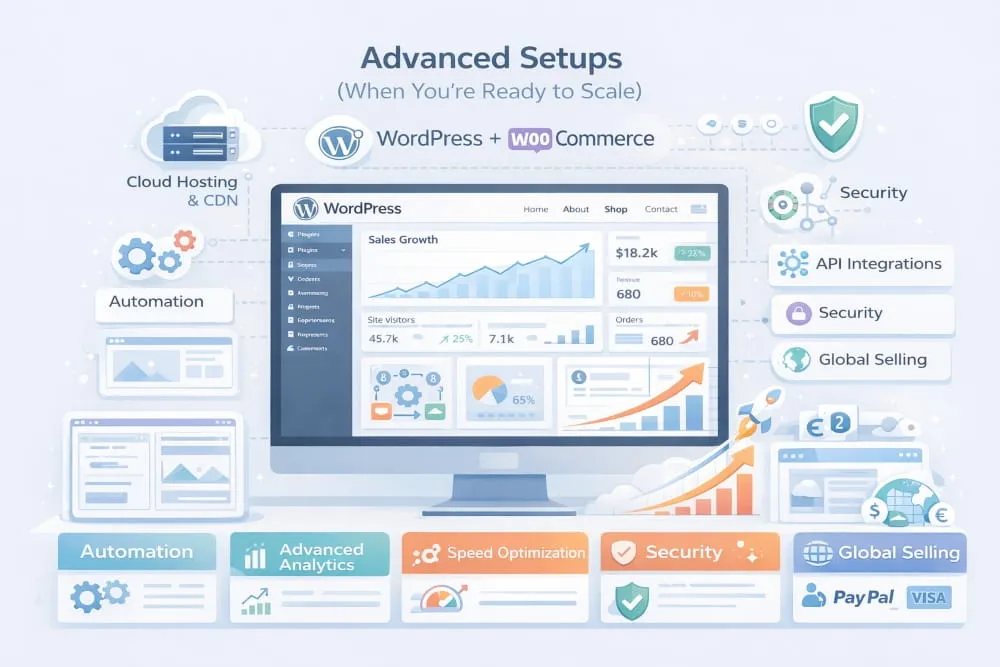
Once your store is live and selling, your priorities shift. It’s no longer just about launching; it’s about scaling without breaking what’s already working. That’s where advanced builds come in: more design control, more complex business models, faster performance, and better experiences across devices.
The key is to upgrade strategically. Every “advanced” feature adds weight, more code, more plugins, more moving parts. Done well, it unlocks growth. Done poorly, it slows down your site, complicates maintenance, and creates new points of failure. The goal is simple: expand capabilities while protecting speed, stability, and checkout performance.
Elementor Ecommerce Builds: When It Helps vs When It Hurts Speed
If you’re searching for how to make an e-commerce website with WordPress Elementor, you’re likely aiming for visual control, custom sections, modern layouts, and a polished brand feel without custom development. Elementor can be a great fit for building marketing pages: homepages, landing pages, collection pages, and promotional layouts where design directly impacts conversion.
Where Elementor can hurt is when it’s used too aggressively across the store, especially on product templates, shop pages, and checkout-related layouts. E-commerce pages are already dynamic, and heavy page-builder layers can add extra scripts, increase load time, and reduce overall performance. The smartest approach is to keep Elementor where it has the most impact and least risk: high-visibility brand pages and campaigns, while letting your ecommerce theme handle core store templates.
Used with restraint, Elementor improves design and conversion. Used everywhere, it often makes a store feel slow.
Multivendor/Marketplace Ecommerce on WordPress (core requirements + common mistakes)
A multi-vendor e-commerce website WordPress setup is a different type of store. Instead of selling your own products, you’re building a marketplace where multiple sellers list products, manage orders, and receive payouts, while you control commissions and platform rules.
This model can scale fast, but it demands structure. A multivendor marketplace needs vendor dashboards, product approval workflows, commission settings, withdrawal methods, seller profiles, and often dispute management. It also needs stronger hosting and tighter security, as more users have access to your backend and more transactions are occurring simultaneously.
The most common mistake is launching a marketplace like a normal store, without clear rules, quality controls, or operational workflows. A multivendor site isn’t just a WooCommerce store with extra vendors; it’s a platform. If you don’t define how vendors are onboarded, how listings are approved, and how customer issues are handled, the site becomes messy quickly, and customers lose trust.
If you want a WordPress-built multivendor ecommerce website that lasts, plan the operations before adding features.
Speed Up a WordPress E-commerce Website (Core Web Vitals checklist)
If you’re trying to figure out how to speed up a WordPress e-commerce website, you’re already thinking like a serious store owner. Speed isn’t cosmetic; it affects rankings, bounce rates, and conversions. And e-commerce sites have more to optimize: product images, variation scripts, cart updates, and dynamic content that can slow things down if the foundation is weak.
Most speed improvements come from a few core areas: better hosting, caching, image optimization, minimizing heavy plugins, and reducing unnecessary scripts. Core Web Vitals matter because they measure real user experience, how quickly pages load, how stable the layout feels, and how responsive the site is when someone taps “Add to Cart.”
Instead of chasing random speed tricks, focus on a clean performance system: lightweight theme, lean plugin stack, properly optimized images, and caching configured for ecommerce pages. The goal is not only a faster homepage, but it’s also a fast product page, fast category browsing, and a smooth checkout experience under real traffic.
Turn Your WordPress E-commerce Website Into a Mobile App (options + tradeoffs)
As your store grows, customers often shift toward mobile repeat buying, and that’s when many brands explore converting a WordPress e-commerce website to a mobile app. A mobile app can improve retention, enable push notifications, and create a smoother experience for returning customers. But it also adds cost and maintenance, so it’s not always the right move early.
There are a few common paths. Some stores use progressive web apps (PWAs), which feel app-like without a full native build. Others use app-builder platforms that connect to WooCommerce and generate a mobile app with synced products and orders. A custom native app offers the most control, but it’s also the most expensive and requires ongoing development.
The tradeoff is straightforward: apps can boost loyalty and repeat purchases, but they only pay off when you already have consistent traffic and a reason for customers to come back frequently. For many stores, improving mobile site speed and UX first delivers a better return than building an app too early.
When you’re ready to scale, these advanced options can take your WordPress e-commerce website to the next level. Just make sure every upgrade supports the core engine of your business: fast browsing, high trust, and an easy checkout.
Cost, Hosting & Maintenance (Realistic Ownership Plan)
One of the reasons people choose WordPress is freedom, but that freedom comes with responsibility. Unlike “all-in-one” platforms that bundle everything into a monthly fee, a WordPress store is something you own and manage. That’s a good thing because it gives you control over performance, SEO, and scalability. But it also means your budget isn’t just about building the store, it’s about keeping it fast, secure, and reliable as it grows.
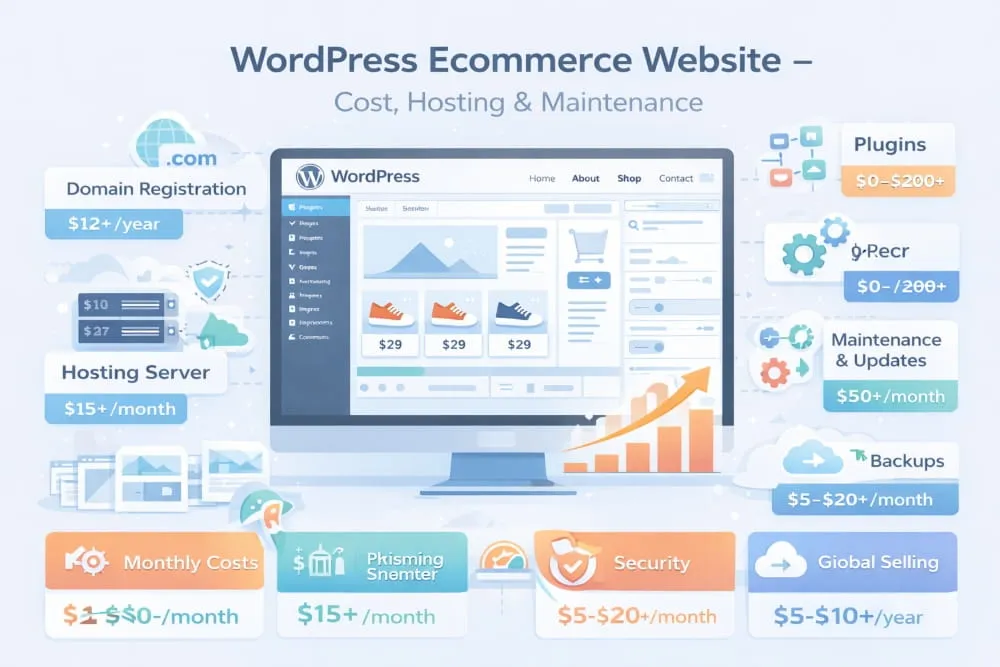
This section breaks down the real-world ownership plan: what impacts WordPress ecommerce website cost, what to prioritize when choosing WordPress ecommerce website hosting, and what ongoing maintenance actually looks like when you want a store that runs smoothly long-term.
WordPress Ecommerce Website Cost: What Drives Price (theme, plugins, dev complexity)
When people ask about WordPress ecommerce website cost or price, they’re usually expecting one number, but the truth is the cost depends on what you’re building and how customized it needs to be.
At the simplest level, you can launch with WordPress, a free theme, WooCommerce, and a basic set of plugins. That keeps costs low. But price rises as soon as you add complexity, custom layouts, unique product types, advanced shipping rules, subscriptions, memberships, multilingual setups, or marketplace features.
The biggest cost drivers are usually:
- Theme choice: Free vs premium and how much customization is needed
- Plugins: Whether you stick to essentials or add paid extensions for advanced functionality
- Development work: The more custom your design and checkout flow, the more time it takes to build and maintain
- Performance requirements: Faster stores often require better hosting and performance optimization
- Operations: Email deliverability, backups, security, and monitoring tools
A good way to think about it: WordPress ecommerce isn’t expensive by default; it becomes expensive when you turn it into a highly customized platform. If your goal is a clean, conversion-focused store, you can often launch efficiently and invest more only when revenue justifies it.
Best Hosting for an E-commerce WordPress Website: What to Prioritize
Hosting is not the place to cut corners. E-commerce sites are heavier than normal websites because they run dynamic pages, process orders, and handle customer data. If hosting is weak, everything suffers: page speed, checkout reliability, and even SEO.
When choosing the best hosting for an e-commerce WordPress website, prioritize performance and stability over flashy promises. You want hosting that keeps your store fast during real traffic, not just when you run a speed test once.
Look for hosting that delivers:
- Strong speed and uptime (stores lose money when they slow down or go offline)
- Modern server stack support (updated PHP, optimized databases, server-level caching)
- SSL and security features included
- Scalability so you can handle traffic spikes during promotions
- Reliable support that understands WordPress and WooCommerce
In simple terms: great hosting protects revenue. It improves user experience, reduces cart abandonment, and helps your store rank better, because speed and stability are not optional in e-commerce.
Ongoing Maintenance Checklist (updates, backups, security, performance)
Launching your store is step one. Keeping it healthy is what protects your business. WordPress ecommerce maintenance doesn’t need to be complicated, but it does need to be consistent, because updates and security issues don’t wait until it’s convenient.
A realistic maintenance routine focuses on four pillars: updates, backups, security, and performance.
Updates keep your WordPress core, theme, and plugins compatible and protected from vulnerabilities. Backups give you a safety net so a bad update or error doesn’t turn into a disaster. Security prevents common attacks and protects customer data. Performance maintenance ensures your store stays fast as you add products, content, and traffic.
You don’t need to obsess over it daily, but you do need a repeatable routine. The stores that last are the ones that treat maintenance like operations, not an afterthought.
The bottom line: the real cost of a WordPress ecommerce website isn’t just what you pay to build it, it’s what you invest to keep it fast, secure, and conversion-ready. If you plan for ownership from day one, WordPress becomes one of the most scalable and profitable e-commerce foundations you can build on.
Conclusion
Creating a WordPress e-commerce website isn’t just about launching an online store; it’s about building a digital asset you fully control. When set up correctly, WordPress combined with WooCommerce gives you flexibility, ownership, scalability, and powerful SEO capabilities that many closed platforms simply can’t match.
If you’ve followed this guide, you now understand how to make an e-commerce website with WordPress step by step, from choosing hosting and installing WooCommerce to selecting the right theme, configuring payments and shipping, optimizing design, and planning for long-term maintenance. You’ve also seen what affects cost, how to avoid plugin overload, and how to scale with advanced setups when your store begins to grow.
The key takeaway is simple: success doesn’t come from installing more tools; it comes from building cleanly. Choose lightweight themes. Install only essential plugins. Prioritize speed and user experience. Keep checkout simple. Maintain your site consistently. When those fundamentals are strong, your store becomes easier to manage, easier to rank, and easier to scale.
WordPress + WooCommerce is not the “easiest” ecommerce solution in the sense of being hands-off, but it is one of the most powerful. If you want long-term flexibility, full ownership, and the ability to grow without platform limits, it remains one of the smartest ecommerce foundations available.
Now the next step is yours: build carefully, optimize intentionally, and treat your store like the business engine it is.


